Shop signs and printing
Arrange multiple cards on an A4 sheet
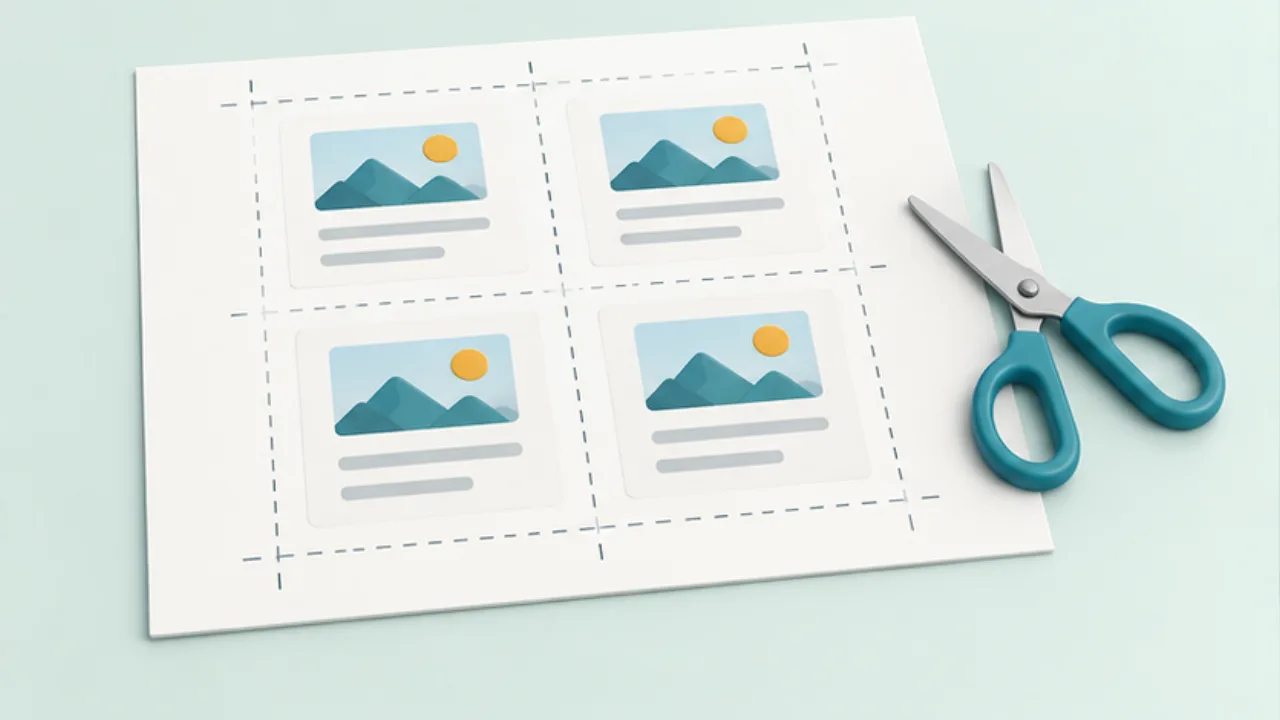
An A4 sheet can hold several small cards, but packing in more copies is not the first decision. Start with the finished card dimensions.
On this page
Measure the intended holder
Choose dimensions from the shelf or holder, then finish one card. Leave room for the printer's margins and cutting variation.
Choose an arrangement method
You can place several cards in the source document or print multiple document pages per sheet. Preview on Mac supports multi-page sheet layouts. Automatic layout may scale the cards, so measure the result when dimensions matter.
Make cutting guides distinct
Keep cutting marks separate from text and decorative borders. For double-sided work, also verify front-to-back alignment and orientation.
Cut a real proof
Cut the first sheet and put a card in its holder. Record whether any correction changed spacing or scale. Keep the approved output PDF separate from the editable source for the next print run.
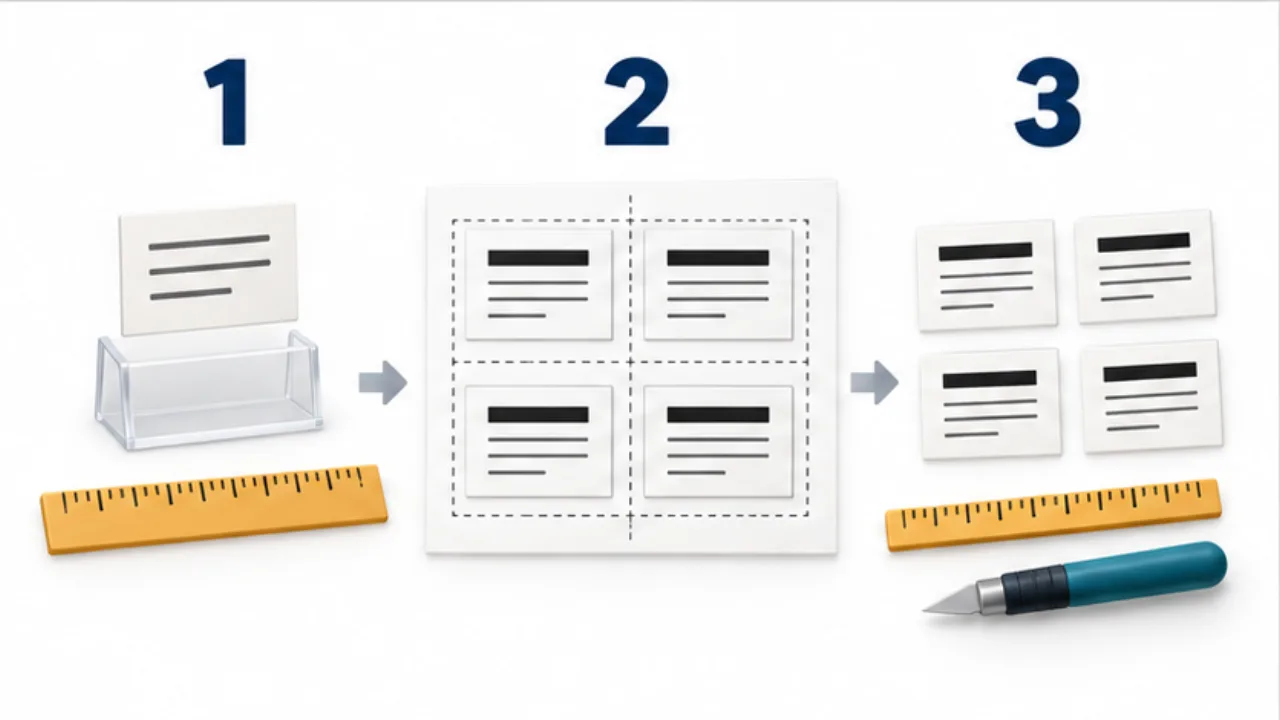
Select the image to enlarge.
- Check the finished card and holder dimensions.
- Arrange several cards with print margins and gaps.
- Mark cut positions and measure a cut proof.
Separate finished dimensions from sheet spacing
A finished card's dimensions do not describe all the space needed on the printed sheet. Include the outer paper margin, gaps between cards, and cutting guides. The trimmed object and the production layout serve different purposes.
A holder may also cover part of a card. Keep essential information far enough inward to remain visible after insertion. That is why finishing one card before multiplying it is useful: it establishes both fit and readable content.
Example: produce several copies of a shelf card
Suppose the same notice will appear on multiple shelves. Print and cut one card first, then place it in the actual holder. Once its size and visible content are suitable, arrange copies on A4.
Choose source-side layout or multiple-pages-per-sheet printing after checking how the method handles dimensions. Applying a multi-page print layout to a document that already contains several cards can unintentionally reduce them again.
Inspect the final preview for count and orientation. On the first sheet, cut cards near the edges as well as the center. This checks for placement-dependent clipping and missing guides.
Review before printing the batch
| Review target | What to inspect |
|---|---|
| Individual card | Content, finished dimensions, and holder visibility |
| Whole sheet | Count, orientation, and outer margins |
| Cutting | Clear guides and distance from essential text |
| Finished set | Correct contents and required number of cards |
For double-sided work, add a check that each front corresponds to the intended back. Paper flipping and feeding depend on the printing setup, so use a physical proof.
When recording the successful scale and arrangement, identify the source document too. Settings that worked for one card do not establish the finished dimensions of another design. Begin a new adaptation with the single-card fit check rather than assuming the previous sheet layout will remain correct.