Phones and computers
Transfer Android files over USB
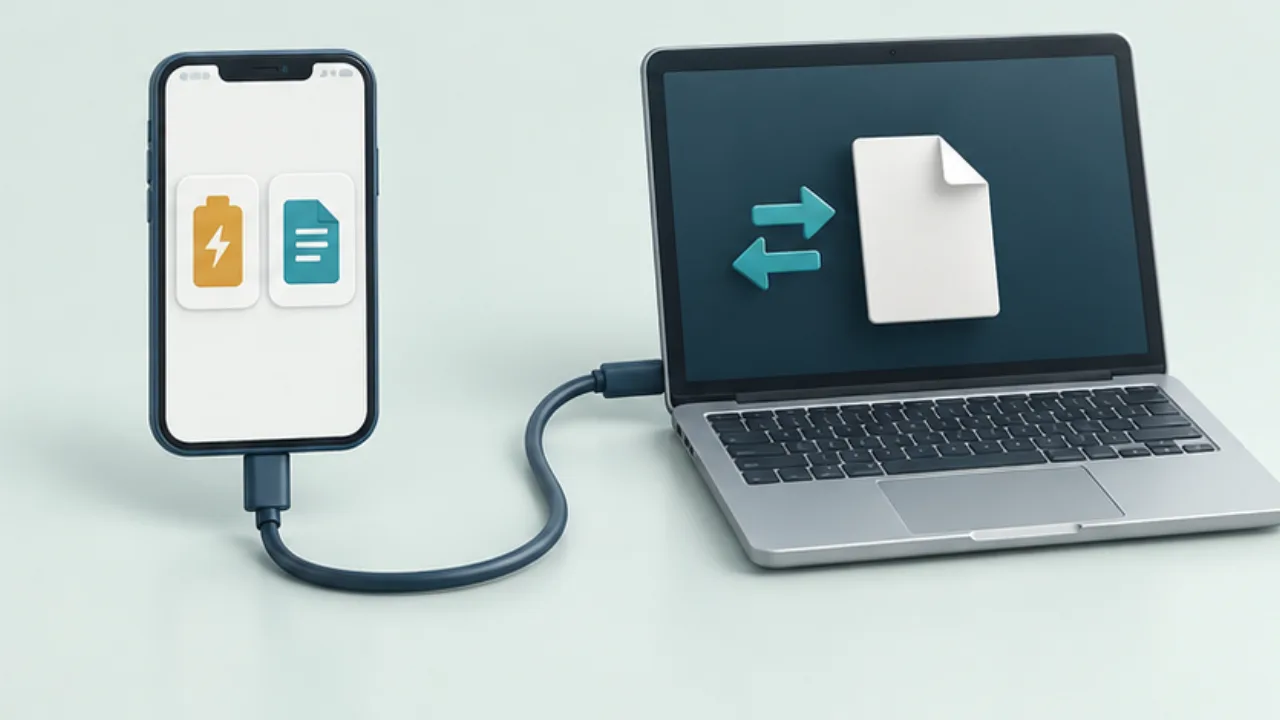
Charging over USB does not prove that file transfer is ready. Check the phone's connection mode, cable, and receiving computer separately.
On this page
Unlock and choose the purpose
On supported Android devices, unlock the screen and open the USB connection notification. Select file transfer when offered. Only enable this for a computer you intend to trust.
Check cable and port
A cable can support charging without supporting file transfer. Try a known data-capable cable and another port. If a hub is involved, test a simpler connection to identify the failing part.
Check computer support
Google documents workflows for Windows and Chromebook. Do not assume the same file browser appears automatically on a Mac; verify the supported software for that environment.
Copy and inspect
Transfer a harmless sample and open it on the computer. After completing the real transfer, disconnect using the operating system's guidance. Keep the phone's original until the destination copy has been verified.
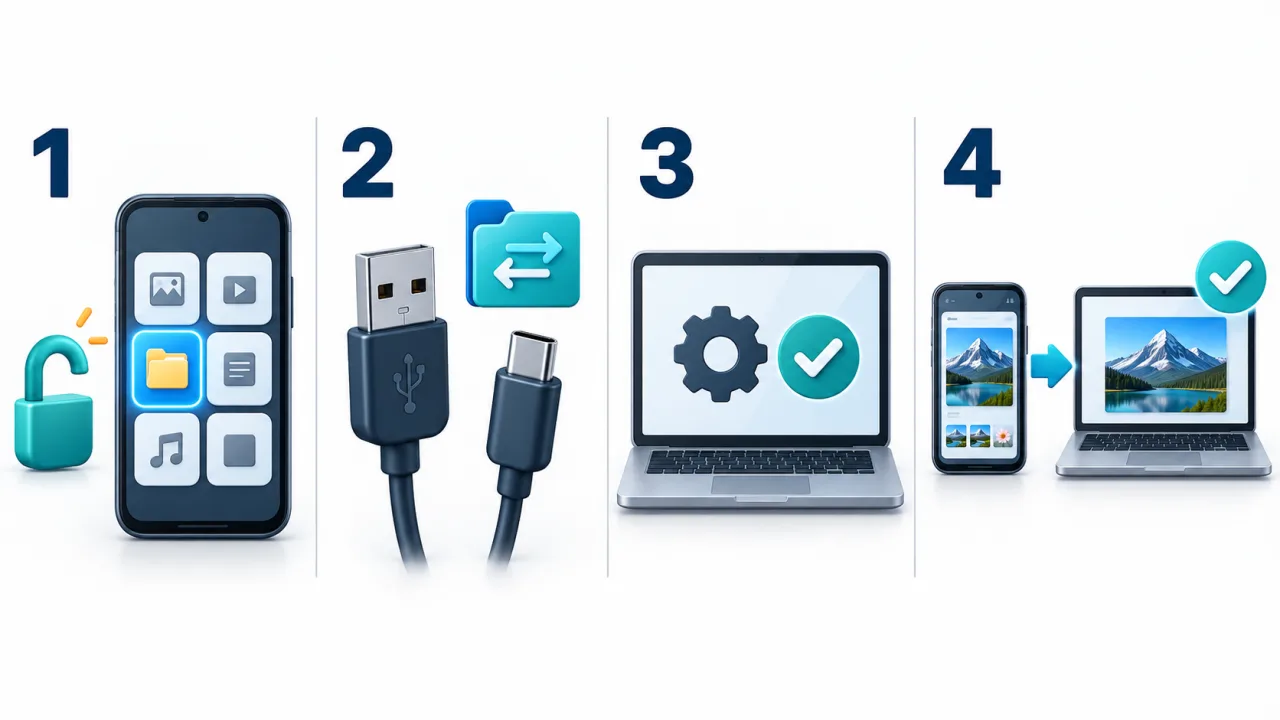
Select the image to enlarge.
- Phone mode: Unlock the phone and select file transfer for the USB connection.
- Cable: Check that the cable and port support data transfer.
- Computer support: Confirm the transfer method works with the receiving environment.
- After copying: Open the file on the computer and retain the phone’s original until verified.
Understand what charging establishes
A charging indicator is evidence that power is reaching the phone. It does not establish that every condition for file access is satisfied. Cable capability, the phone's selected USB purpose, and computer support are separate parts of the route.
Start with the phone's screen and USB notification. Check whether file transfer can be selected, then observe the computer's response. Labels vary, so focus on the meaning of the setting—what the connection is for—rather than expecting one exact phrase.
Example: save phone photographs on a computer
Suppose you want to keep selected phone photographs on a PC. Unlock the phone, choose the supported transfer mode, and copy a small harmless sample first. Open it from the destination folder before moving on to the real selection.
Seeing the phone's files in a browser is not the same as storing those files on the computer. Choose the desired photographs and carry out the copy explicitly.
Afterward, compare the expected count and inspect representative images. A photo application's album arrangement and a file browser's ordering need not identify the same visual positions. Select by the intended content rather than assuming the first visible items are the desired set.
Retain the phone's originals while reviewing the result. Decide their later handling only after establishing what actually arrived.
Change one part of the route at a time
| Change | Question it helps investigate |
|---|---|
| Select file transfer | Is the connection mode responsible? |
| Use a known data-capable cable | Does the cable make a difference? |
| Try another port or direct connection | Is the port or hub route involved? |
| Test a supported receiving computer | Does the receiving environment differ? |
Record comparisons such as “same cable, different port.” Changing everything at once leaves little guidance if the problem returns.
Before installing unfamiliar transfer software in succession, check current official support and identify the stage that stops. A clear diagnosis can avoid software changes that do not address the actual connection problem.