Phones and computers
Diagnose devices that cannot find each other on Wi-Fi
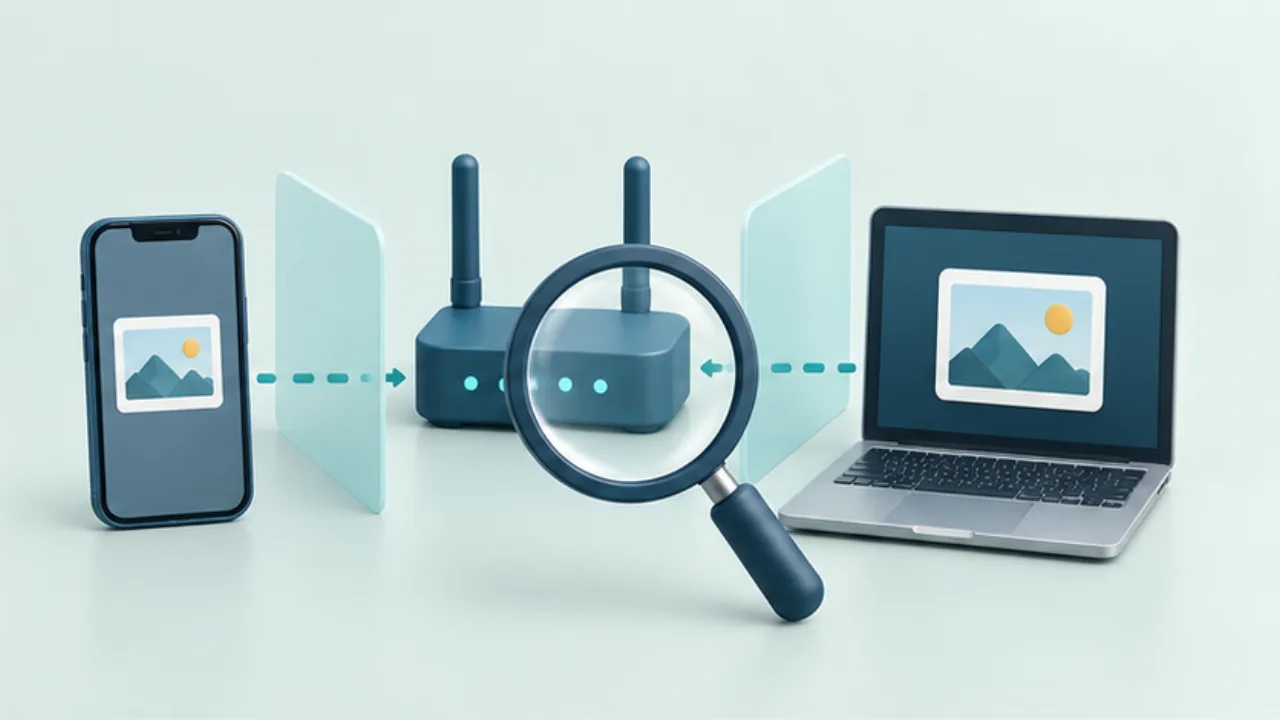
Two devices can both reach the internet while being unable to discover or contact each other. Record whether the failure occurs during discovery, connection, or transfer.
On this page
Check network and visibility
Confirm that neither device is on an isolated guest connection or another network. Inspect the receiving app's visibility and whether the sender belongs to the allowed audience.
Check required capabilities
Compare Bluetooth and local-network permissions with the application's documentation. Working web browsing does not prove that the app's discovery mechanism is permitted.
Isolate the network variable
Managed networks may restrict device-to-device communication. If authorized, repeat the test on a network you control to distinguish device settings from network policy. Do not alter organizational restrictions without permission.
Change one item at a time
Record the effect of restarting the app, adjusting visibility, or using another supported route. Avoid disabling the entire firewall as a first step. For urgent work, a verified USB transfer may be a more practical fallback.
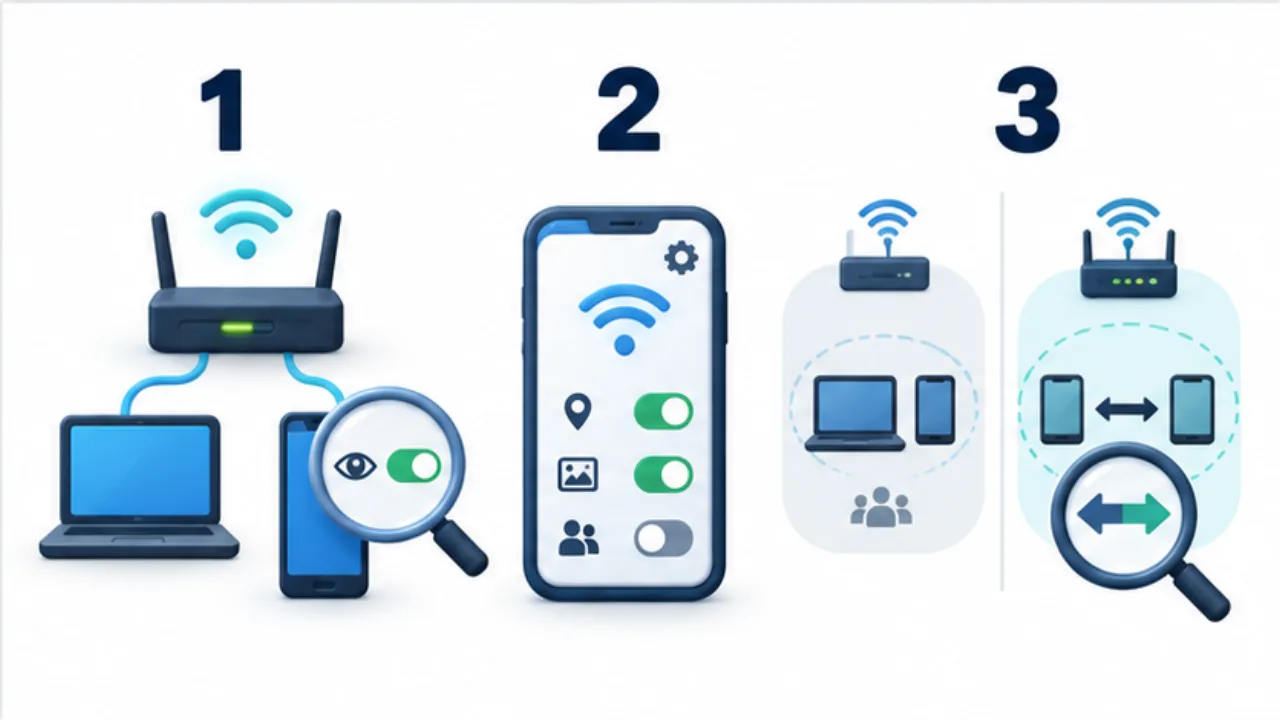
Select the image to enlarge.
- Verify the connected network and the app’s receiving state.
- Check required Bluetooth and local-network permissions.
- Compare in an environment you control to isolate network restrictions.
Separate internet access from peer communication
If both devices can browse the web, you have checked their routes to the internet. You have not necessarily checked the sharing application's route between the devices. Think of being able to leave a building as different from being able to enter the next room.
Discovery and transfer also represent different stages. Record whether the other device never appears, appears but fails when selected, or begins a transfer that later stalls. That distinction narrows the investigation more usefully than saying only that Wi-Fi sharing is broken.
Example: sharing works at home but fails while traveling
Suppose the same pair works at home but does not discover each other at a hotel. First make application readiness and receiving visibility comparable. Check that each device joined the intended network.
If the failure remains specific to that location, investigate network conditions instead of immediately concluding that a device is defective. The useful comparison is the same devices and application under different network conditions.
For an urgent handoff, separate solving today's delivery from diagnosing the network. A supported USB route that you can verify may complete the task. You can then provide the network administrator with the conditions under which discovery succeeds or fails.
Keep a useful troubleshooting record
| Item | Example of useful information |
|---|---|
| Participants | Sending and receiving devices and applications |
| Failure stage | Not listed, fails after selection, or stops during transfer |
| Comparison | Same pair succeeds on another permitted network |
| Changes tested | Receiving-state check or application restart |
Do not include a network password or unrelated personal data in this record. Reproduction conditions are the useful evidence.
Finally, review any temporary setting changes and restore the intended everyday visibility. Connection success is only part of finishing the investigation; knowing which settings remain changed helps make the next use predictable. If another person continues troubleshooting, this record gives them a starting point without requiring the same experiments again.