Phones and computers
Send a web page from your phone to a computer

A URL usually lets the other device continue interacting with a page more effectively than a screenshot. It does not necessarily carry login state or unfinished form input.
On this page
Inspect the link
Check the page title and domain. Some URLs contain private sharing values or access tokens, so review the intended audience before distributing them widely.
Use a QR code nearby
Chrome offers page-sharing and QR options. A QR code transfers a link; it does not grant access to a restricted page.
Send to your own device
Browser device-sharing features can depend on account and device settings. If a notification is missing, check the intended browser profile and signed-in account.
Verify the destination
Confirm that the correct page opens. Search filters and temporary state may not survive the handoff. Add a short note naming the relevant section when sharing with another person, and bookmark the received page if you need to keep it.
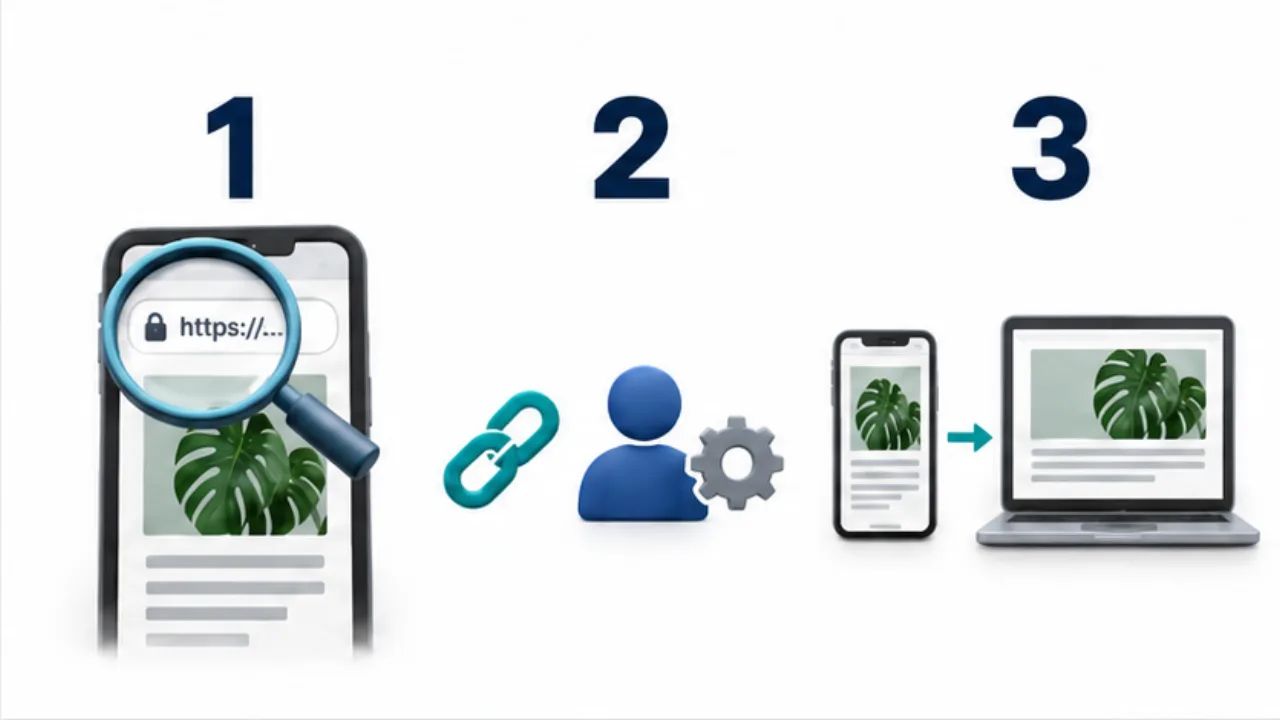
Select the image to enlarge.
- Verify the intended page name and domain.
- Check the sharing method and recipient’s access conditions.
- Test whether the same page opens on the receiving device.
Send an address or preserve a view
A URL helps another device continue using a page: reading further, following links, or downloading material. A screenshot records an appearance. Choose according to whether the task is to open the same location or communicate what was visible at a particular moment.
Sometimes both are useful. For a display problem, the address alone may not reproduce the same view in someone else's environment. Add a short explanation of what appeared and what needs inspection.
Example: keep a page for later reading
Suppose you find a useful explanation on your phone and want to study it later on a computer. Send the page title and a brief purpose, such as “continue from the setup section,” with the link.
On the receiving device, open it and verify the expected content. Then save it in the working note or bookmark collection where you will look for it. A notification can be an effective handoff but an inconvenient long-term filing system.
For a restricted resource, check the receiving browser's account. A login screen does not by itself show that the link is broken. Equally, sending a link does not automatically grant a new reader access. Verify access and navigation to the relevant material separately.
Interpret an unexpected destination
| What appears | What to check |
|---|---|
| Login page | Account and viewing permission |
| Same page with different conditions | Whether filters or selections are represented in the URL |
| Missing page | Copied address and the source page's current availability |
| Top of a long page | The intended heading or a suitable section link |
If search conditions matter, record them in words rather than relying entirely on the URL. Review the audience of that explanation too when the conditions contain private information.
Finish by placing useful links in a durable location. The handoff is most valuable when it preserves enough context to resume the intended work, not merely when the address arrives on another screen.