Phones and computers
Move short text between a Mac and Android
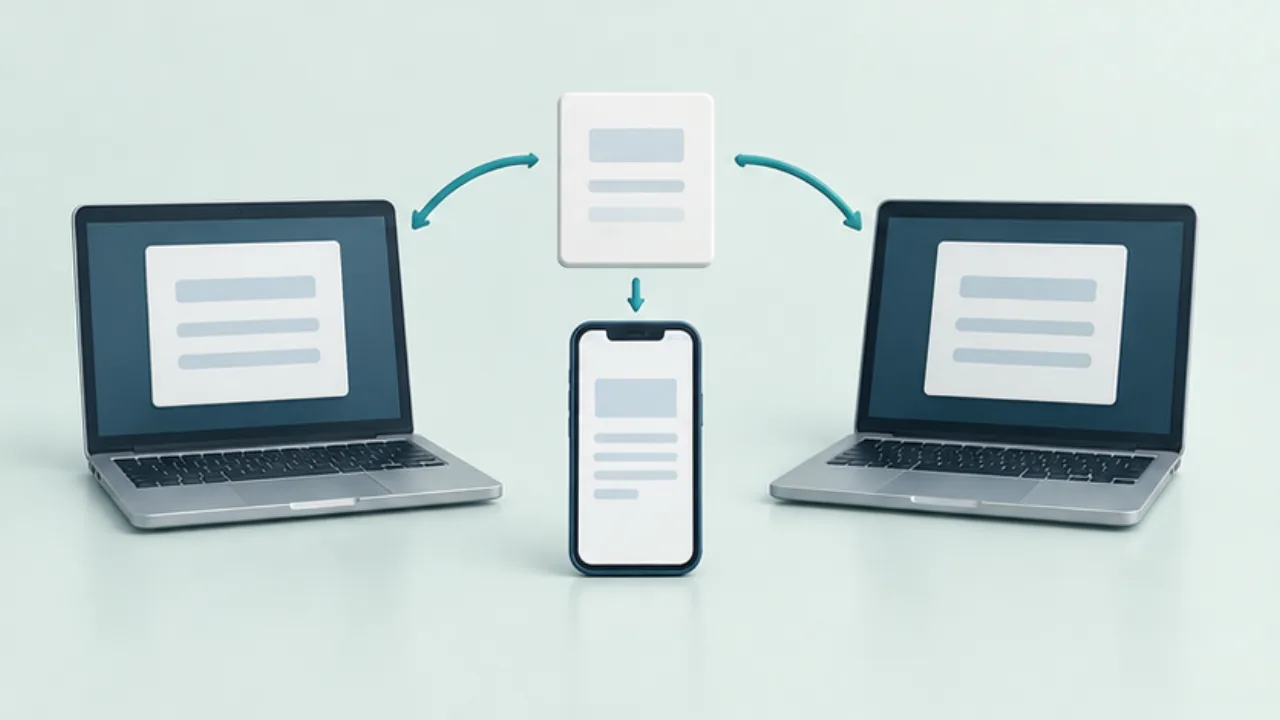
Choose a route that explicitly supports both a Mac and Android. A feature for Apple devices does not automatically extend to an Android phone.
On this page
Define the content
A URL, plain paragraph, formatted document, and attachment need different handling. Prefer a text handoff for short text and document sharing when formatting or files matter. Treat credentials separately from ordinary notes.
Check platform support
Apple's Universal Clipboard works between supported Apple devices. For Mac and Android, use a compatible application or a shared destination available on both platforms. Check account and network requirements.
Test a harmless sample
Verify line breaks, Japanese text, and links before transferring private work. For automatic clipboard sync, inspect which devices receive data, how to pause it, and whether history is stored.
Save the useful result
Move the received text into the note or document where it belongs. A later copy can replace clipboard contents. Review old device registrations and stop unused connections rather than leaving them active indefinitely.

Select the image to enlarge.
- Decide whether you need to send plain text, a URL, or formatted content.
- Choose a method supporting the Mac and Android combination.
- Test non-sensitive text, including line breaks and links.
Choose a consistent handoff destination
Sending text to a different application every time creates another search task. Choose one place to receive short text, then move it into its final document. This separates temporary transport from long-term storage.
Check more than whether a service accepts text from the Mac. On Android, can you select the relevant passage and use it in the intended application? Also distinguish automatic clipboard linking from manually sending selected text. Consider frequency, receiving devices, and retained history before deciding that continuous linking is necessary.
Example: use a computer-written reply on a phone
Suppose you draft a reply on the Mac and intend to use it in an Android messaging application. Select the required passage, including any greeting or signature that belongs with it. After receipt, compare paragraph breaks, list items, and URLs with the source.
Paste it into the destination input field and inspect it again there. A correct-looking intermediate copy does not establish that the final application will preserve the same appearance.
In this example, retain a deliberate review of the recipient and text before sending the message. Check that you did not choose an older handoff entry. If the passage is a reusable response, save a named version in its proper storage location instead of leaving the only useful copy in a temporary transfer history.
Locate the stage where text changed
| Comparison | What it can reveal |
|---|---|
| Mac source against selected content | Missing or unwanted parts |
| Sent text against received text | Changed characters, breaks, or links |
| Received text against final input | Paste formatting or extra spacing |
| Final input against the intended recipient | Wrong passage or audience |
Even a short passage can have several copies along its route. If something changes, compare adjacent stages to locate the problem instead of repeatedly restarting the whole process.
When retiring a connection, preserve reusable material first and then review stored history and device registrations. That keeps a transport cleanup from inadvertently becoming a loss of working notes.