Phones and computers
Why Bluetooth pairing may not enable file transfer
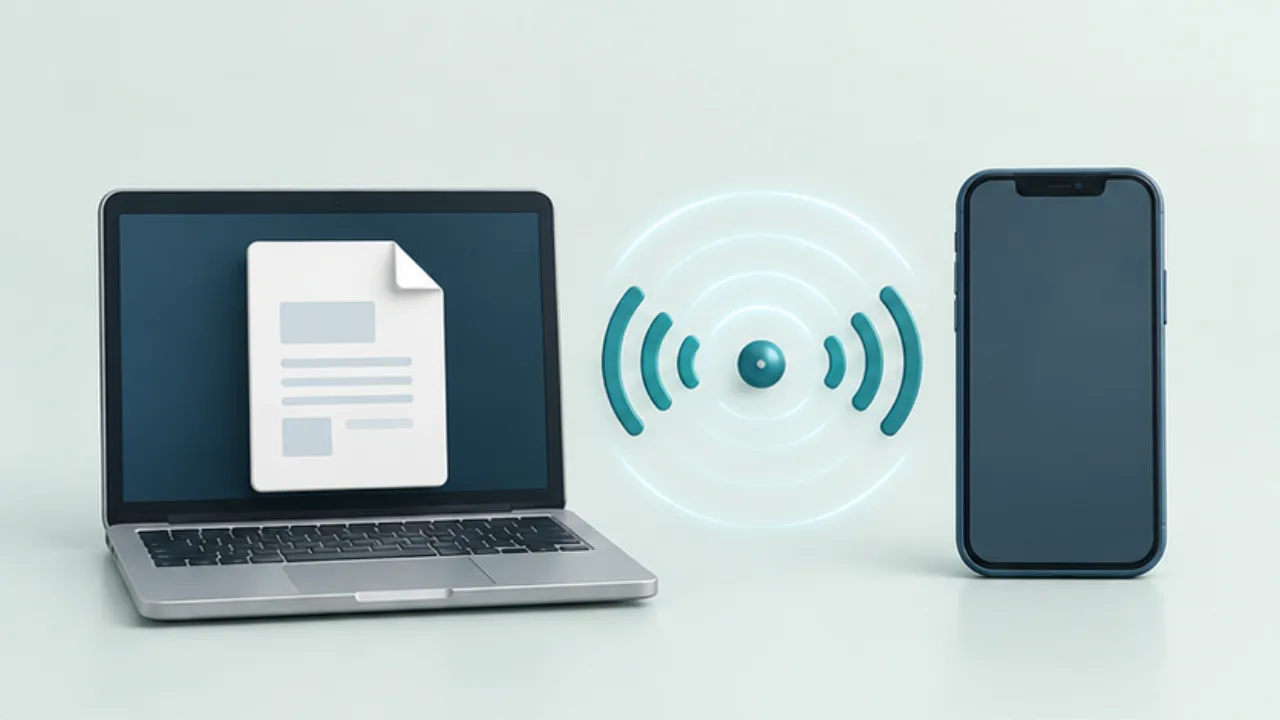
A working Bluetooth headset or successful pairing does not prove that two devices can exchange files. File transfer requires compatible functionality at both ends.
On this page
Separate connection from capability
Bluetooth supports different uses, including audio and input devices. A sharing app may also use Bluetooth for discovery while relying on another transport for the file itself.
Check the device combination
If using Windows Bluetooth file transfer, verify that the other device supports the required transfer method. Look for official sending and receiving instructions for that device rather than assuming compatibility from its operating system name.
Prepare the receiver
A compatible device may still need to enter a file-receiving mode. Check its receiving screen, distance, and battery state, then try a small, non-sensitive sample.
Record the working procedure
Note the receiving folder and the order of operations once the transfer succeeds. If it fails, revisit feature compatibility before repeatedly deleting and recreating the pairing. A supported USB or sharing-service workflow may be more suitable.
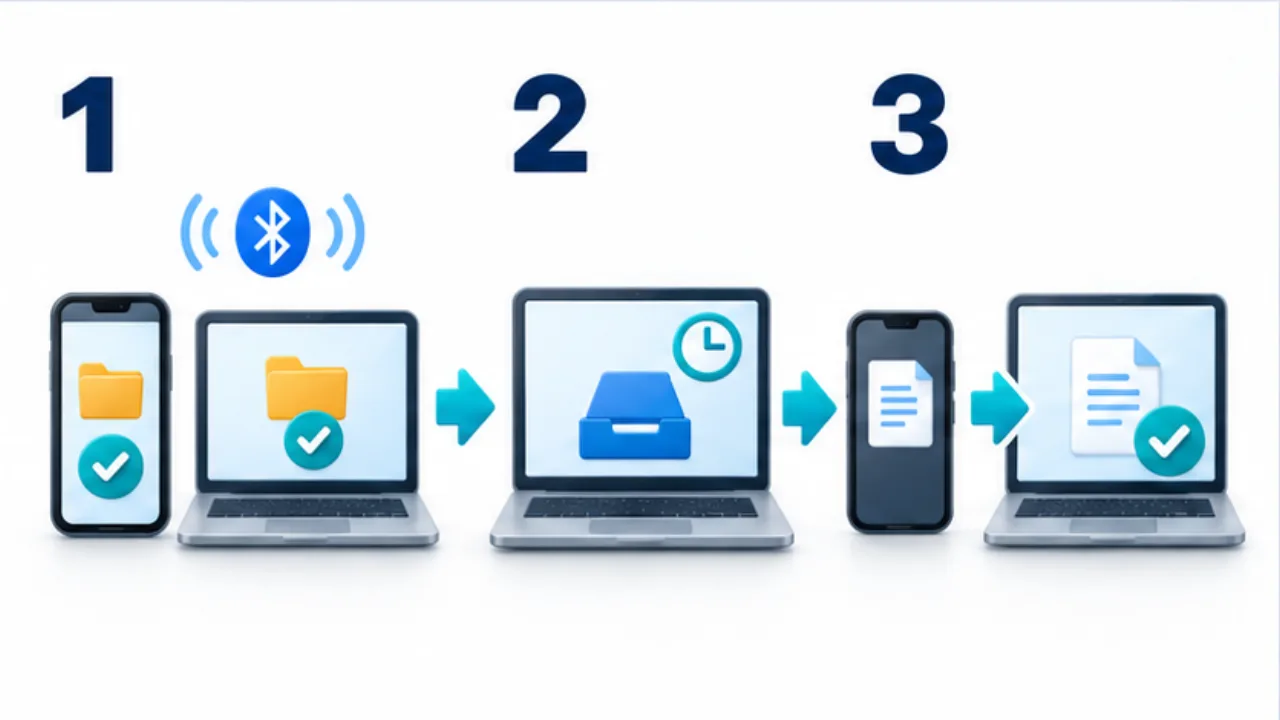
Select the image to enlarge.
- Confirm that both devices support the intended transfer method.
- Put the receiving device into its file-receive waiting state when required.
- Send a small harmless file and open it on the receiving device.
Check the function after pairing
Pairing is part of preparing a relationship between devices. To establish file-transfer support, inspect the sending and receiving functions available for that particular pair. Audio playback or a working input device does not demonstrate document transfer.
If you are using a nearby-sharing application, follow that application's connection requirements. The Bluetooth settings screen alone may not describe everything it needs. Identify whether the workflow uses the operating system's Bluetooth file-transfer feature or another sharing service before troubleshooting.
Example: deliver a small PDF once
Suppose both devices are documented to support the intended transfer. Review the receiving procedure before selecting the file on the sender, and prepare any required receiving screen.
Try a small harmless PDF. Observe both screens and follow the sequence from request through receipt to saving. After success, open the saved PDF and inspect its contents.
If it fails, distinguish a missing device from a transfer that cannot start or a file that cannot be saved. Investigate the requirements of the stage that stopped before repeatedly deleting the pairing. If support for the device combination cannot be established, choose another supported route suited to the task.
Record enough to reproduce the workflow
| Record | Why it helps |
|---|---|
| Device pair and feature used | Avoids confusing different combinations |
| Receiver's preparatory action | Reproduces the necessary waiting state |
| Sender's selected route | Distinguishes system transfer from a sharing app |
| Receiving folder | Prevents searching again after completion |
“Bluetooth worked” is less useful than a short sequence describing the actual actions. If a future update changes the interface, knowing each action's purpose helps you compare the workflow with the new official instructions.
The end goal is usable delivery of the intended file. Keeping that goal visible makes it easier to stop pursuing an unsuitable connection method and use a verified alternative when the device combination calls for one.