Phones and computers
Check device connections after replacing a phone or computer
Signing in on a replacement device does not prove that every previous workflow has returned. Test actual exchanges before retiring the old device.
On this page
List the workflows you use
Write tasks such as “copy phone photos to the computer” or “open a computer's web link on the phone.” These describe success more clearly than a list of installed apps. Keep work and personal accounts distinct.
Transfer representative samples
Try the file types you normally use, open the destination folder, and test the reverse direction where needed. For synchronized storage, check offline availability separately from the item appearing in a list.
Review permissions and notifications
Inspect sharing visibility, photo access, notifications, and synchronized folders. Restore any permissions temporarily widened during migration. Do not assume an identically named folder contains the same data.
Retire the old connection last
Verify required files and authentication methods on the new setup before removing old connections. Treat resetting or erasing the old device as a separate task governed by its official migration guidance and your backup checks.
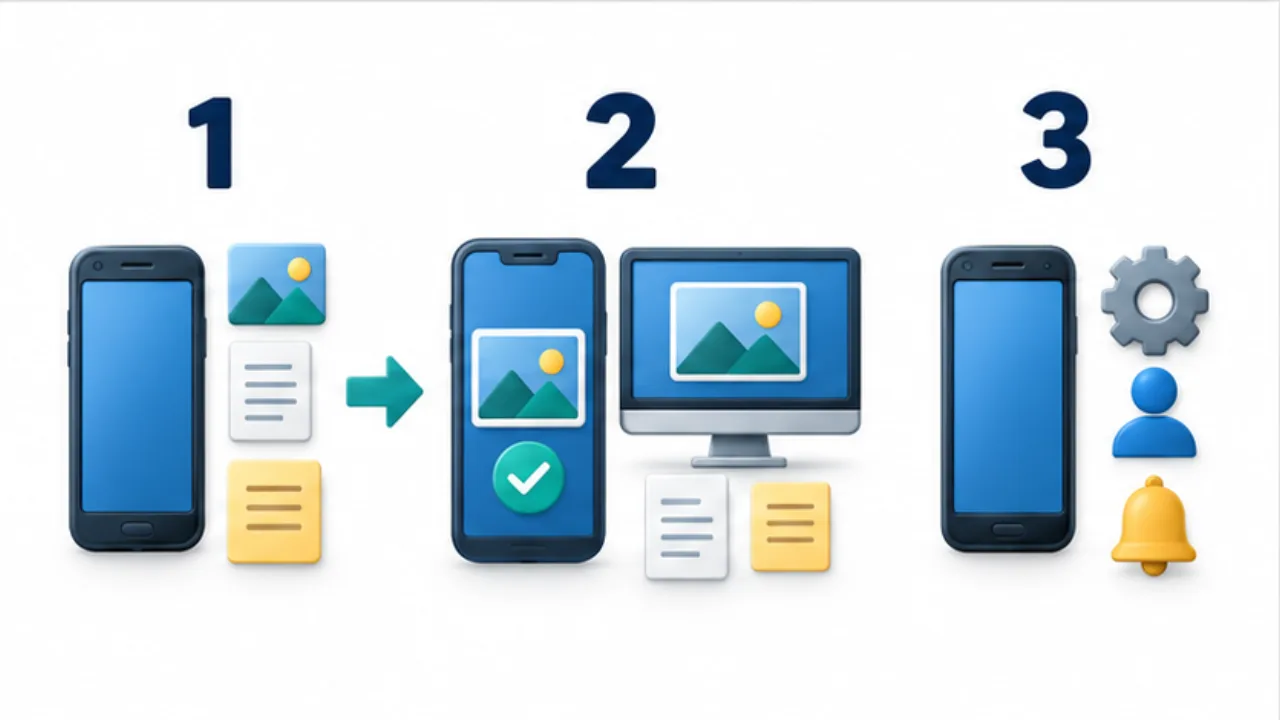
Select the image to enlarge.
- Choose representative tasks and file types.
- Transfer them to the new device and open the saved copies.
- Review visibility, notifications, and sync destinations.
Replace the app inventory with a workflow inventory
“Installed” and “signed in” can miss the small exchanges that make daily work function. List actions such as moving a photograph, opening a shared document from a notification, or sending a link. Include the source device, destination, and material involved.
Start with frequent tasks to uncover immediate disruption. Also review occasional workflows that might depend on the old device for setup. The completion criterion is whether required work functions in the new environment, not how many accounts appear in settings.
Example: replace only the phone
Suppose the computer stays and the phone changes. Send one sample photograph from the new phone to the computer, then send a computer URL back. Verify the photo's destination and the browser account opening the link.
If the old phone still appears among sharing destinations, do not select by a familiar name without checking which physical device it represents.
Next, open normally used folders and documents on the replacement phone. Test offline material separately under the expected conditions. If notifications are part of the workflow, verify both receipt and navigation to the intended document. These checks move beyond installation status toward actual use.
Leave untested items visibly untested
| Workflow | Useful recorded state |
|---|---|
| Photo exchange | Destination verified, or still untested |
| Links and short text | Receipt and final use verified |
| Shared-document access | Checked with the intended account |
| Offline use | Checked under the intended conditions |
| Old-device retirement | Separate task after migration requirements are satisfied |
Distinguish not-yet-tested from failed as well as from successful. This makes the remaining work visible before the old device becomes unavailable.
Record temporary changes to visibility or notifications and return them to suitable everyday settings after testing. Resetting or retiring the previous device remains a separate operation with its own official steps and retention checks. A completed workflow checklist provides evidence for that later decision without performing it prematurely.