Phones and computers
Find a file after downloading it

A completed download does not necessarily appear in the photo library. Start with the app that obtained the file before downloading it again.
On this page
Return to the originating app
For a browser download, open that browser's download list. Chrome provides a Downloads view in its menu. For an attachment or sharing app, first check whether you actually saved the item rather than only previewing it.
Identify the real filename
A page title may differ from the downloaded filename. Use the name, extension, and download time shown in the app. Open the candidate file before renaming it.
Inspect the storage location
Check the phone's file manager or the computer's download folder. An item listed in cloud storage is not necessarily available locally. If offline access matters, check its download status within that service.
Move it to a deliberate home
Choose a folder based on the next task, such as a project folder for a working PDF. Compare any repeated downloads before removing duplicates, since similarly named files may contain different versions.
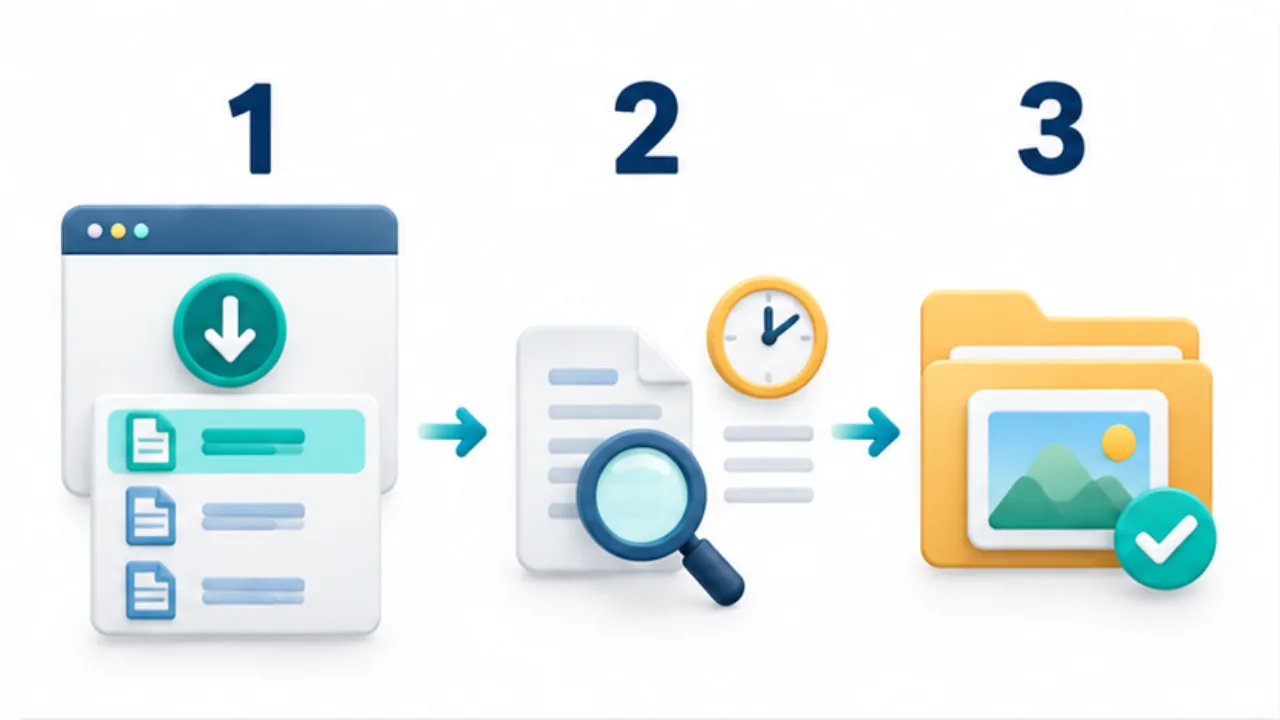
Select the image to enlarge.
- Check completion in the app used to download it.
- Use the recorded filename, extension, and download time as clues.
- Open the saved file from its folder and verify the content.
Opening and saving are different actions
Displaying a file in a browser or mail application does not necessarily save it in the location you expect. Separate an in-app preview, a file stored on the device, and an item listed in cloud storage.
Before searching widely, identify the application and action you used. For an image, do not limit the search to the photo library if the originating app saved it elsewhere. A page heading may also differ from the actual download name, so searching for that heading can miss the file.
Example: locate a downloaded application form
Suppose you opened an application PDF in a browser but cannot find it in the file manager. Return to the browser's download list and check whether the item is present and complete.
If you only viewed the document, carry out the supported save operation. If it was downloaded, follow the available information to its destination.
Open the candidate and verify the organization and form. Then move it into the project folder and rename it meaningfully if appropriate. If several similarly named downloads exist, compare their contents before discarding a copy. The website may have changed the form between downloads.
Broaden the search gradually
| Stage | Where to look |
|---|---|
| First | Originating app's history and save status |
| Next | Filename and destination reported there |
| Then | File-manager search using the actual name |
| Once found | Review content and organize for the next task |
Repeated downloading adds candidates while you are still trying to identify the first one. Follow one acquisition through its stages and locate the point where its whereabouts became unclear.
If offline use matters, verify that the discovered item actually opens from the device under those conditions. Pairing the location with its intended use makes the next step easier: a working form in a project folder is more useful than another copy left somewhere in a download history.