Phones and computers
Use a phone hotspot for a temporary computer connection
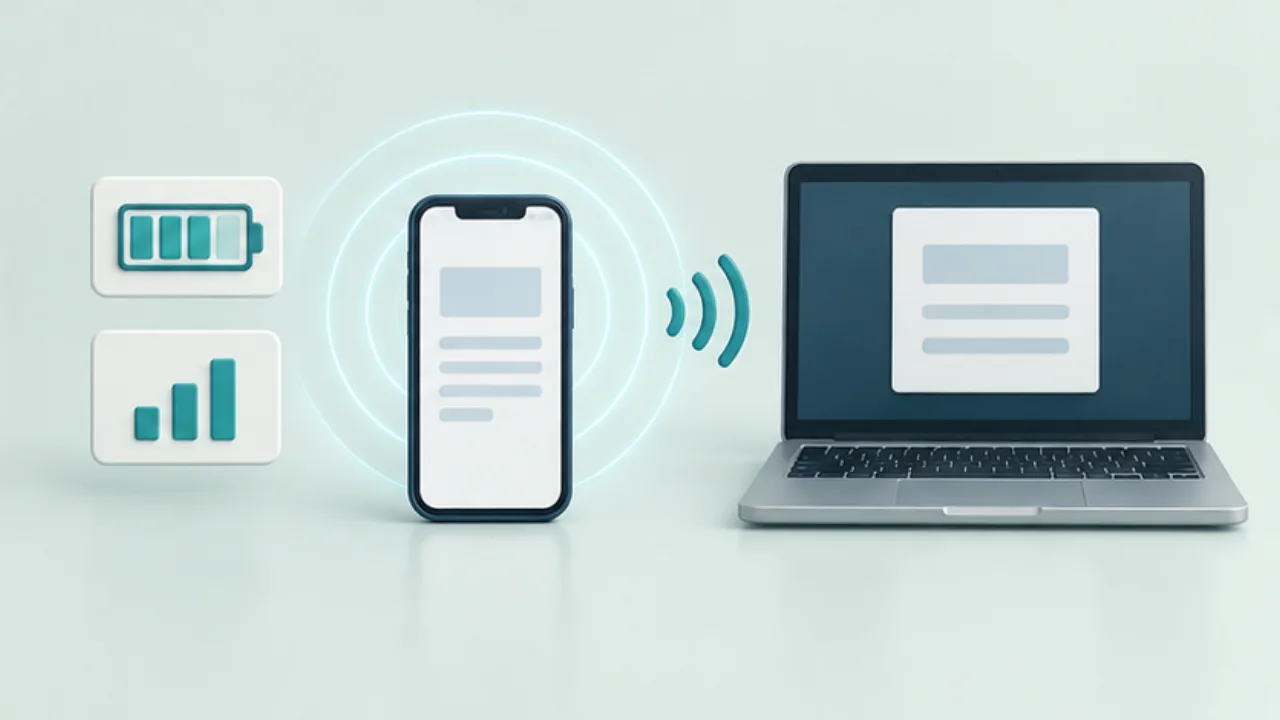
A phone hotspot can provide a temporary internet connection for a computer. Check the connection conditions, background traffic, and shutdown steps as part of the same task.
On this page
Check the supported method
Android documentation covers Wi-Fi, Bluetooth, and USB tethering, but availability depends on the device and carrier. Confirm your plan's conditions and the computer's support for the method you choose.
Verify the network identity
Read the hotspot name and password on the phone. Select that exact network on the computer, then open a page to check whether internet access works.
Inspect background transfers
Photo synchronization, system updates, and large downloads may use the connection even when you only intended to read email. Temporarily pause unrelated transfers where appropriate, and note any settings that need restoring afterward.
End the temporary connection
Disconnect the computer and switch off the hotspot if it is no longer needed. Check battery and data usage, restore paused work, and decide whether automatic reconnection suits your next visit.
Select the image to enlarge.
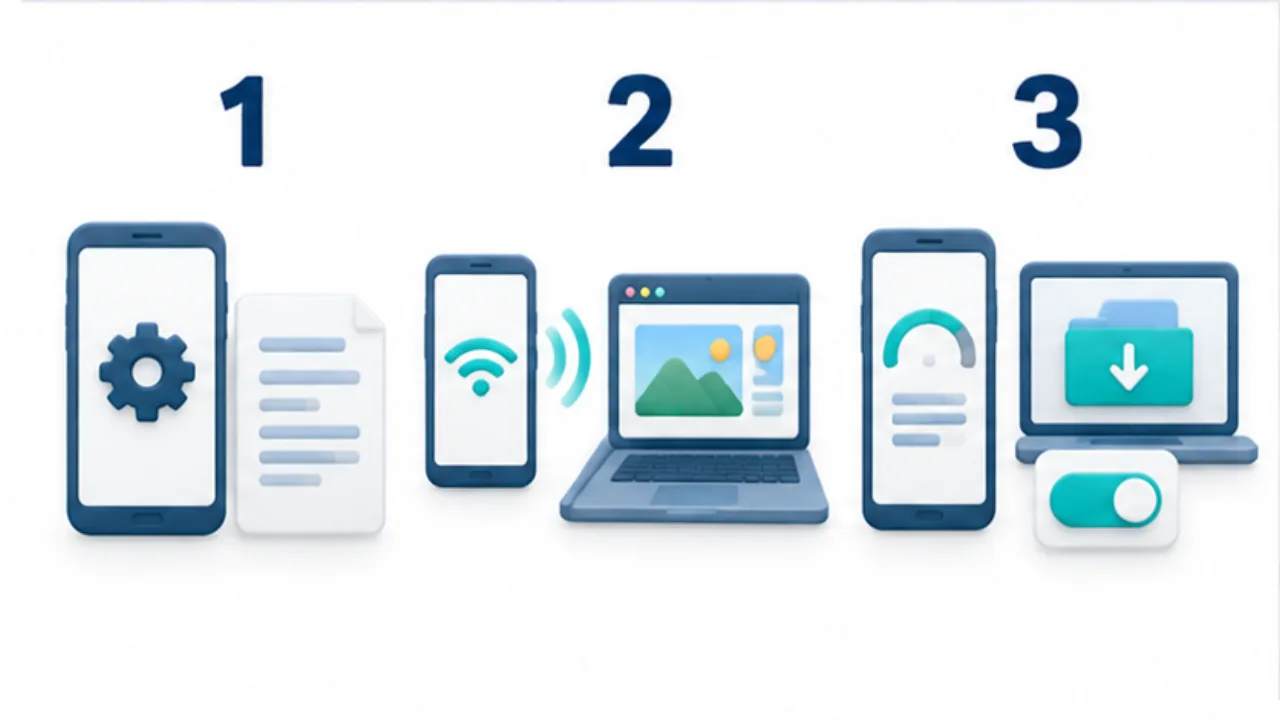
- Confirm the methods supported by the device and plan.
- Select the intended network and test connectivity from the computer.
- Review unnecessary large transfers and settings after use.
Define the temporary task before connecting
State the purpose: checking messages, retrieving a document, or joining a meeting. Separate traffic needed for that work from background transfers that happen to be waiting on the computer.
If the task requires estimating usage, consult the relevant service and mobile-plan conditions. Also consider phone battery and access to charging for the intended duration. Available power does not resolve data-plan limits; those are separate constraints.
Example: send one completed document while away
Suppose you need to send a finished computer document through the phone's connection. Prepare the delivery version before connecting and inspect unrelated large transfers on the computer.
Select the network shown in the phone's settings and verify internet access. Carry out the delivery and inspect the sending service's result before ending the connection.
If connectivity drops, check whether the upload or send already completed before repeating the operation. Confirming receipt, when required, is another step. Record any synchronization or update settings temporarily paused for this task and restore them afterward.
Diagnose connection in stages
| State | Area to inspect |
|---|---|
| Computer cannot see the hotspot | Phone hotspot state and supported connection method |
| Computer joins the network | Whether the local connection requirements were satisfied |
| Connected but unable to browse | Phone connectivity and plan or method conditions |
| Browsing works but the task fails | The particular service and its requirements |
A Wi-Fi connection indicator does not describe the entire route to your intended service. Check the phone's own connectivity, then browsing from the computer, then the actual operation.
When finished, return changed settings to their intended state. Review automatic reconnection if you do not want the computer joining this hotspot unexpectedly later. Treat preparation, the required online work, and restoration as one temporary workflow, rather than leaving the connection active simply because the document has been sent.