Phones and computers
When a USB-C connection charges but does not transfer files
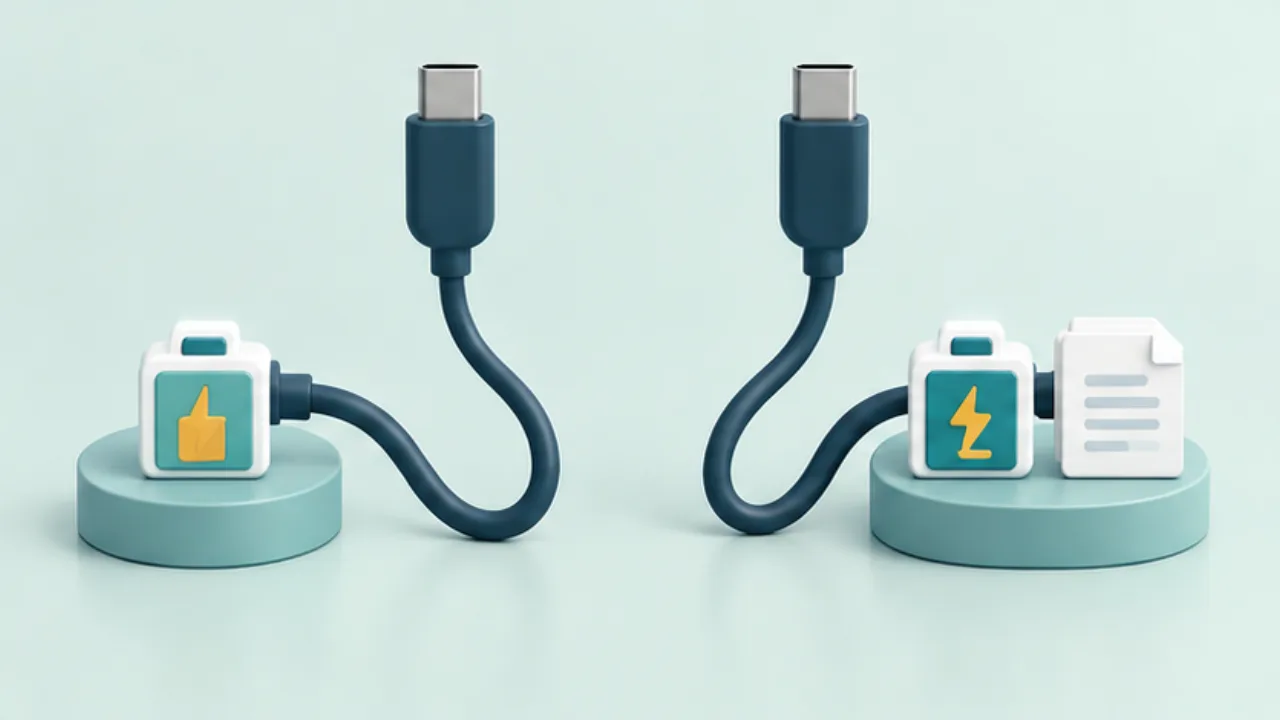
USB-C describes a connector, not a promise that every connected cable and port supports the same functions. Diagnose the cable and device settings separately when charging works but file transfer does not.
On this page
Define the intended connection
Copying phone photos, connecting a storage drive, and sending video to a display require different capabilities. Successful charging alone does not verify any of those data functions.
Read the specifications
Find the cable's supported data rate and power rating. For a faster connection, the computer port, peripheral, and any hub also need suitable support. Do not infer performance from connector shape alone.
Try a known working path
Use a cable that previously transferred files and connect directly without a hub. On Android, unlock the phone and inspect the USB file-transfer setting. Change one part at a time so the result identifies a useful difference.
Label the confirmed use
A simple label such as “phone transfer” can prevent repeated guesswork. Do not keep testing with a damaged cable or connector; follow the product's handling guidance.
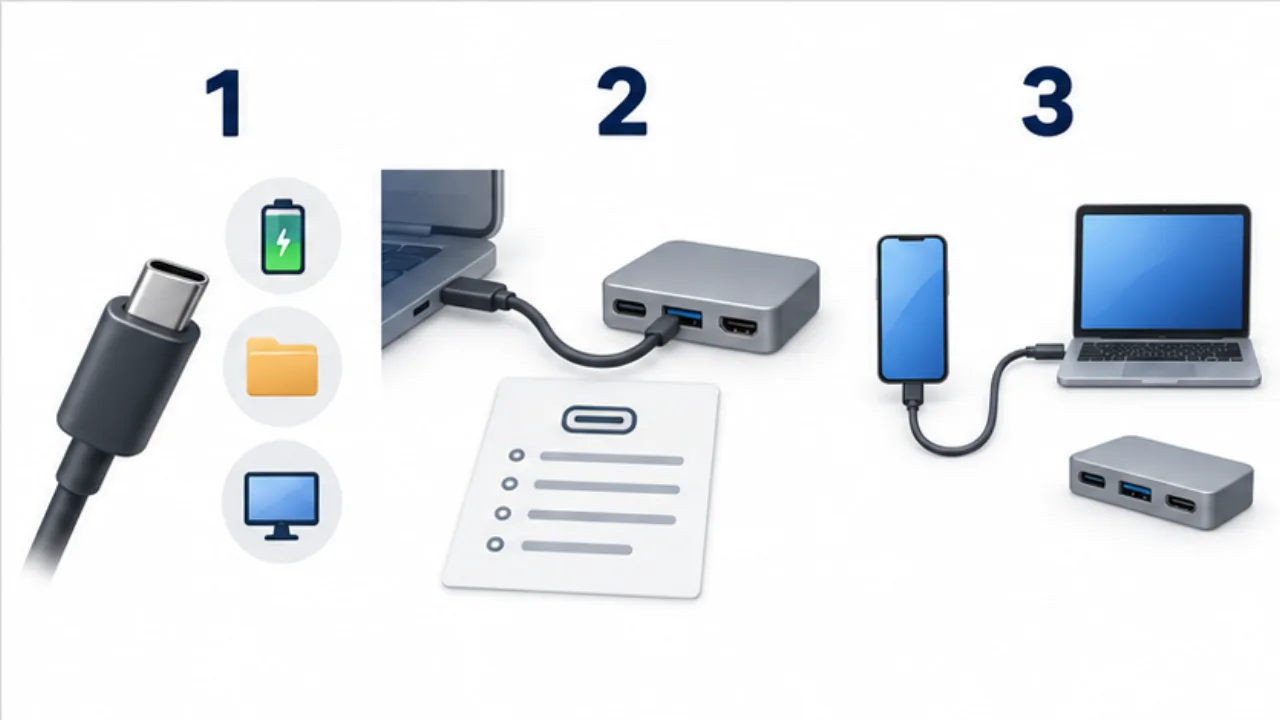
Select the image to enlarge.
- Decide whether you need charging, data transfer, or video output.
- Check support across the cable, ports, devices, and hubs.
- Isolate the problem with a known-capable cable or direct connection.
Do not use one successful task as proof of every capability
A cable that transfers phone files has been demonstrated for that route. It has not automatically been demonstrated for an external drive or a display. Review the capabilities needed by each task rather than treating a matching connector as the whole specification.
If packaging emphasizes charging power, also look for its data-transfer description. For performance questions, inspect the whole route. A cable's advertised capability alone does not establish the result of a connection whose other components have their own limits.
Example: organize a drawer of similar cables
Suppose several visually similar cables are available and you need one for transferring phone photographs. For cables with an identifiable model, check the specification first. Inspect their condition, then compare using the same phone, computer port, and harmless test file.
Keep the phone's USB purpose consistent. When a route works, record something specific such as “file transfer checked with this phone and computer.”
Do not extend that observation into a claim about drive performance or video output. Check another use against the relevant specifications and devices. A useful label describes known capabilities or a confirmed use, rather than suggesting universal compatibility.
Keep comparison conditions stable
| Keep the same | Why |
|---|---|
| Sending and receiving devices | Avoid mixing device differences into the result |
| Computer port | Avoid changing the port's conditions |
| Test file | Avoid comparing different content or size |
| Phone USB purpose | Avoid attributing a mode change to the cable |
This is a practical compatibility check for the chosen combination, not a measurement of a product's maximum performance.
For a speed complaint, first establish a functioning transfer. Then inspect the specifications of the port, hub, cable, and peripheral. Separating “does not connect” from “does not meet the expected speed” helps you choose an informative next test rather than replacing components without a clear question.