Phones and computers
Decide what belongs in clipboard history
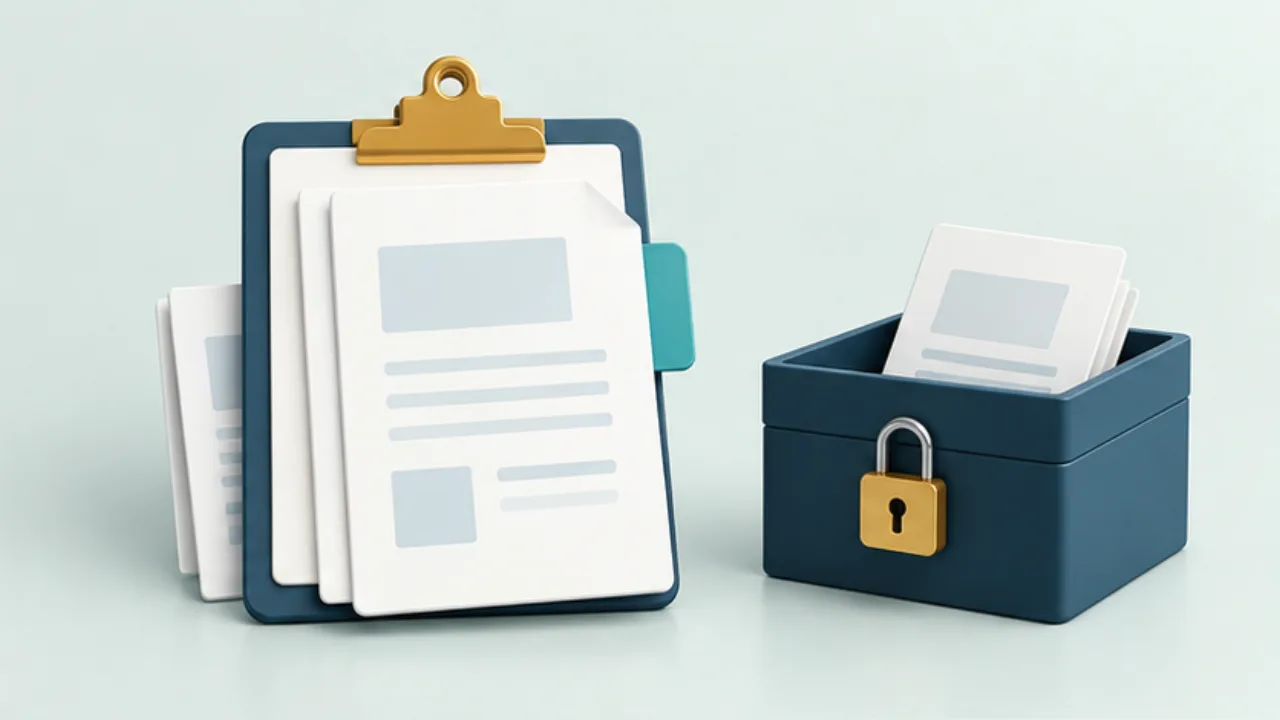
Clipboard history can retain text after you have pasted it. Treat local history and synchronization as separate choices so you know where copied content is kept.
On this page
Separate the current item from history
The clipboard holds content for pasting. A history feature also lets you retrieve earlier items. On Windows, Win + V opens clipboard history. Retention and deletion behavior depend on the operating system and any additional clipboard app.
Try harmless sample text
Copy a short instruction, copy something else, then retrieve the first instruction from history. Check line breaks, supported content, and pinning before making the feature part of routine work.
Review synchronization separately
You may want history on one computer without sharing it with another. Inspect synchronization settings and the account involved. For a work computer, check whether its content may be synchronized to personal devices.
Check what clearing actually removes
A general clear operation may leave pinned entries behind. Inspect those separately. Avoid pinning passwords or recovery codes as reusable text. If sensitive content was retained accidentally, review the history app and any synchronized destinations as well.
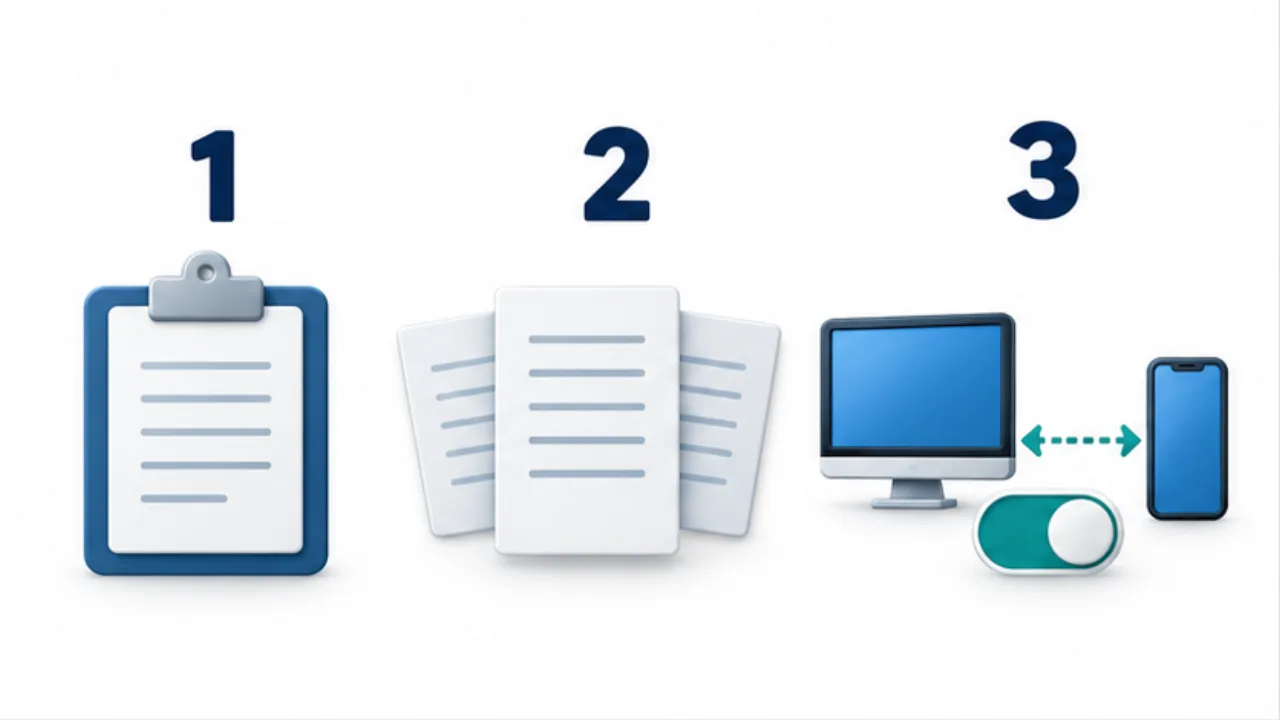
Select the image to enlarge.
- Check what is currently ready to paste.
- Treat recalling older items from history as a separate capability.
- Choose device sync only after checking its purpose and scope.
Separate temporary retrieval from authoritative storage
History is useful for recovering something copied a little earlier. The authoritative version of reusable text can live elsewhere. If an opening-hours notice exists only as a pinned clipboard entry, changing the official hours does not by itself tell you whether that entry was updated.
One approach is to maintain reusable wording in a document and use history as a convenient working shortcut. Before retaining an entry, check for recipient-specific names or identifiers. Frequently used text is not necessarily appropriate unchanged for every recipient.
Example: alternate between two response templates
Suppose you alternate between an opening-hours response and a document-delivery response. Prepare versions without individual addressees, copy each, and test retrieving the intended entry.
After pasting, review whether it fits the current person and whether any fields need changing. Retrieval success does not establish contextual correctness.
If the opening hours change, review the maintained document and any pinned history entries together. Old entries can remain plausible enough to select accidentally. Reduce unnecessary entries or organize them by purpose, and decide which places require updates when the wording changes.
Map the storage locations
| Location | What to inspect |
|---|---|
| Current clipboard | Content that the next paste will use |
| Local history | Earlier items and pinned entries |
| Additional history application | Its separate retention and removal settings |
| Synchronized devices | Where the same material may appear |
After clearing something, inspect the location you intended to clear. Do not extend an operating-system history operation into a claim about a separate application or another device.
For a shared computer, also consider the working account and the next user's access conditions. The aim is predictable reuse: knowing which text can be recalled, where it remains available, and which version should be used. This makes history a practical aid without turning it into an unreviewed archive of everything copied during work.