Phones and computers
Finish a phone scan on your computer
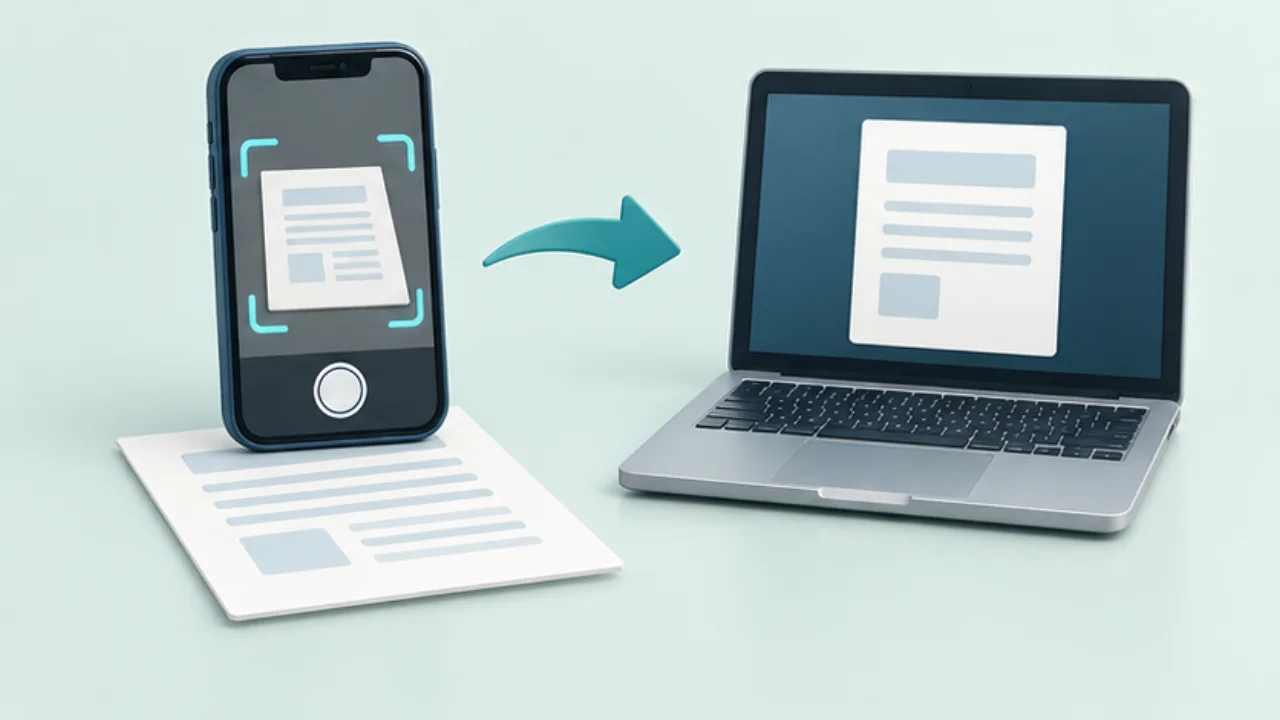
Capture quality determines how much a computer can repair later. Choose whether you need ordinary photos or a document-scanning workflow that produces a PDF.
On this page
Check the capture
Include all corners and avoid shadows and glare. Review multi-page order and both sides immediately. Missing content cannot be recovered merely by adjusting page dimensions.
Transfer a retained copy
iPhone provides document scanning through supported apps such as Notes. Confirm the output format and storage destination, then copy the result to the computer. Use an approved destination for work documents.
Inspect every page
Check small numbers, signature areas, and page endings. Correct rotation and order, and recapture unreadable pages. If using OCR, compare recognized text with the image.
Save the completed version
Follow the recipient's naming, format, and size requirements. Separate the delivery file from intermediate captures and reopen it before sending. Whether the paper original can be discarded is a separate retention decision, not a consequence of successful scanning.
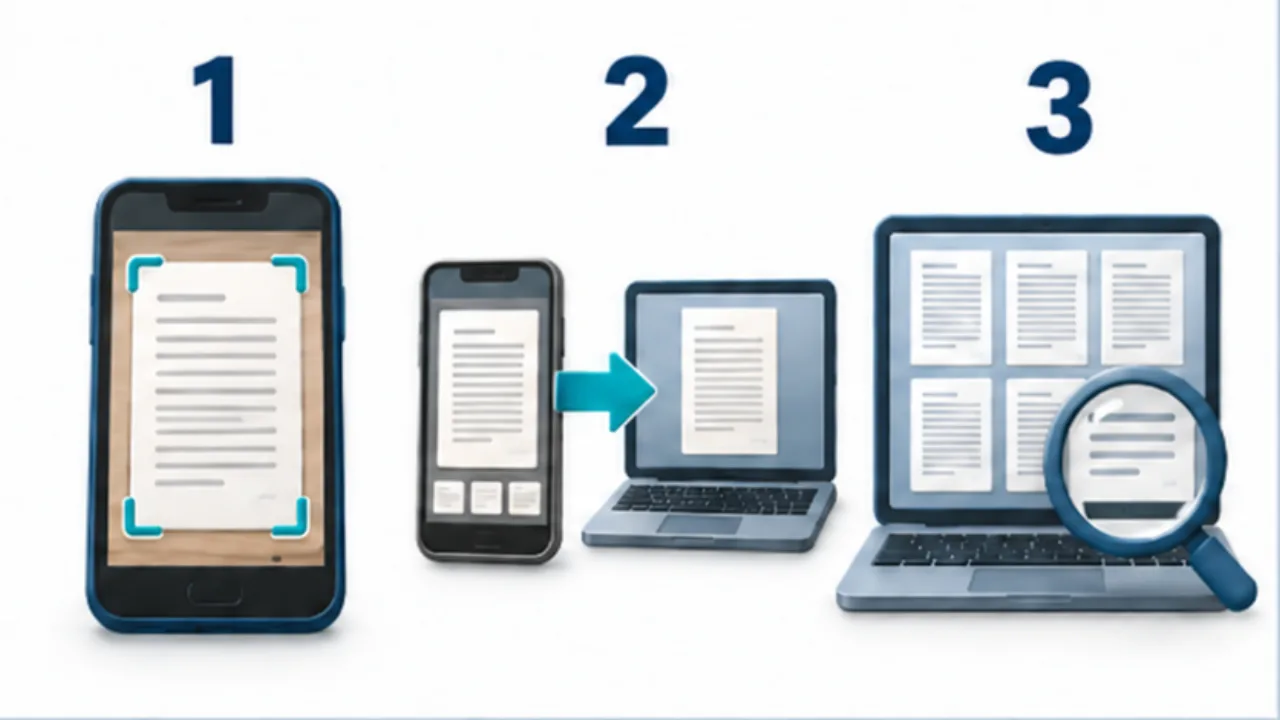
Select the image to enlarge.
- Check shadows, reflections, and clipped edges while scanning.
- Retain the source and copy the needed format to the computer.
- Inspect small details, page endings, orientation, and order.
Distinguish repairable layout from missing information
Orientation and sequence concern how captured pages are arranged. A clipped edge or glare hiding text means information was not captured clearly. Distinguishing those cases tells you whether to continue editing on the computer or return to the paper.
Immediately after capture, the sheet is still available and the affected page is easy to identify. Inspecting corners and text on the phone can reduce later rework. Check completeness before spending time on cosmetic adjustments.
Example: assemble a multi-page guide
Imagine a paper guide with a cover, explanation, and application section. Decide the intended sequence and inspect the reverse sides before scanning. After each capture, check edges and orientation.
Once transferred, open the pages in order. Read enough to confirm that the cover describes the following material and that the explanation connects to the application fields.
If small numbers in the application section are unreadable, recapture that page and replace it. Then check the neighboring pages and total count so the replacement has not introduced a duplicate or omission.
OCR does not make an unreadable source trustworthy merely by producing text. Compare uncertain areas with the paper and judge whether the delivered document supports its intended use.
Review the delivery version
| Area | What to inspect |
|---|---|
| Completeness | Corners, endings, and necessary reverse-side content |
| Legibility | Small or faint text and reflective areas |
| Structure | Count, order, and replaced-page position |
| Delivery | Required format, filename, and selected copy |
Separate the finished PDF from intermediate captures to make the intended attachment clear. If a size limit requires compression, inspect the text after that operation too. Meeting a byte limit while losing necessary digits does not complete the task.
Keep the roles of the paper original, editable material, and delivery file distinct. Each supports a different part of reviewing, correcting, and distributing the document.