Files, images, and PDFs
Preserve leading zeros and identifiers in CSV data

An identifier such as “00123” is not interchangeable with the number 123. Decide which columns are identifiers before importing a CSV.
On this page
Define column meanings
Product codes, postal codes, and membership IDs may need text storage even when they contain only digits. Quantities and prices have different uses. Do not infer the correct type solely from appearance.
Set the type during import
Use the spreadsheet application's import controls to preserve relevant columns as text. Excel's available automatic-conversion controls vary by version. Test representative rows before processing the full file.
Avoid cosmetic repairs
A display format that adds zeros does not reconstruct an unknown original identifier. If a long number or date-like value has already changed, return to the source and import it with an appropriate type.
Inspect the exported values
Choose examples with leading zeros, hyphens, and long digit sequences. Inspect the resulting CSV as text and check what the receiving system will read. Preserve the original CSV separately from the workbook used for editing.
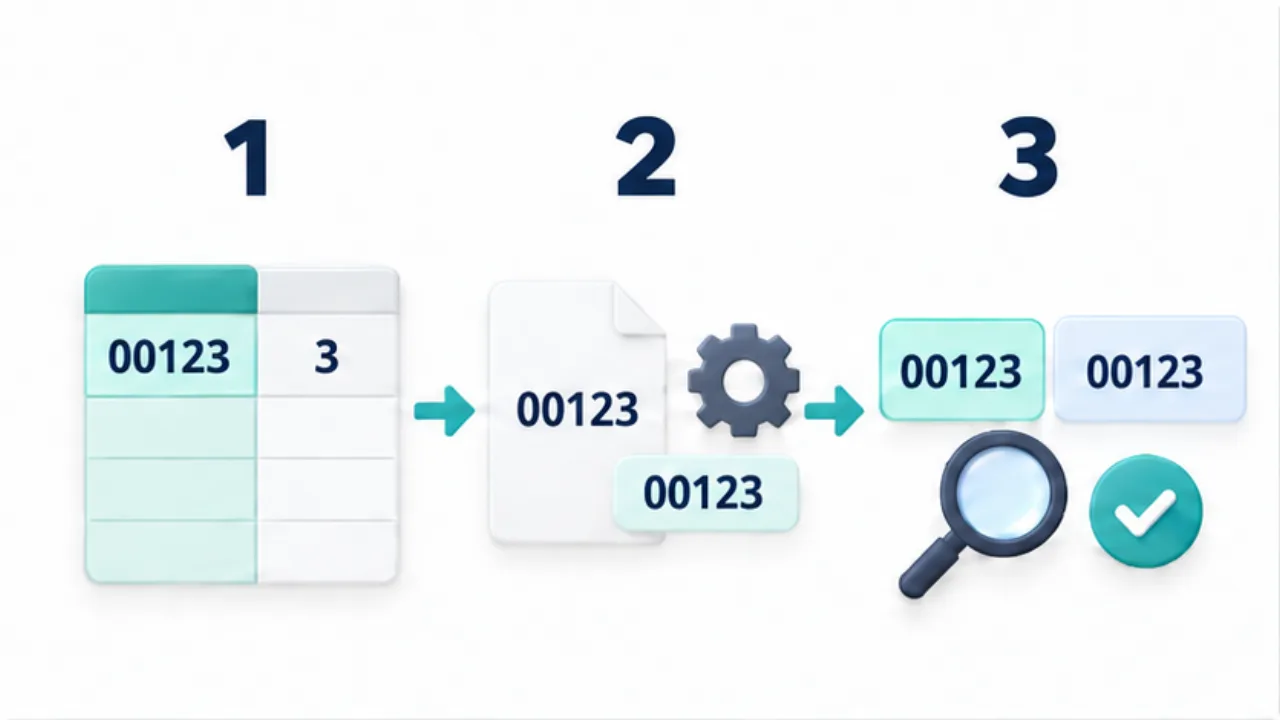
Select the image to enlarge.
- Distinguish identifier columns from quantities used in calculations.
- Set identifier columns to text during import.
- Compare with the original to check leading zeros and long identifiers.
Ask what the digits represent
A quantity of 123 and a product code of 00123 use digits for different purposes. The quantity is a value for arithmetic. The code names an item. Removing its leading zeros changes the string used for matching, even if the numeric magnitude is unchanged.
This does not mean every numeric-looking column should become text. Quantities still need a type suitable for their calculations. Decide column by column whether a value will be calculated or matched exactly as an identifier.
Example: update a product list
Suppose a CSV contains a product code, product name, and quantity. For a review sample, include hypothetical codes such as 00123 and 123, plus one containing a hyphen. Use an isolated sample or appropriate existing rows; do not insert test products into the live list.
Import codes as text and quantities using a type suited to the intended calculation. Then distinguish what the cell displays from what the export contains. A display arranged into five digits is not, by itself, proof of the value another system will receive.
Try matching one exported code to its intended record in a safe review workflow. That tests the actual purpose more directly than looking at formatting. Keep the test material separate from the delivery dataset.
Respond carefully when zeros have disappeared
| Available information | Appropriate next step |
|---|---|
| The original CSV is preserved | Import again with explicit column types |
| A formal code specification exists | Compare permitted characters and lengths |
| The original length is unknown | Ask for confirmation instead of adding zeros by guess |
| Only the display needs formatting | Understand the difference from the stored value |
Restoring lost information and making a cell look tidy are different tasks. Preserve the received CSV, editing workbook, and delivery export separately so you can locate the stage where a value changed. For recurring imports, keep a short set of review cases involving leading zeros and date-like identifiers. Reuse those checks on the next file instead of assuming that the last successful import settings cover every new value.