Files, images, and PDFs
Import a CSV with the correct text encoding

Garbled Japanese in a CSV may come from an encoding mismatch. Preserve the received file before saving anything from the corrupted-looking view.
On this page
Keep the source unchanged
Work on a duplicate. Ask the provider about the encoding, delimiter, and format when that information is available. Unreadable display does not necessarily mean the underlying bytes are damaged.
Use an import workflow
Excel's text or CSV import provides a preview and relevant parsing choices. The exact interface differs by version and operating system. If the letters look correct but everything appears in one column, check the delimiter as well.
Compare representative rows
Verify names, organization names, and symbols against a trusted reference. Separately inspect identifiers with leading zeros and values that could be interpreted as dates. These are type-conversion issues rather than encoding issues.
Export deliberately
Keep a workbook copy for further editing, then export the delivery CSV using the recipient's requirements. Reopen that export and verify characters and columns. Correct display of one line is not a complete data-integrity check.
Select the image to enlarge.
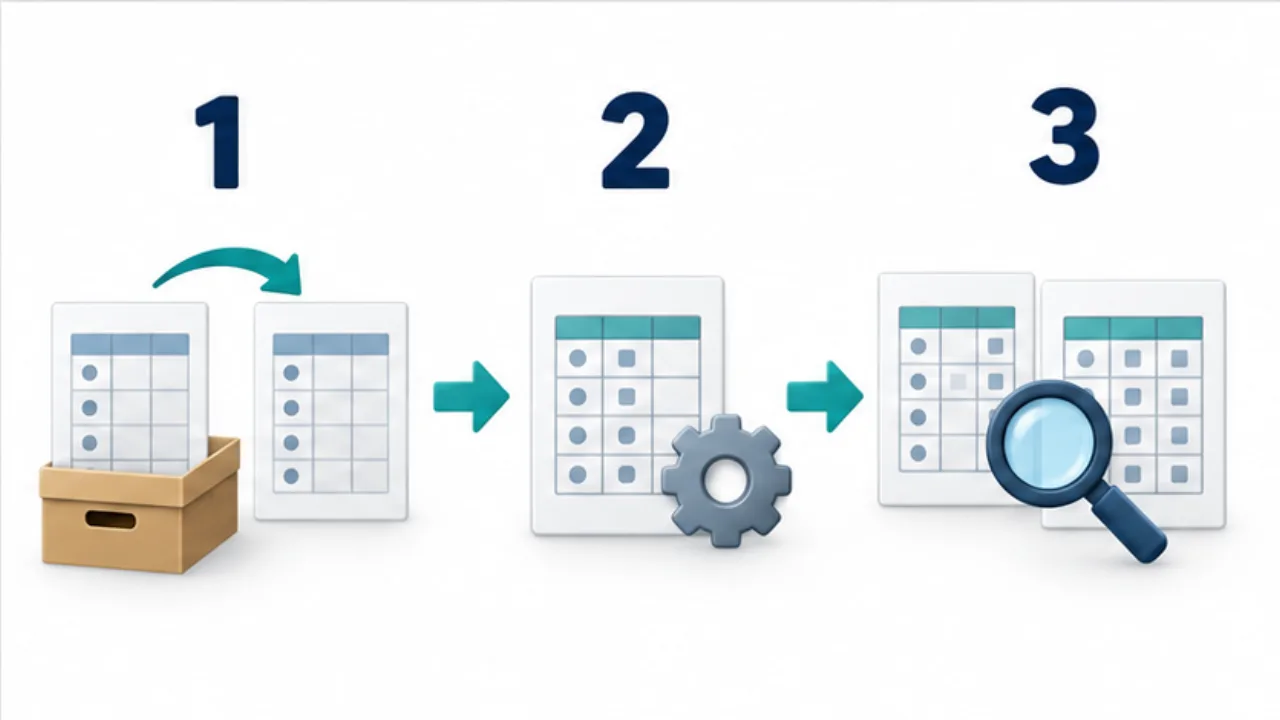
- Keep the original and work with a copy.
- Use the import options for encoding and delimiters.
- Compare the preview and representative rows with the source information.
Separate characters, columns, and values
Reading a CSV as a table involves several decisions: how to interpret its text, where fields end, and how each value should be treated. Garbled characters suggest an encoding question. Everything landing in one column suggests a delimiter question. An identifier becoming a date suggests a type-conversion question.
These can occur independently. Making a company name readable does not prove that the address stayed in the correct column or that a membership code kept its leading zeros. After changing an import setting, review all three aspects.
Example: import a membership list
Imagine a file containing names, organizations, membership codes, and notes. Start with the provider's encoding and delimiter specification if available. In the preview, select rows with different characteristics: non-ASCII names, punctuation in an organization name, and a code beginning with zero.
Do not use one readable opening row as the acceptance test for the whole list. After import, compare headings and the number of columns. Check that each note belongs to its intended field.
If a character cannot be verified against a trusted reference, ask the provider before guessing a replacement. An apparently minor edit to a name can affect later matching. Begin substantive editing only after you understand the imported result.
Verify the complete export-and-import round trip
| Stage | What to retain |
|---|---|
| Receipt | Unchanged CSV and the provider's format specification |
| Import | Chosen settings and representative rows reviewed |
| Editing | Workbook used for continuing work |
| Delivery | Re-exported CSV checked against the receiving requirements |
Saving a readable workbook and producing a CSV accepted by another system are separate operations. Review the recipient's requirements again at export, then inspect the output under those conditions.
A short record of the successful settings is useful when another person takes over or the next file arrives. It should explain the actual encoding, delimiter, and column-type decisions, rather than merely saying that the previous file was fixed.