Files, images, and PDFs
Reorder and rotate PDF pages deliberately
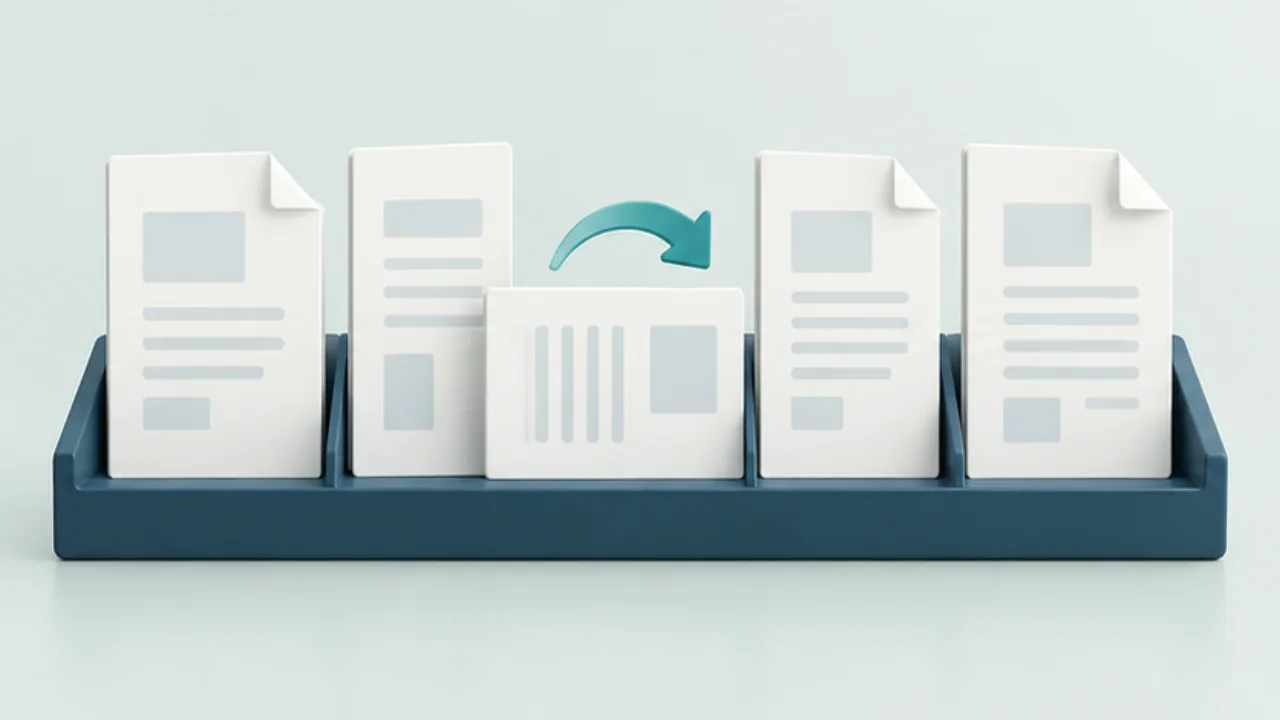
A scanned document may contain reversed pages or a cover at the end. Establish the intended sequence before deleting anything.
On this page
Plan the order
Identify the cover, main text, and appendices. File positions can differ from printed page numbers, so use headings and content as well. A blank page may support duplex printing and is not automatically an error.
Move pages using thumbnails
Preview on Mac supports rearranging page thumbnails. Work on a copy and inspect both the source and destination boundaries after moving a page. For a multiple selection, confirm its membership before dragging.
Check rotation scope
Distinguish the selected page from the entire document. Also check whether the application changes only the viewing orientation or saves the rotation with the file.
Reopen and review the sequence
Step through the saved document from beginning to end. Verify count, order, orientation, and navigation from any bookmarks or contents page. If printed page numbers are unchanged, make sure that remains understandable for the recipient.
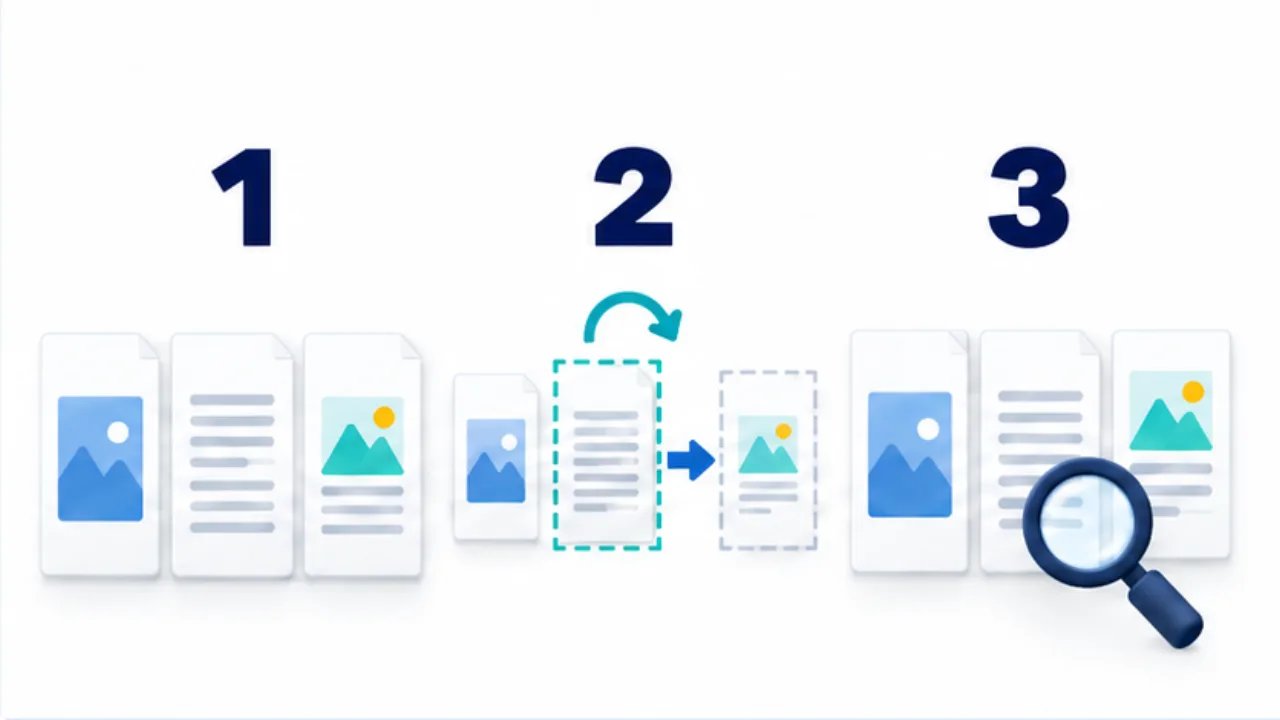
Select the image to enlarge.
- Record the intended order of the cover, body, and attachments.
- Move or rotate only the selected thumbnails.
- Reopen the saved file and verify order and orientation.
Do not rely on page numbers alone
A cover without a printed number can make the PDF's file position differ from the number printed on a page. An appendix may start its own numbering sequence. “Move page three to the front” is therefore ambiguous unless everyone means the same numbering system.
Before editing, identify pages by content: the cover, the page headed “Instructions,” or the page containing the application fields. Record the original sequence as a recovery reference. When moving several pages together, inspect the place they came from as well as their new location.
Example: organize a scanned guide
Imagine a scan arrives in this order: the second half of the text, a sideways diagram, the cover, and the first half of the text. Review the whole file and choose the intended reading sequence: cover, first half, second half, diagram.
Reorder the pages first and confirm that the count has not changed. Then adjust the diagram's orientation as a separate operation. Keeping the two tasks distinct makes it easier to identify which change caused an unexpected result.
A wide table on a landscape page is not automatically wrong. A document read sequentially on screen and a paper reference whose wide table is viewed by turning the sheet can have different needs. Decide the reading context before treating page proportions and the direction of the lettering as the same issue.
Review continuity at the boundaries
| Boundary | What to check |
|---|---|
| Cover to main text | The title describes the following content |
| Before and after a moved page | Sentences and steps do not jump unexpectedly |
| Main text to appendix | Referenced supporting material is easy to find |
| Final page | Necessary notes and contact details remain present |
Aligned thumbnails do not establish that the writing still makes sense. Step through the result in reading order and follow the explanations across page boundaries. Test the destinations of any contents links or bookmarks instead of checking their labels alone. Select one clearly named corrected file for delivery so recipients do not have to guess which sequence is current.