Files, images, and PDFs
Why you cannot select text in a PDF

Visible letters in a PDF may be pixels rather than selectable text. First rule out selection settings and document restrictions before assuming OCR is needed.
On this page
Check the tool
Use text selection rather than an image-selection or hand tool. Preview on Mac also documents cases where a password is needed to permit copying. Ask the document provider for an appropriate copy instead of bypassing restrictions.
Identify image-only material
A scanned page may contain an image plus a separate recognized-text layer, or just the image. A PDF can mix page types. Use a supported OCR tool when recognition is necessary.
Verify the recognition
Compare names, amounts, dates, and symbols with the source. Similar characters and multi-column reading order deserve particular attention. A sentence can look plausible while containing the wrong number.
Choose the right output
For retrieval, a searchable PDF may be sufficient. For analysis, exported text or a table needs structural checking as well. Preserve the original and keep the OCR result identifiable as a processed copy rather than a guaranteed transcription.
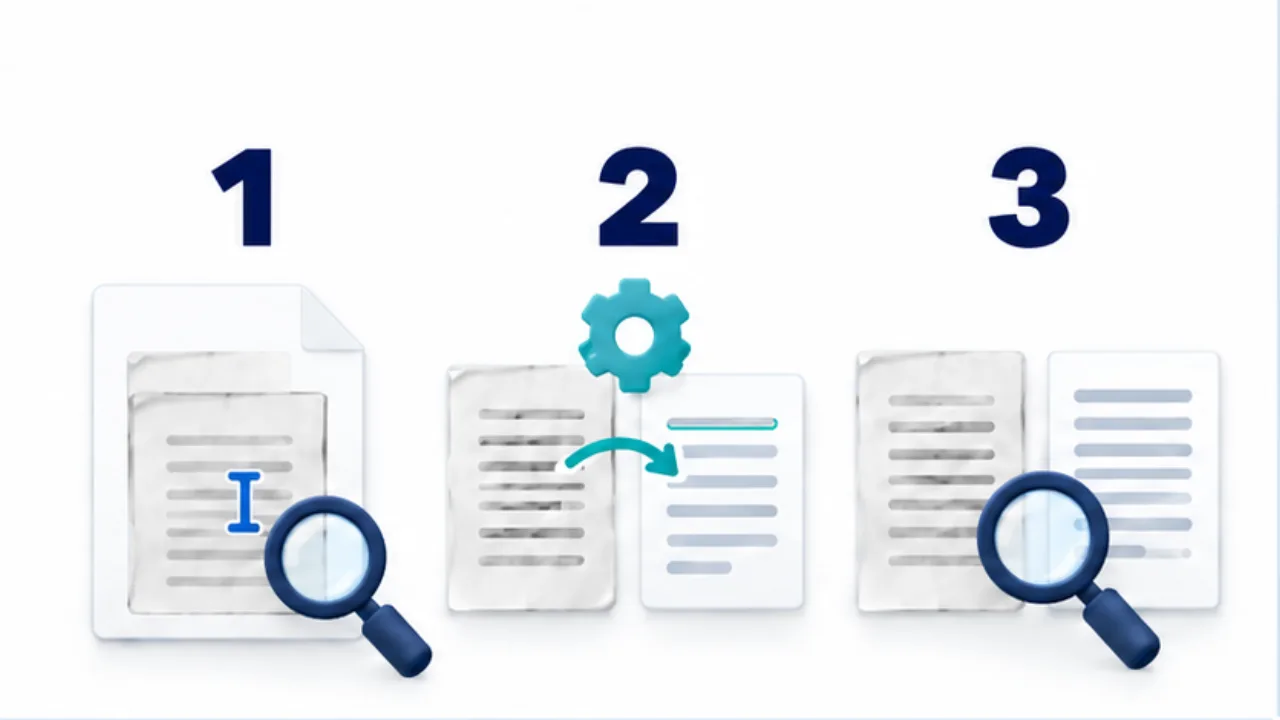
Select the image to enlarge.
- Check text-selection mode and document restrictions.
- Use supported OCR for image-only pages when appropriate.
- Compare recognized text, numbers, and reading order with the original.
Distinguish the picture from the recognized text
A scan records letter shapes as pixels. OCR creates text information from those shapes. The visible scan can remain unchanged while its searchable text contains mistakes, so a familiar-looking page is not proof of correct recognition.
For example, a number may look right in the image while copied text contains a similar letter. A failed search can therefore reflect recognition differences rather than the absence of the term. Test viewing, selecting, copying, and searching as separate behaviors.
Not every unselectable PDF needs OCR. A tool mode or document restriction calls for a different response. Ask the provider about permitted use when the document limits copying.
Worked example: a searchable archive
Suppose you want to find older documents by project name. Preserve the original and run recognition on a search copy. Where the tool offers a recognition-language choice, match the document. If the image itself is tilted, clipped, or unreadable, address that source problem first.
After processing, search for the project name and several words from the body. Copy a result into plain text and compare it with the image. A subtly incorrect project name can make later retrieval fail even though the page looked fine during an initial visual check.
Acrobat provides a workflow for reviewing uncertain recognition results. Such assistance does not replace source comparison: inspect the scan before accepting a proposed correction.
Review structure when extracting tables
Correct individual digits are not enough if a value lands under the wrong column heading. Compare row and column relationships before using extracted data.
| Area | What to inspect |
|---|---|
| Names and identifiers | Similar characters, leading zeroes, punctuation |
| Amounts and quantities | Digits, decimal marks, signs, units |
| Table structure | Heading relationships and wrapped rows |
| Multiple text columns | Reading order and inserted annotations |
A result adequate for finding a document is not automatically adequate for calculations. Decide which fields need source verification before using the output to make a decision. Keep the checked range identifiable so a later reader knows what was reviewed and what remains an automated recognition result.