Files, images, and PDFs
Fix an A4 print that is cropped or unexpectedly small
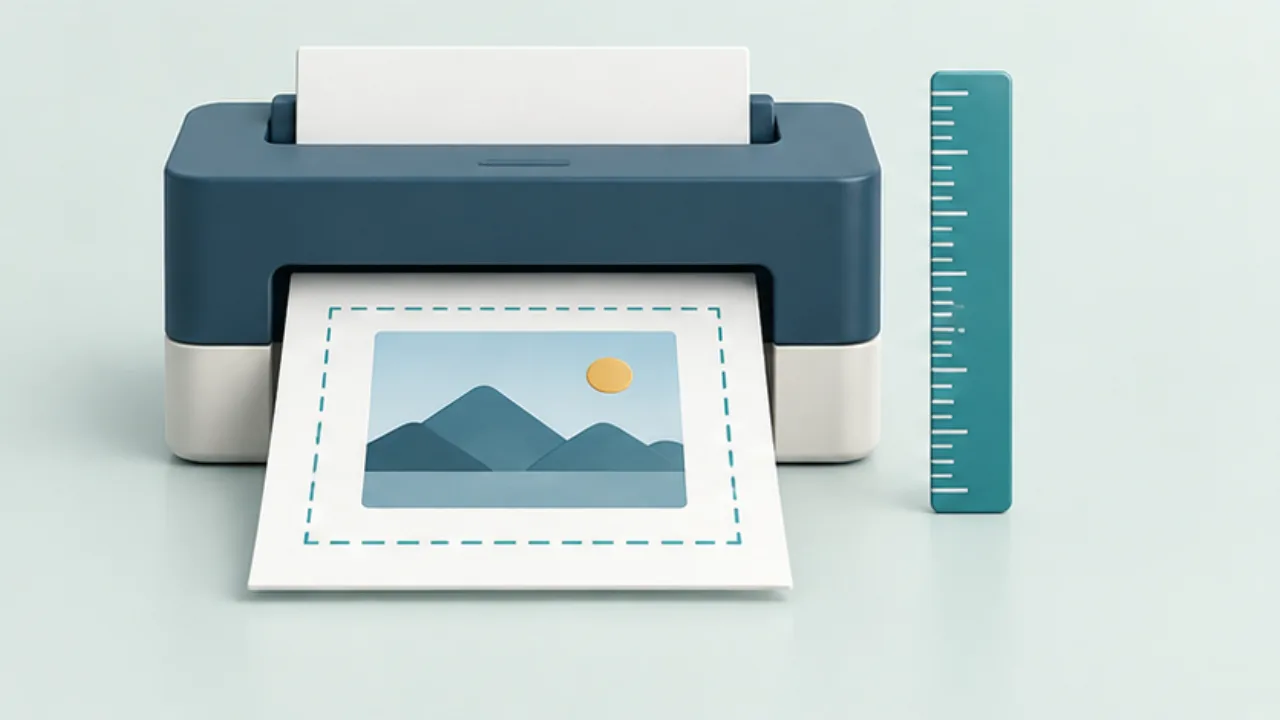
Selecting A4 paper does not determine the document's final printed size. Check page dimensions, paper settings, orientation, and scaling separately.
On this page
Match document and paper
Inspect the PDF's page size and select the paper actually loaded in the printer. A portrait-shaped preview is not proof that the document uses A4. Check orientation in both the document and print dialog.
Choose actual size or fit
Actual-size printing can crop content outside the printable area. A fit option may shrink the page to keep it inside that area. A measured template and a reading handout therefore have different requirements.
Print a sample
Inspect edge text and page numbers, not only the center. If dimensions matter, measure the printed result with a ruler. An on-screen 100-percent view does not establish physical print size.
Fix recurring layout problems
Add suitable margins to the source when content repeatedly gets clipped. Do not assume borderless printing is supported. Record the successful settings alongside the document so the next print starts from a known configuration.
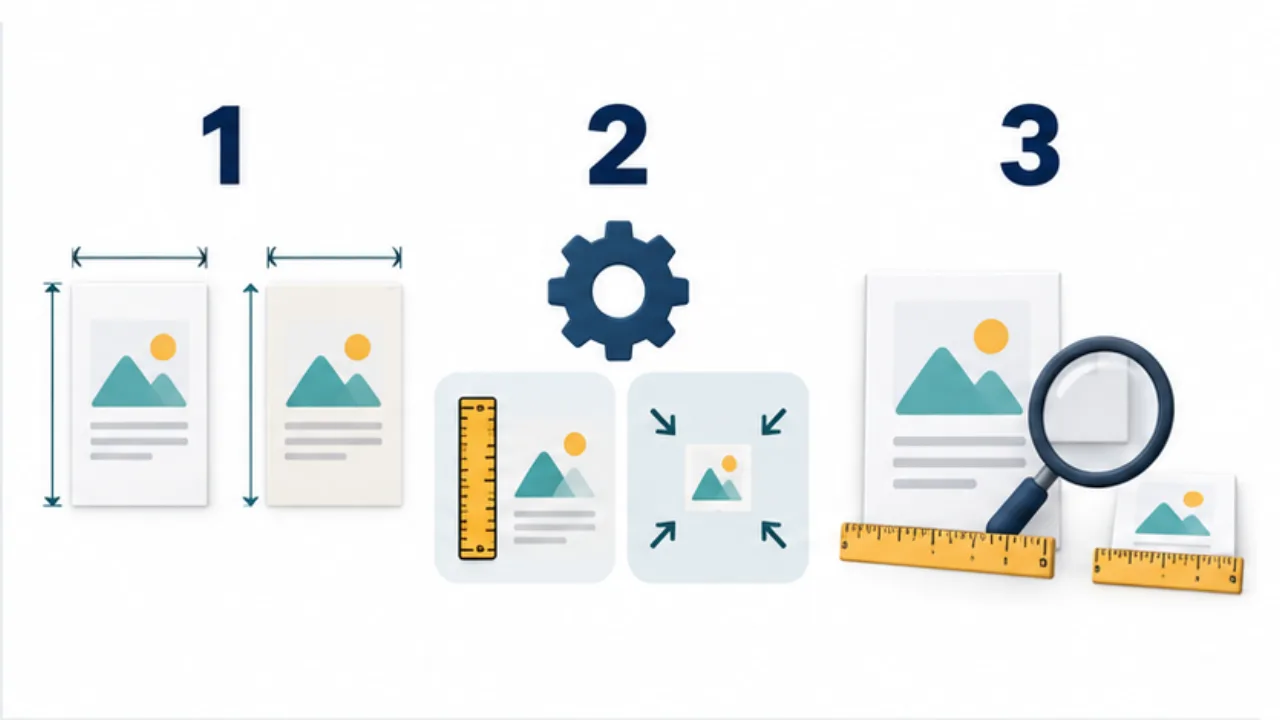
Select the image to enlarge.
- Check PDF dimensions, paper selection, and orientation.
- Choose actual size or fit-to-page for the intended use.
- Inspect edge clipping and measure the relevant printed dimensions.
Separate fitting from reproducing a measurement
A reading handout may tolerate modest scaling if every part remains readable. A template or fitted card may fail even when the whole page is visible, because its physical dimensions changed.
Choose the purpose before choosing the scaling option. Neither “always fit” nor “always 100 percent” is a universal rule. Also distinguish the print scale from the zoom level used to view the PDF on screen.
The printer's usable area can be smaller than the paper. Content placed at the extreme edge can therefore be clipped even when the document and loaded paper are both A4. Borderless support needs to be checked for the actual printer and medium.
Worked example: two kinds of output
For a handout, inspect page numbers, notes, and the last column of a table. If fitting makes those details too small, revise the source layout or consider an appropriate paper choice rather than accepting unreadable text.
For a dimensioned card, choose a physical feature to measure, such as the outer frame's width. Print one copy, measure that feature, and compare it with the intended design. A correct-looking screen preview does not replace this measurement.
When another person prints the same file, pass on the relevant paper, orientation, scaling, and duplex requirements. Sending the PDF alone does not communicate every print condition. Ask for a proof under the new conditions before committing to a batch.
Use the result to narrow the cause
| Result | First setting to inspect |
|---|---|
| Everything is unexpectedly small | Fit-to-page or multiple-pages-per-sheet options |
| One edge is clipped | Orientation, margins, and placement |
| Both dimensions differ | Print scale and source page dimensions |
| The cover is correct but other pages differ | Mixed page sizes or orientations inside the PDF |
Record the successful setup beside the source. Use it as a starting point for the next run, not as a guarantee that another printer or paper will behave identically. When those conditions change, repeat the single-copy check.