Files, images, and PDFs
Combine or split PDFs without losing track of pages
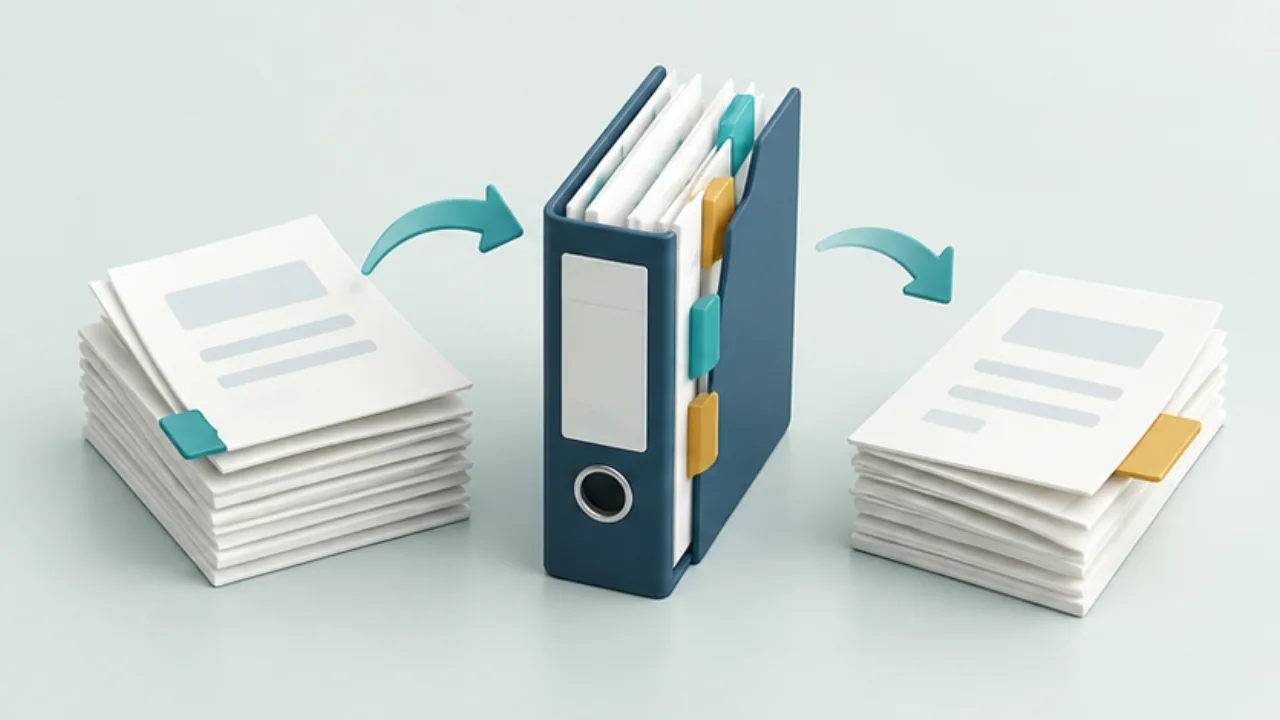
Before combining PDFs, decide the final sequence. Keep the originals and work on copies, especially in applications that save edits automatically.
On this page
Prepare the copies
Name the working file for its purpose. If a PDF has a digital signature or editing restrictions, check the implications before modifying it. A document that looks unchanged may no longer have the same signature status after editing.
Insert pages deliberately
For example, plan a sequence of cover, explanation, and estimate. In Preview on Mac, thumbnails provide a way to insert pages from another PDF. Inspect the insertion point rather than assuming the drop placed them at the end.
Extract the required portion
Record which pages the recipient needs. Preview also supports creating a PDF by dragging selected page thumbnails to the desktop. Distinguish the page's position in the file from a printed page number; front matter can make them differ.
Reopen the result
Check the first page, each join, and the last page. Verify count, orientation, omissions, duplicates, and unwanted attachments. Finally, confirm that the file selected for sending is the completed copy rather than one of the originals.
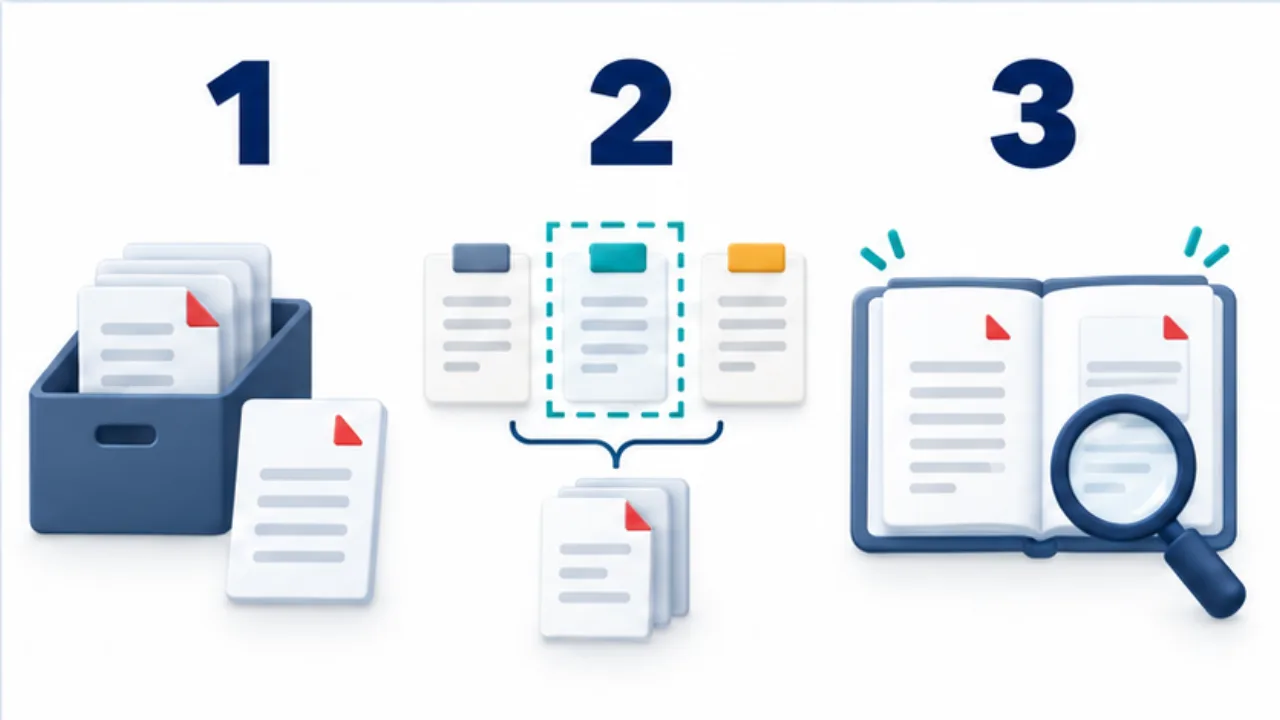
Select the image to enlarge.
- Preserve the originals and create working copies.
- Select the merge order or extraction range using page content.
- Open the output and check its beginning, ending, and page count.
Map content as well as page numbers
The fifth page in a PDF viewer may carry a printed page number of three because a cover and contents page came first. Record a heading or content cue alongside the file position. “From the pricing table through the application section” is easier to reconcile than an unexplained page range.
Before combining material, make a short sequence map. An example is a covering note first, the relevant product description next, and the application form last. This is a planning example, not a required document structure.
The map also makes the distribution decision explicit. Decide which internal notes or personal information should be excluded before moving pages, rather than assuming that everything in the source belongs in the outgoing packet.
Worked example: a submission copy
Suppose the working materials contain a covering note, a product catalog, and an estimate, but the recipient needs only selected pages. Create working copies, identify the required sections, and arrange them in the planned order.
Small thumbnails can make similar pages hard to distinguish. Open the page and confirm its heading before selecting it. After combining, inspect each boundary: the last page of the preceding source and the first page of the next one.
Look for duplicated covers, a missing reverse-side explanation, and a landscape table that is difficult to read. A total page count can reveal some omissions, but it cannot prove that the correct pages occupy those positions.
Save the submission copy, then open the saved file independently. That is the document the recipient will use. This also catches the mistake of continuing to inspect a working window after saving a different file elsewhere.
Consider whether one file is appropriate
Combining every document is not always the most useful delivery format. A recipient may need to store an estimate separately or print only an application form. Follow their submission requirements and choose names that explain each file's role.
If the source includes signatures or interactive fields, inspect the required behavior as well as its visual pages. A readable combined document is not automatically equivalent to the original in every respect.
Finish by reconciling both sequence and content with the initial map. Preserve the source files and clearly identify the outgoing copy, so a later correction does not require guessing which pages came from which document.