Files, images, and PDFs
Keep screenshot text readable

A screenshot is useful when the reader can identify the relevant control or error. Trace the loss of clarity through capture, editing, and delivery rather than repeatedly increasing the image size.
On this page
Inspect the original
Open the file before sending it. If the text is already too small, recapture the relevant area or adjust the application's display scale. Enlarging a bitmap afterward cannot accurately recover detail that was never captured.
Compare formats
Lossy JPEG compression can introduce artifacts around text. PNG is worth comparing for interface screenshots. Converting an already degraded image to PNG, however, does not restore the original edges.
Separate overview and detail
An overview can show where a control lives while a cropped detail makes its label readable. Keep arrows away from the text. Remove irrelevant notifications and private account information deliberately.
Check the received attachment
Compare the chat thumbnail with the downloaded file. If the delivery method modifies images, use an appropriate original-file option or file attachment. Include important button names and error text in the written explanation as well, so the reader does not have to extract every detail from the screenshot.
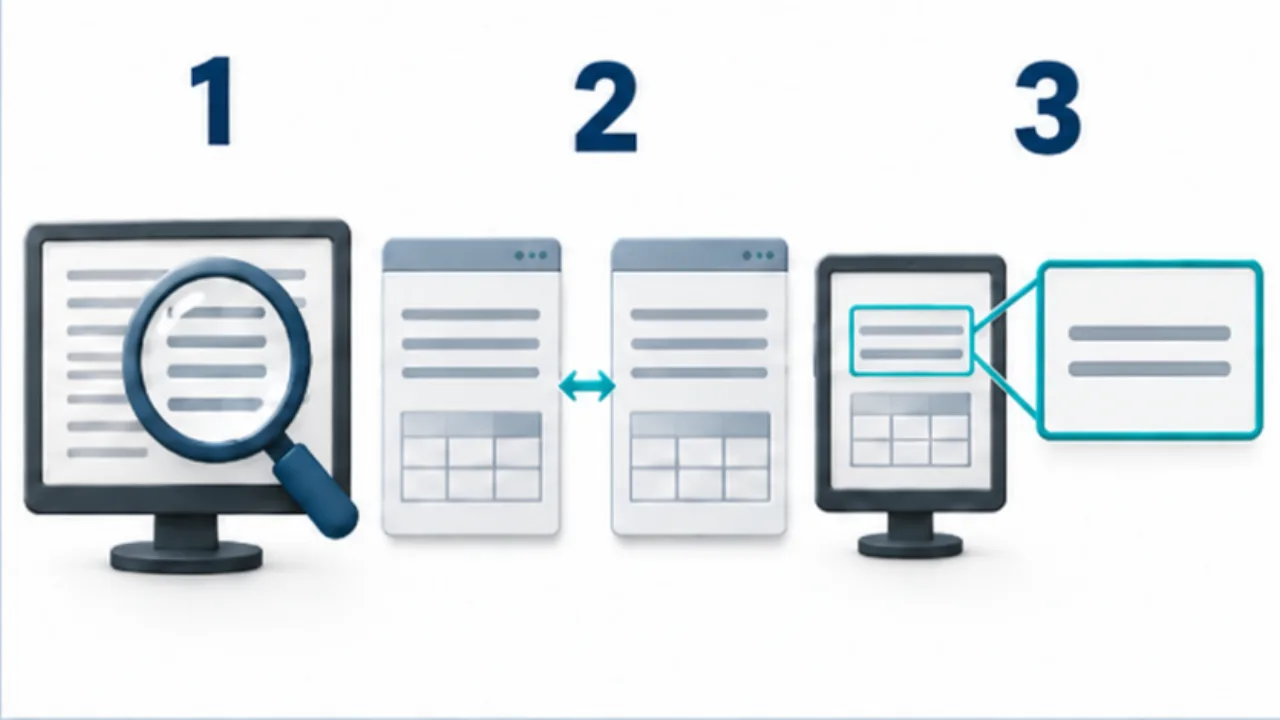
Select the image to enlarge.
- Verify legibility in the original screenshot before sending.
- Compare export or compression results and recapture when needed.
- Use an overview for location and a separate detail view for the target.
Decide what the reader needs from the image
A screenshot can help someone locate a control or read exact text. Those are related but different jobs. An entire desktop may preserve location while making labels too small; a tight crop may make a label readable while removing the context needed to find it.
For an instruction such as pressing Save in a settings screen, retain enough of the screen to identify the section. Add a separate close-up only when it serves a distinct purpose. More screenshots are useful when they answer different questions, not when they repeat the same view.
For an error report, include the error wording as text as well. The recipient can search or copy it without extracting letters from an image. Review that transcription for personal information and authentication values before sharing.
Compare three stages
Keep the original capture, the annotated output, and the received attachment separate. Compare the same word at each stage. This is a diagnostic workflow, not a measured image-quality benchmark.
If the original is unreadable, recapture it. If the annotated copy alone became unclear, inspect resizing, export settings, and overlays. If the local result is readable but the received copy is not, inspect the delivery method and the recipient's viewing mode.
A chat thumbnail can look unclear even when the underlying attachment is usable. Ask whether the downloaded or fully opened attachment is also unreadable. That distinguishes a small preview from lost information in the file itself.
Revise in a useful order
- Remove irrelevant space while retaining enough context to locate the control.
- Adjust the application's display scale before recapturing when available.
- Position arrows or outlines so they do not cover labels.
- Inspect the saved output in the actual document or instruction page.
- Open the delivered attachment and check the same critical text.
Do not put every instruction inside the bitmap. A written button name remains easier to search, copy, and update. Let the image explain spatial relationships while prose explains the action and any condition.
If a button name later changes, this division can reduce how much of the illustration needs rebuilding. It also gives the reader another way to understand the instruction when the image is small or unavailable.