Files, images, and PDFs
Convert an HEIC photo for a recipient
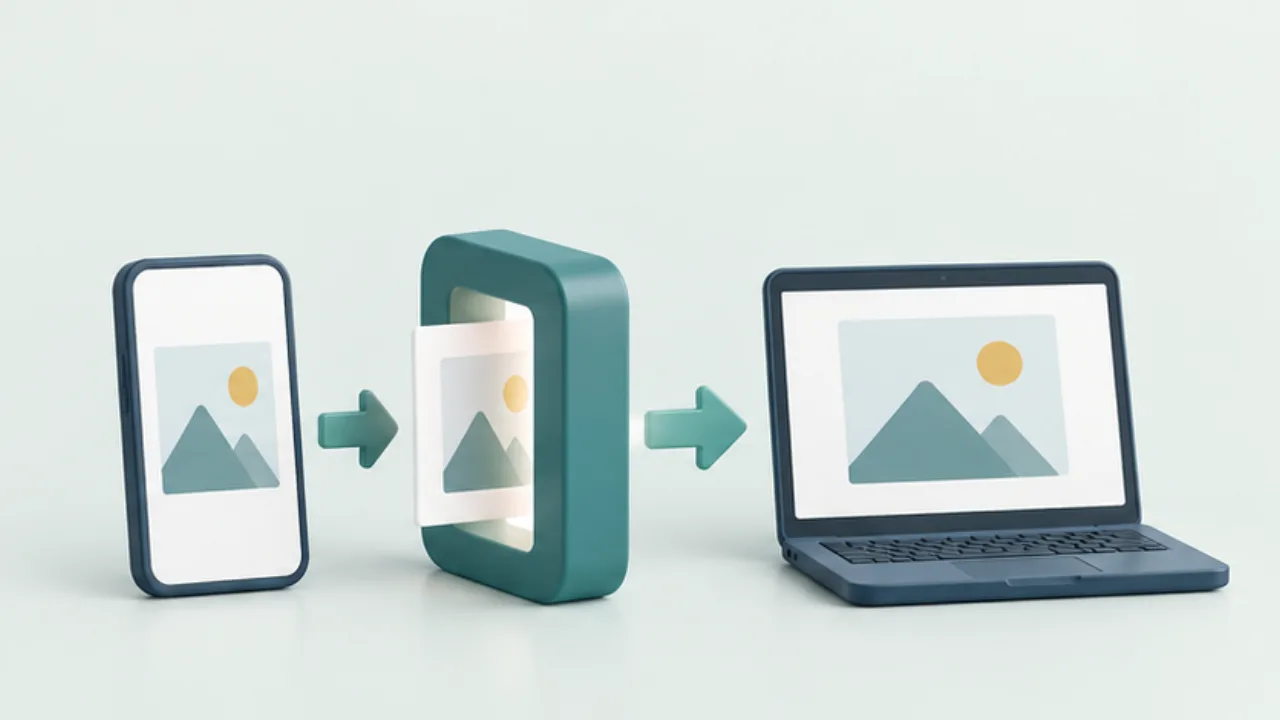
When a recipient cannot open a photo, first identify the format and the receiving application. A compatible delivery copy may solve the problem without replacing your original.
On this page
Identify the file
HEIF is a family of image formats, and HEIC is an extension commonly encountered in Apple's photo workflow. Support depends on the operating system and application. Check file information rather than relying only on a thumbnail.
Export a copy
On a Mac, open a supported image in Preview and export it as JPEG. Save it separately from the original. Renaming the extension alone does not convert the image data.
Check what the recipient needs
A JPEG export is not identical to the complete original capture. Consider whether motion, editing information, or other features matter. Also check location metadata separately if you want to omit it; a format change is not proof that all metadata disappeared.
Test one before processing a collection
Send a representative copy and ask the recipient to open it in the actual target application. Check orientation and detail. Treat changing future camera capture settings as a separate decision from preparing a compatible copy for this particular exchange.
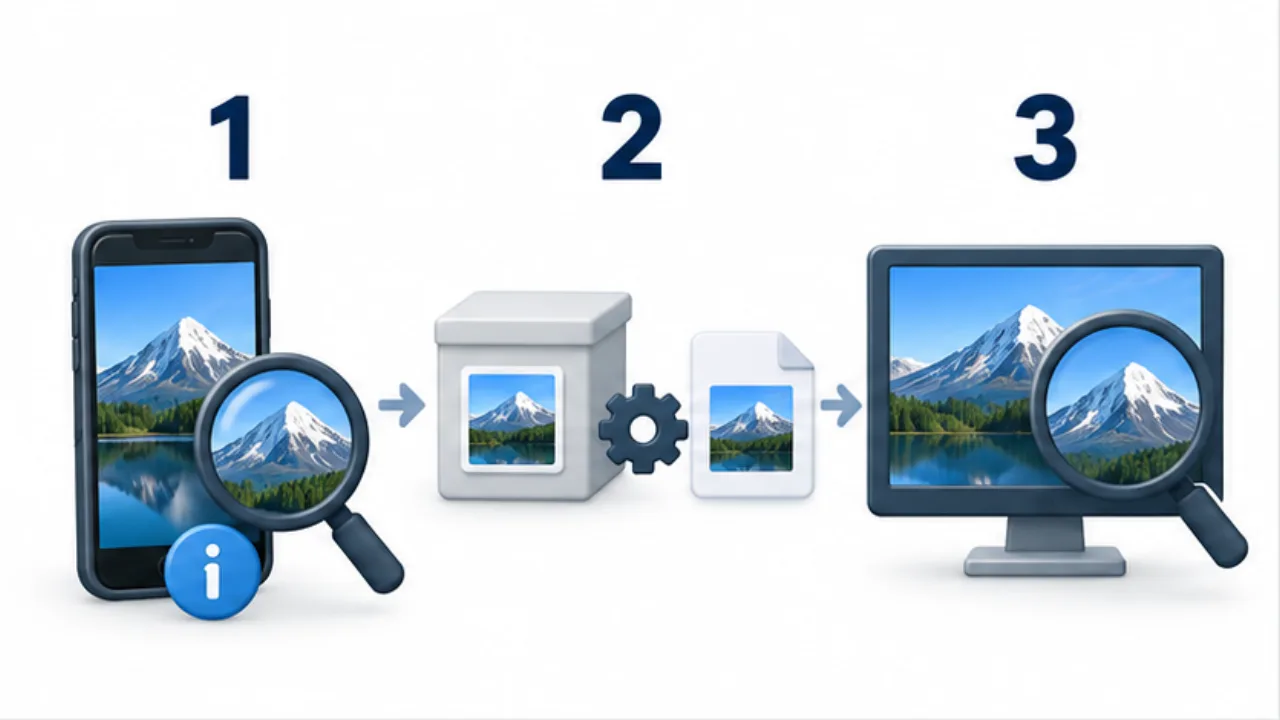
Select the image to enlarge.
- Check the source format and the format the recipient needs.
- Export a JPEG copy with a supporting app and retain the source.
- Test one image and inspect orientation, detail, and required information.
Identify what “cannot open” means
Ask whether the file failed to arrive, failed to display, or was rejected by an upload form. These problems need different investigations. If the photograph opens on the computer but not in a registration system, start with that system's accepted-format requirements.
A thumbnail on your own device is not proof of compatibility at the destination. The application used to view a photo and the application used to import it for editing may support different inputs. Knowing the actual destination lets you prepare the necessary delivery copy without changing your whole library.
For a one-off exchange, begin with one representative image. Treat a change to future camera settings as a separate decision with a wider effect.
Worked example: one photo for an application
Suppose the recipient explicitly requests JPEG. Keep the HEIC master and create a delivery folder. Open the supported image in Preview, export it as JPEG, and use a separate name and location.
Close the export and open that new file again. Check orientation, the required subject, and any small lettering. If the recipient also specifies dimensions or a byte limit, inspect those independently. A successful format change does not automatically satisfy the other conditions.
At the sending step, check the selected filename. Similar HEIC and JPEG names can lead to sending the original by mistake. A folder containing only the approved delivery files makes this selection easier to review.
Decide what each version is for
| Purpose | Question to answer |
|---|---|
| Let the recipient view the photograph | Does the JPEG show all required visual content? |
| Edit it again later | Have you retained the original capture separately? |
| Avoid sharing capture location | Have you checked location information independently? |
| Submit a collection | Did a representative test succeed before processing the rest? |
Do not equate a compatible viewing copy with a complete archival copy. The delivery version serves the recipient's task; the master preserves the material you may need for future work.
After a batch conversion, reconcile the selection and inspect orientation and detail across the result. One successful sample verifies the chosen route, but it does not prove that every photo in the collection is the correct one to distribute.