Files, images, and PDFs
Choose JPEG, PNG, or WebP
Choose an image format for its content and destination. A small file is not useful if a recipient cannot open it or read the text inside it.
On this page
Match the content
JPEG is common for photographs, but lossy compression can alter detail. For screenshots containing fine text and lines, compare PNG or lossless WebP. WebP supports both lossy and lossless encoding as well as transparency.
Compare a representative crop
Inspect a face or dark gradient in a photograph, small labels in a diagram, and the edges of a transparent logo. Compare at the size the recipient will actually see, not only as enlarged previews.
Export from the original
Keep an editable master and save delivery versions under different names. Changing a filename extension does not convert the data. When adjusting quality, return to the master so you can reproduce the result without accumulating unrelated edits.
Verify the destination
Follow any format requirements from the receiving service. Open the exported file in the intended application. Check transparent artwork against both light and dark backgrounds. If the file remains too large, distinguish reducing pixel dimensions from changing compression quality; they solve different parts of the problem.
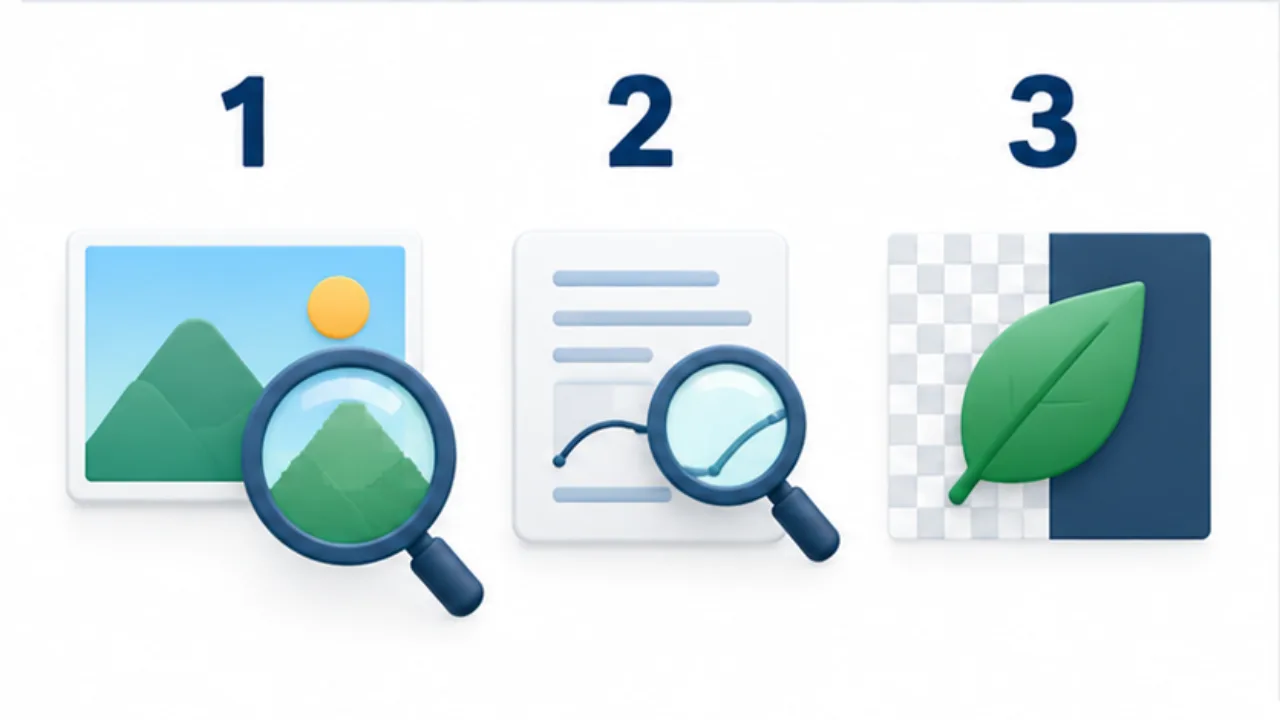
Select the image to enlarge.
- For photos, inspect detail and dark areas after compression.
- For text or diagrams, compare small lettering and line edges.
- For transparent images, change the background and inspect the edges.
Separate three decisions
Consider fidelity, transparency, and compatibility independently. Fidelity concerns the details the reader needs to see. Transparency matters when the image must sit over another background. Compatibility concerns whether the destination can accept and open the file. A format that meets two of those needs can still fail the third.
For example, a logo printed on white paper may work with a deliberately white background. The same logo placed on a colored webpage may need transparency. Decide how it will be used before choosing a format based only on the word “logo.”
Changing a format is also different from repairing content. Saving a blurred JPEG as PNG does not reconstruct the earlier lettering. If important detail is already missing, return to the original photograph or editable diagram rather than repeatedly converting the damaged copy.
Worked example: a photo and an instruction diagram
Suppose a product page needs one photograph and one labeled diagram. This is an example comparison workflow, not a measured claim that a particular export setting will win.
- Keep both master files and create a separate delivery folder.
- Export the photograph in the candidate formats at the same dimensions.
- Inspect the product texture, shadows, and color boundaries.
- Compare the diagram's small labels, arrows, and numbers.
- Place both files in the actual page and inspect its phone layout.
Keep dimensions consistent while comparing formats. If you change dimensions, compression, and cropping at once, you will not know which change produced the difference. After choosing a suitable format, adjust the remaining settings as needed.
A diagram that requires constant zooming may need larger labels or fewer details, even if its file is technically sharp. The receiving layout is part of the result.
Diagnose the remaining problem
| Symptom | Next check |
|---|---|
| The recipient cannot open it | Find the supported format and export again from the master |
| Small letters look smeared | Compare the original, resized copy, and exported copy |
| A white rectangle surrounds a logo | Check whether transparency was preserved or a background was added |
| The upload is too large | Review required dimensions before reducing quality further |
Keep the original and the approved delivery version distinguishable. A filename describing its destination is more useful than several almost identical files all called “final.” Record the version actually published so a later correction starts from the right source.