Keyboards and terminals
Continue a coding-assistant session from your phone
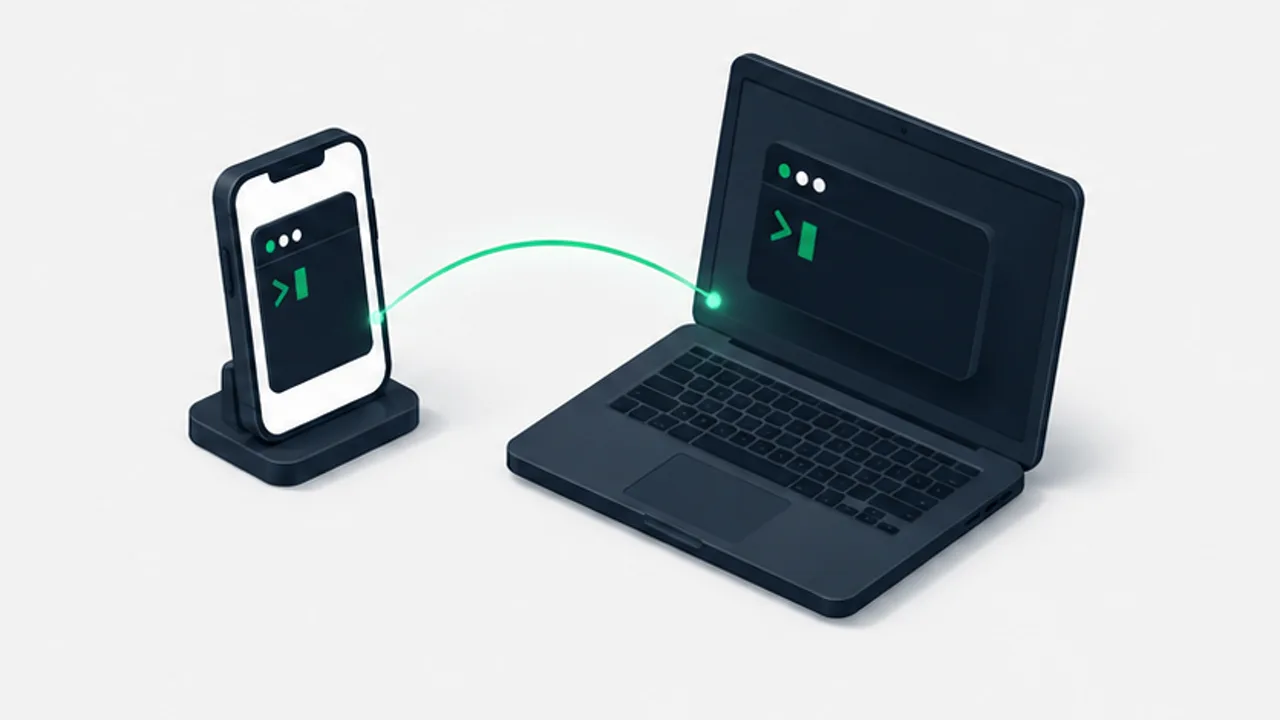
Use a reachable host and a persistent terminal session, with checks for permissions, sleep, and reconnecting to the right project.
On this page
A phone can serve as the interface to a coding assistant running on another computer. The host keeps the repository and development tools; the phone sends input and displays output. This arrangement works best when you can inspect the result in short, understandable steps.
Prepare the host and connection
Configure remote access using the host's supported SSH setup and a network path you are authorized to use. Verify the host identity and authentication. Do not expose a service publicly just to make a tutorial's connection command work.
Confirm that the host remains available under its power settings. A terminal multiplexer cannot keep work running through a shutdown or reboot.
Use a named session
After connecting to the intended host, create a session for the work:
tmux new-session -s workOpen the project and start the installed assistant there. With tmux's default bindings, Ctrl+B followed by D detaches. Later, reconnect to the same host and use:
tmux attach-session -t workCheck the project path before giving another instruction. A persistent session preserves context, including mistakes about where you are working.
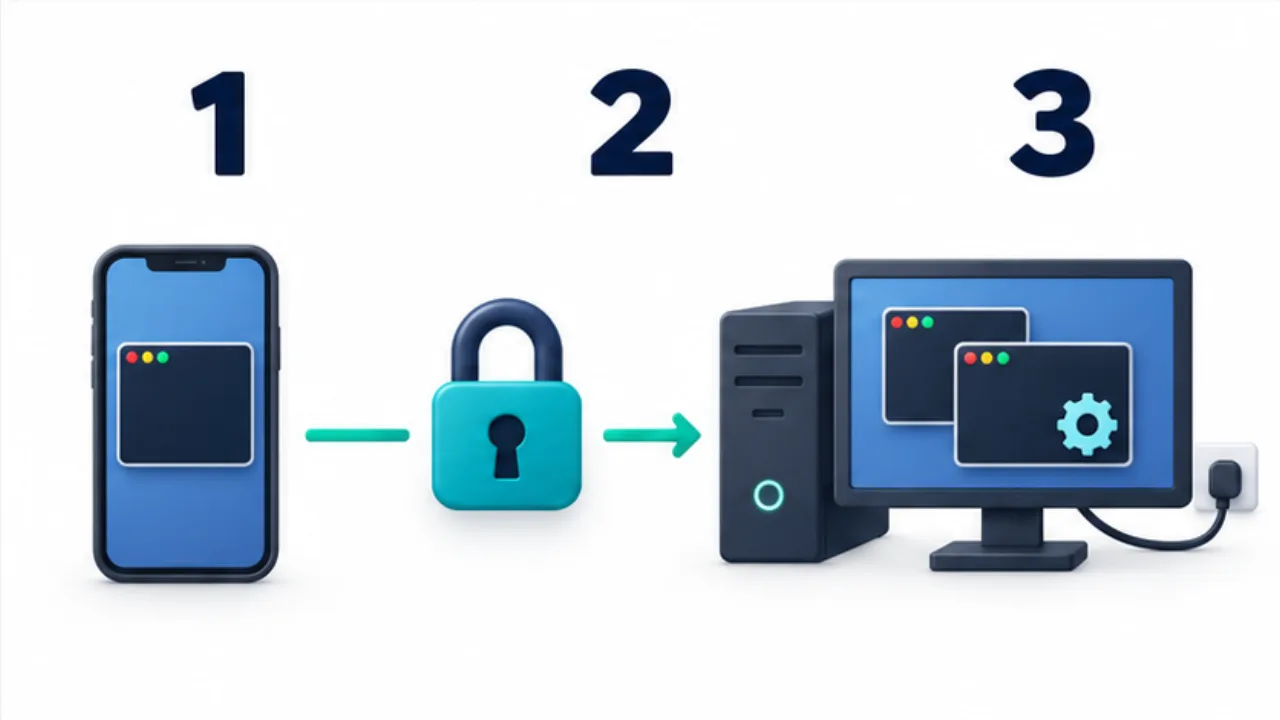
Select the image to enlarge.
- Use the phone’s client as the screen and input surface for the remote host.
- Set up the VPN, authentication, and access permissions for the connection.
- Run the agent and tmux session on the host computer and attach to that session.
Keep permissions explicit
Describe the desired change, constraints, and verification. Review requests for consequential actions rather than disabling permission checks for convenience. On a small screen, break a large review into manageable files or return to a desktop when you cannot inspect it reliably.
Consider the assistant's own remote interface
Some assistants provide a dedicated remote-control workflow. Its authentication, supported features, and process requirements differ from SSH. Use the current product documentation to decide which route fits your environment; do not assume the two interfaces have identical capabilities.
Specify the report you need on a small screen
When delegating a change, describe the report as well as the task. A useful order is changed files, user-visible behavior, checks performed and their results, and remaining uncertainty. This makes the next decision easier without requiring you to search a long transcript.
Imagine a change to a contact form's appearance. “Fixed” does not reveal whether the phone layout was checked or whether submission behavior also changed. Ask for appearance, submission impact, and verified screens separately. This summary helps identify what to inspect next; it does not replace reviewing the actual result.
| Report item | Decision it supports |
|---|---|
| Change | Which problem was addressed and within what scope |
| Verification | What was checked and whether it passed |
| Uncertainty | Conditions still untested or decisions still needed |
| Next action | The proposed operation and its effects |
If the change cannot be inspected reliably on the phone, narrow the review to a relevant file or defer it until a larger screen is available. A plausible summary is not proof of a correct implementation.
Resume from the last confirmed state
Immediately repeating a request after a dropped connection can duplicate an operation that already finished. On reconnecting, inspect the outcome of the previous request, not merely whether the assistant is still present.
Confirm the host and session, read recent output, inspect changed files or running work, and then send the next instruction. If the connection dropped after a test started, first look for its result. If the outcome remains unknown, decide whether repeating it is appropriate for that particular operation.
Before putting the phone away, record what you personally checked. “Read the change summary; visual verification remains” distinguishes completed work from completed review. This note is useful when returning to the desktop and helps prevent the switch between devices from becoming a gap in verification.