Keyboards and terminals
Get oriented in Termux before running commands

Understand installation sources, the local environment, package management, and shared storage in Termux.
On this page
Termux runs a terminal environment on your Android device. Opening it does not automatically connect you to a PC. Commands operate in that local environment unless you explicitly start a remote connection.
Follow the current installation instructions
The Termux project documents supported distribution channels and their differences. Read those instructions before installing the main app or companion apps. Do not mix components without checking signature and compatibility requirements.
Avoid following an old tutorial solely because its screenshots resemble your phone. Installation guidance and Android restrictions can change.
Learn where you are
Start with commands that inspect rather than modify:
pwd
ls
pwd prints the current directory. ls lists its contents. When later connecting through SSH, remember that the same commands describe the remote machine instead.
Add tools deliberately
Termux uses its package system for supported tools. Consult the package-management documentation, search for what you need, and read prompts before confirming an installation or upgrade. A package name from a desktop distribution may not match the Termux package.
Do not paste an unfamiliar setup script merely because it is advertised as a shortcut. Inspect its source and expected changes first.
Distinguish app storage from shared storage
Termux's private files and Android's shared storage have different purposes and behavior. Grant shared-storage access only when needed, and verify the destination before moving data. Preserve important scripts and records before uninstalling or changing installation sources.
Android can restrict or terminate processes. For work that must remain running elsewhere, consider an SSH connection to a host rather than assuming the phone will keep a local job alive.
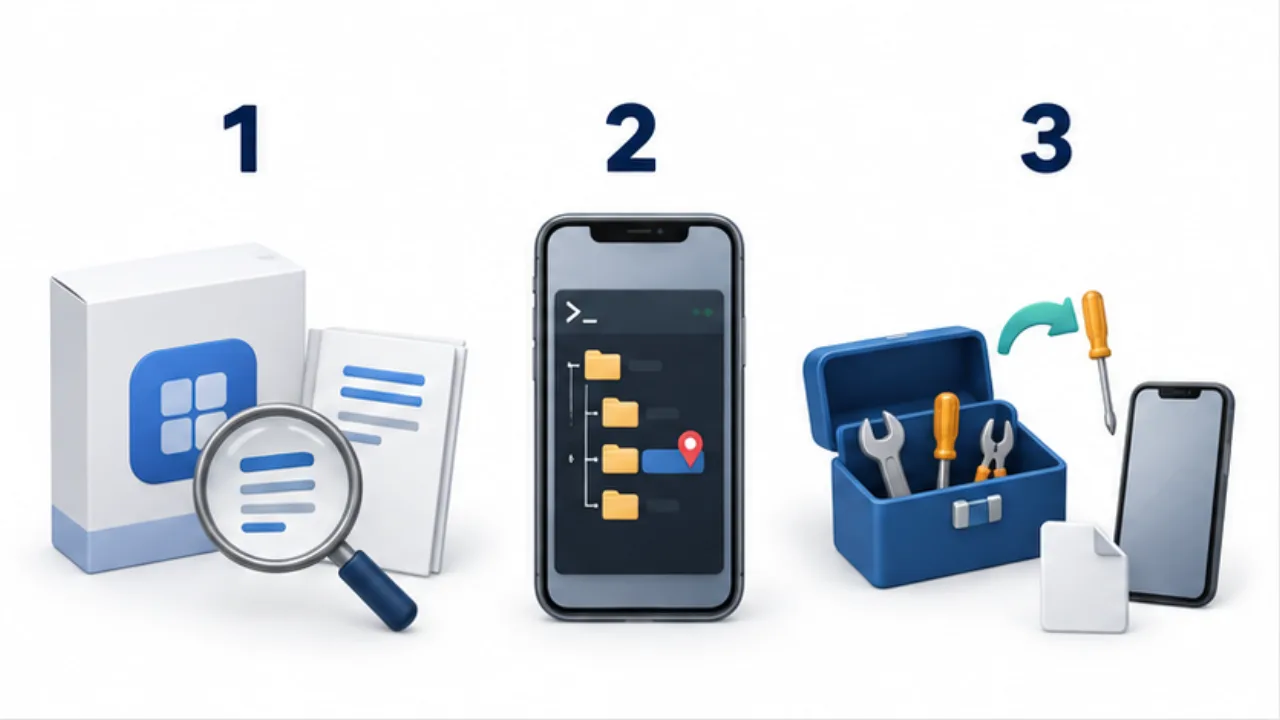
Select the image to enlarge.
- Use official guidance to check the distribution and compatibility.
- Begin by checking the current location and files.
- Install only the tools you need and inspect changes before proceeding.
Complete one small file workflow before adding more tools
Before installing a long list of packages, finish a small exercise from input to verification. Choose a practice directory, save a short text file, return to that directory, and open the file again. The point is to understand where work happens and where its result remains.
Changing directories can make the same filename refer to a different location. If a file appears to be missing, compare the current directory with the original save location before creating another copy. Keeping the path in your practice notes gives you something concrete to check later.
| Stage | What to verify |
|---|---|
| Choose a workspace | App storage and shared storage are not being confused |
| Save a file | You can name its destination and filename |
| Open it again | The original content is present |
| Use it elsewhere | Another app can receive it in the required form |
An exercise that stays inside Termux does not need shared storage merely to feel complete. Introduce cross-app access when exchanging files becomes part of the task, then check the access boundary and transfer method.
Match the error to the stage that failed
Reinstalling Termux whenever something fails makes comparison with the previous state harder. First identify whether the problem occurs during startup, package preparation, command execution, or file access.
For an unrecognized command, check its spelling and the package expected to provide it. For a missing file, check the path and current directory before changing installed software. For a failed download, examine the connection and the repository error shown. These situations can all feel like “Termux does not work,” but they require different next steps.
A useful support note includes the command, the relevant error, and the result you expected. It does not require sharing private keys, credentials, or an entire personal file. Change one condition at a time and compare the result. This leaves you with a reproducible explanation of the fix instead of a collection of unrelated changes.