Keyboards and terminals
Make Japanese flick input easier to use
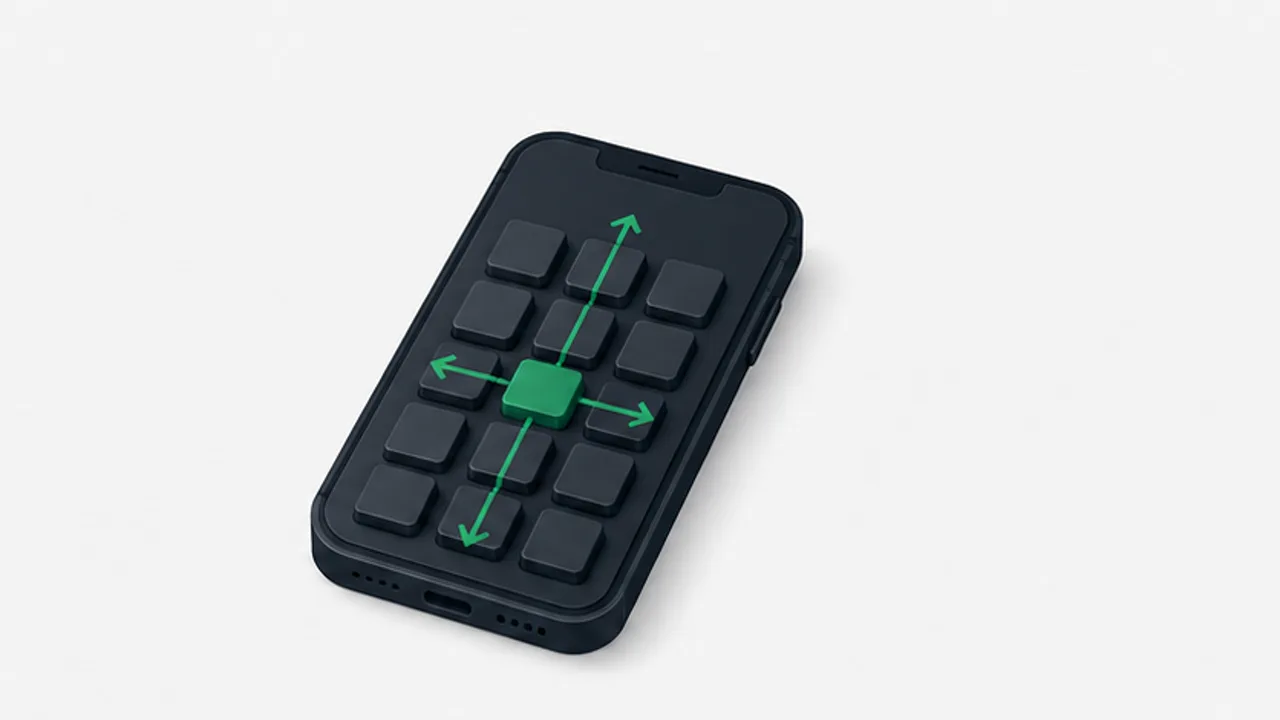
Examine keyboard size, repeated taps, conversion, and correction instead of treating typing speed as a single setting.
On this page
Japanese flick input uses gestures around a compact kana layout. When it feels slow, the delay may come from selecting characters, switching modes, choosing conversion candidates, or correcting text. Identify the repeated interruption before changing settings.
Check the input mode
Some keyboards offer a flick-only setting that changes how repeated taps are handled. Read the setting's description and test a word containing repeated characters. Menu names and available options vary between keyboards and versions.
Avoid changing several options at once; otherwise it is difficult to tell which change helped.
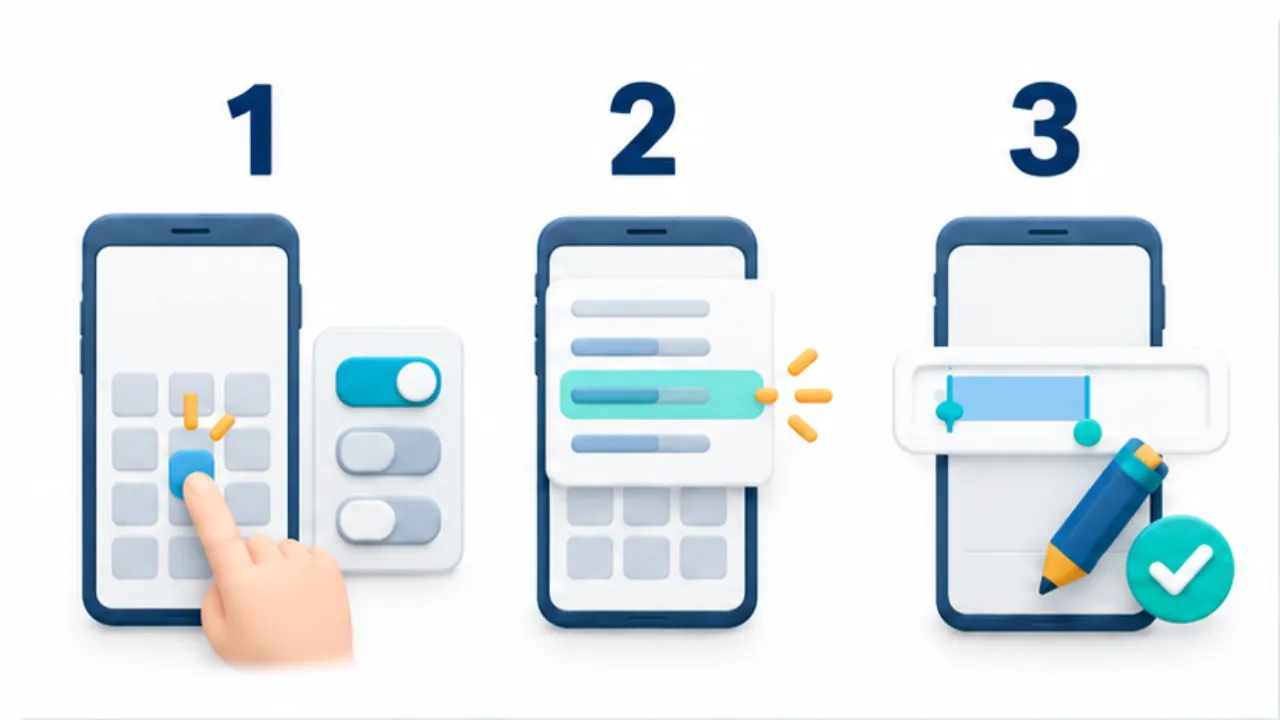
Select the image to enlarge.
- Check whether key size and sensitivity suit your input.
- Observe where candidate selection or symbol switching causes hesitation.
- Include correction steps when trying the workflow.
Adjust the reachable area
Try a keyboard height and position that suit your grip. A larger key is not automatically easier if it requires an uncomfortable reach. Test with the hand and posture you normally use, including one-handed input if relevant.
Reduce repeated correction work
For names or technical terms you often enter, a user-dictionary entry may reduce candidate selection. Keep the reading distinguishable from ordinary words. Learn the keyboard's cursor movement and text-selection gestures so a small error does not require deleting an entire phrase.
Compare finished text
Use a short paragraph representative of your work, including punctuation and unfamiliar names. Notice the errors and corrections as well as the time spent tapping. Treat this as a personal comparison, not a universal speed benchmark.
If much of your writing is English or commands, consider switching layouts for those portions. See flick versus QWERTY for the tradeoffs.
Include correction in the comparison
Compare both a simple kana sample and a message resembling your real communication. Faster kana entry can coexist with slow switching for numbers or punctuation. The purpose is to identify the next useful adjustment, not to establish a ranking.
For a fictional practice message, arrange a meeting time and include a quoted instruction. After entering it, change only the time and reread the whole message. This combines typing, conversion, punctuation, and correction in one workflow.
| Observation | Possible next adjustment |
|---|---|
| Repeated kana interrupt the rhythm | Examine repeated-tap behavior |
| Distant keys cause errors | Try another height or horizontal position |
| Times and punctuation cause pauses | Learn the relevant symbol access |
| One correction removes too much text | Practice cursor movement |
Repeating an identical paragraph also teaches you that paragraph. Any improvement cannot automatically be attributed to the setting alone. Try a different message of similar complexity to see whether the same difficulty has decreased in less familiar text.
Decide when to keep a change and when to revert
Some unfamiliarity after changing a setting is expected, but enduring it for a fixed number of days is not the objective. If communication becomes difficult, accidental sending becomes more likely, or the posture feels uncomfortable, restore the previous setting or separate practice from essential work.
Record the old value and choose one objective, such as easier repeated-character entry. Check whether it improved and whether another operation became harder. Larger keys may be easier to hit while reducing the space available for rereading the message. Evaluate the input field as well as the keyboard.
Once routine work is comfortable, there is no need to keep changing settings merely to improve a test score. A reasonable stopping point is when the recurring obstacle has diminished. Connect faster input to producing a correct, understandable message.