Keyboards and terminals
Choose flick or QWERTY for the text you write
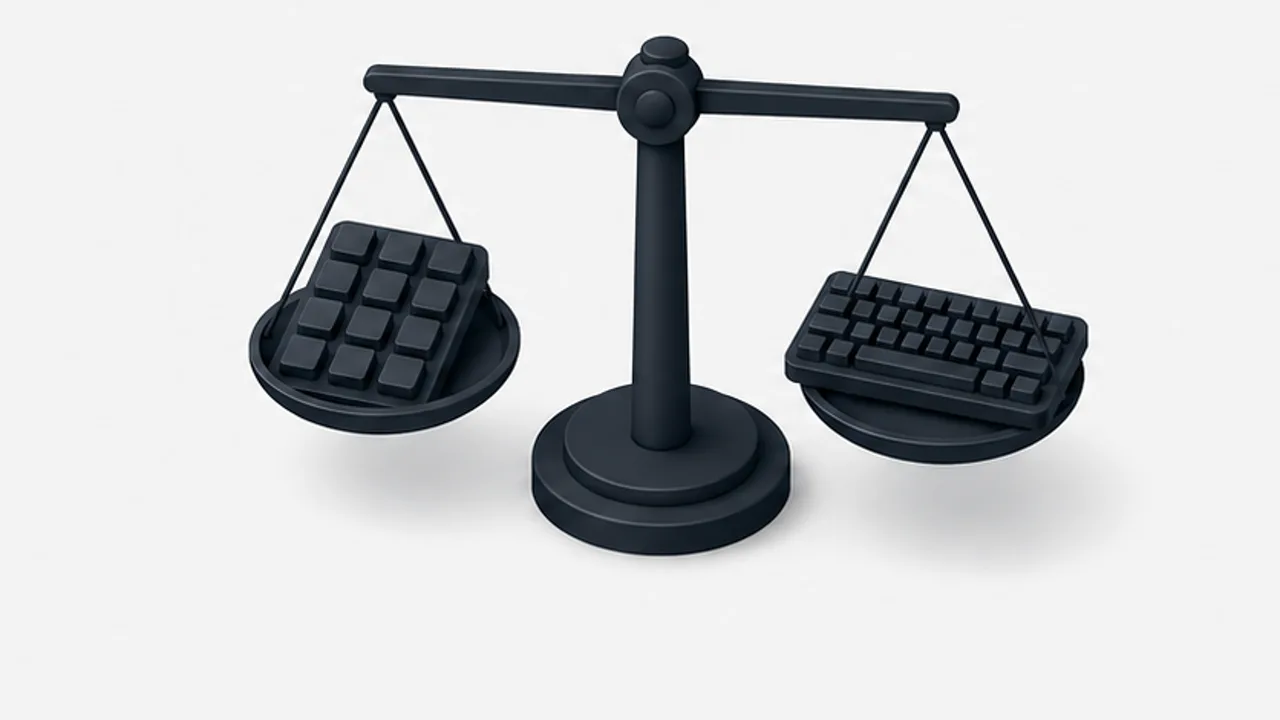
Compare kana entry, Latin text, symbols, and correction on a phone without assuming one layout is always faster.
On this page
Flick and QWERTY layouts ask for different movements. Familiarity, language, grip, and correction behavior all affect the result. A useful comparison starts with your actual writing rather than a claim about the fastest layout.
Consider the language mix
A Japanese kana flick layout gives a compact route to kana. A QWERTY layout is familiar for Latin words and many technical terms. Japanese romaji input uses Latin keystrokes before conversion, so its behavior differs from directly entering English.
If you frequently mix Japanese prose with file names or commands, switching layouts may suit the task better than forcing everything through one arrangement.
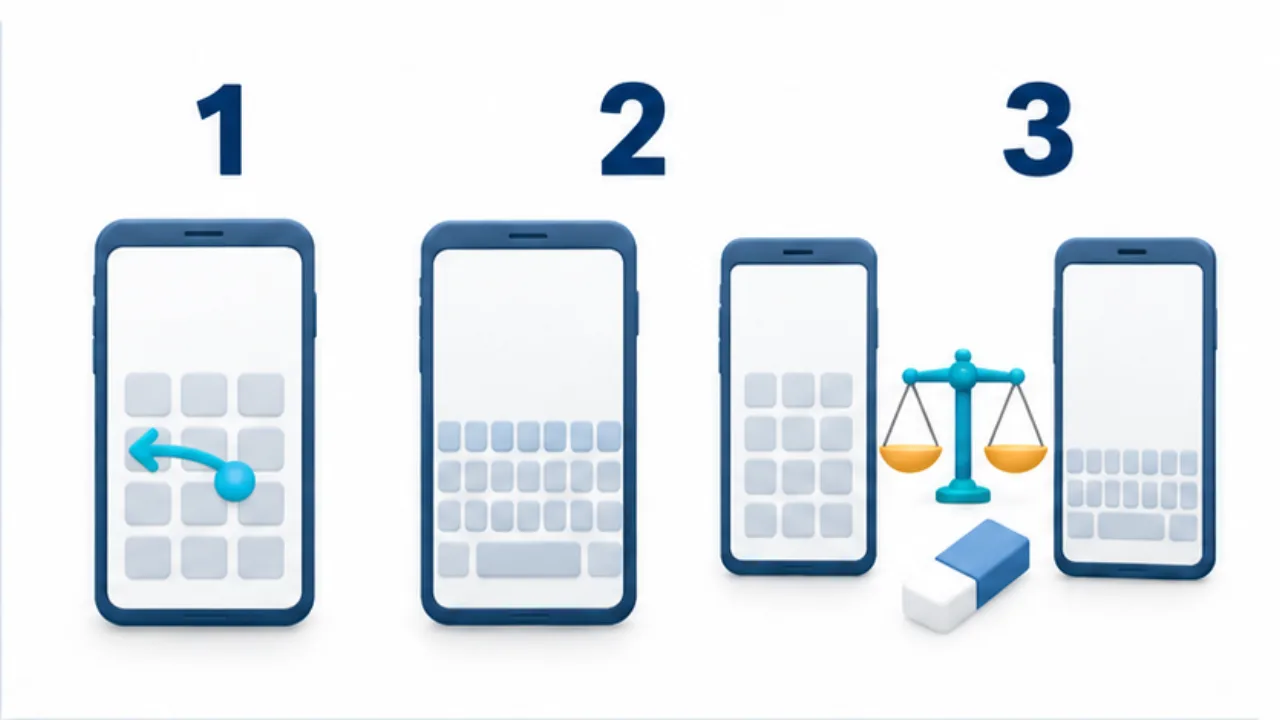
Select the image to enlarge.
- Flick input uses taps and directional gestures to enter kana.
- With QWERTY, check romanized Japanese, letters, and symbols.
- Compare candidate selection and correction on text representative of your work.
Compare space and reach
Flick layouts can offer fewer, larger key areas. QWERTY offers a familiar arrangement but may require smaller targets on a narrow screen. One-handed and two-handed use can lead to different preferences.
Include corrections and symbols
Test punctuation, brackets, numbers, and movement back into a sentence. Candidate selection and cursor control can matter as much as entering the first character. For terminal use, also test whether autocorrection or composition changes a command.
Make a reversible trial
Keep your familiar layout available while trying the alternative on a representative task. Record recurring errors or uncomfortable reaches. Adaptation time differs, so do not treat a fixed number of days as proof that the new arrangement will work.
For improving the flick workflow itself, see flick-input settings.
Compare recurring tasks rather than one average
An overall typing score can hide the situations that matter most. Compare a short Japanese reply, a message containing Latin text and numbers, and a longer draft separately. This shows where changing layouts may be useful.
Most of your writing might be Japanese, while one recurring task requires exact filenames or identifiers. That task deserves attention even if it occupies little time. Where an unnoticed error creates substantial rework, the ability to verify the result can matter more than entry speed.
| Task | What to compare |
|---|---|
| Short Japanese reply | Kana entry and candidate selection |
| Mixed-language message | Capitals, numbers, and punctuation |
| Longer draft | Visibility of the text and correction |
| Identifier transcription | Ability to compare characters accurately |
Use invented names and identifiers in test material. You do not need to enter a real password into a typing website. Reproducing the structure of the task provides a useful comparison without using sensitive content.
Switch at useful boundaries
Using both layouts does not require switching for every character. A short Latin word may be easier to complete in the current arrangement, while a sequence of symbols may justify changing layouts for the whole segment.
For example, when adding a file path to a Japanese explanation, switch for the path, inspect it, and then return to Japanese. Observe more than the number of switches: check whether the mode after returning is the one you expect. Japanese romaji input and English input can both display QWERTY while differing in conversion and autocorrection behavior.
If the mixed workflow creates more hesitation, narrow the tasks for which you switch or return to the familiar layout as your default. Using both is not an objective in itself. Look for an arrangement you can explain in practical terms: this method lets you complete and check this particular task comfortably.