Keyboards and terminals
What Mozc is, and what it does not define

Distinguish an open-source Japanese input project from the keyboard interface, distribution, and privacy behavior of a finished app.
On this page
Mozc is an open-source project for Japanese input. Knowing that an app uses Mozc tells you something about its conversion components, but not everything about the finished keyboard or how its developer packages and configures it.
Separate conversion from the interface
The conversion side interprets a reading and offers written forms. The interface includes the layout, gestures, candidate display, cursor controls, and settings. Two applications using related conversion components can therefore feel different in everyday use.
Check the actual distribution
The official repository provides project documentation, source, and build information. A package supplied by a Linux distribution or another app developer may add integration and use a particular version. Confirm the source of the application you install rather than treating every similarly named download as official.
Avoid inferring privacy from the engine name
A finished app can include features beyond conversion. Read its permissions, network behavior, account features, and privacy documentation. An open-source component does not by itself establish what a separate binary does.
Evaluate the behavior you need
Try recurring names, mixed Japanese and Latin text, candidate selection, and correction. Check whether the app provides user-dictionary features and the shortcuts needed by your workflow. For terminal use, also test how composition and confirmation interact with Enter.
See how input methods work for the stages between a key press and committed text, and keyboard privacy for a broader review.
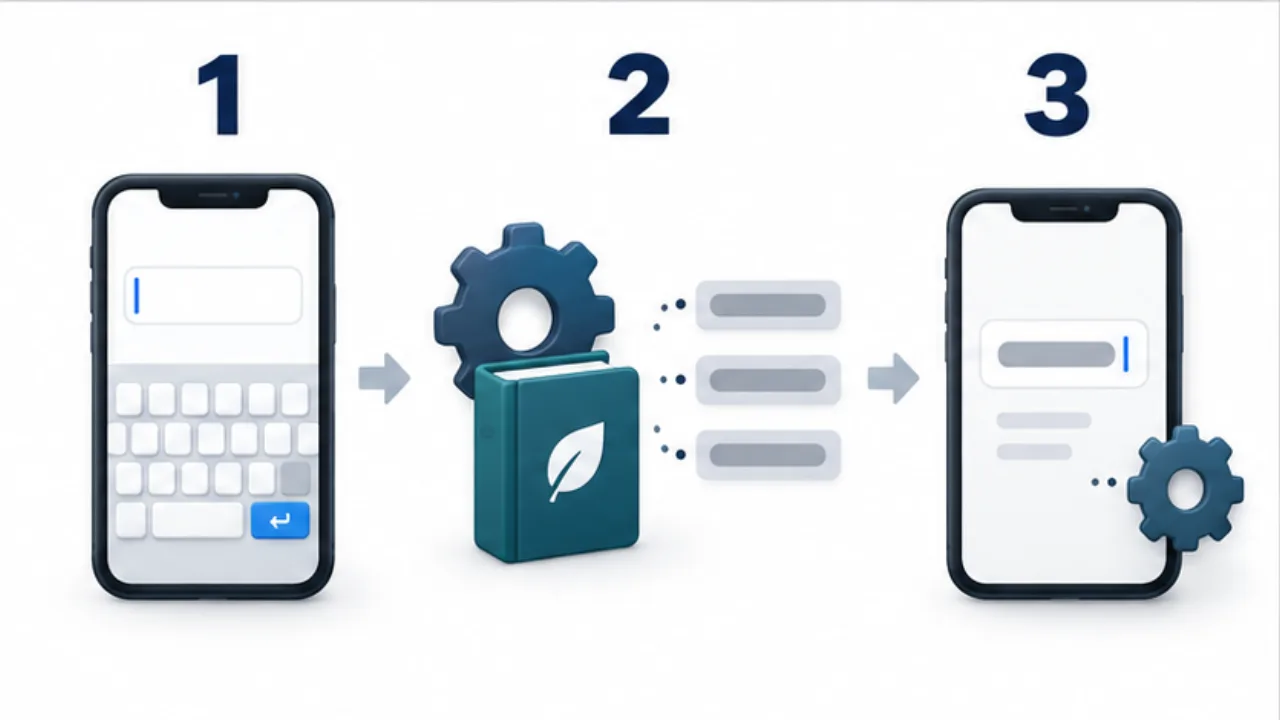
Select the image to enlarge.
- The input surface provides keys, layout, and switching controls.
- The conversion engine uses dictionaries and related data to offer candidates.
- Check app integration and network features separately.
Describe the conversion problem precisely
“Conversion is difficult” can mean that the intended candidate is missing, or that the right candidate is present but difficult to select. Vocabulary and phrase boundaries matter in the first case. Candidate presentation and controls matter in the second. Distinguishing them helps you decide what to investigate.
Imagine repeatedly entering an invented shop name. If a common word appears first, check whether the intended spelling is available anywhere among the candidates. If it is absent, investigate the finished app's user-dictionary feature. If the right candidate is visible but selection keeps going wrong, adding more dictionary entries may not address the problem.
| Difficulty | What to record |
|---|---|
| Missing candidate | The reading entered and expected written form |
| Unexpected phrase boundary | Where you intended to divide the text |
| Incorrect selection | The selection action and resulting display |
| Text changes on confirmation | The receiving app and text before and after confirmation |
Record the example before changing a setting. You can then repeat the same input and distinguish a recurring obstacle from a first impression.
Check dictionary export before building a large vocabulary
If you register work-related vocabulary, establish which application stores it. A shared Mozc heritage does not demonstrate that two finished apps automatically share user-dictionary entries.
Where migration is supported, begin with a few invented entries and examine the export and import process. Check more than the reported count: inspect readings, written forms, and any other fields you depend on. Use the distributing app's documentation for supported formats and fields.
A personal dictionary may reveal names, organizations, or specialized terms you regularly enter. For a support request, create a small fictional sample that reproduces the problem instead of sending your entire real dictionary. This also makes the report easier for someone else to understand and repeat.