Keyboards and terminals
Use a physical keyboard with Android
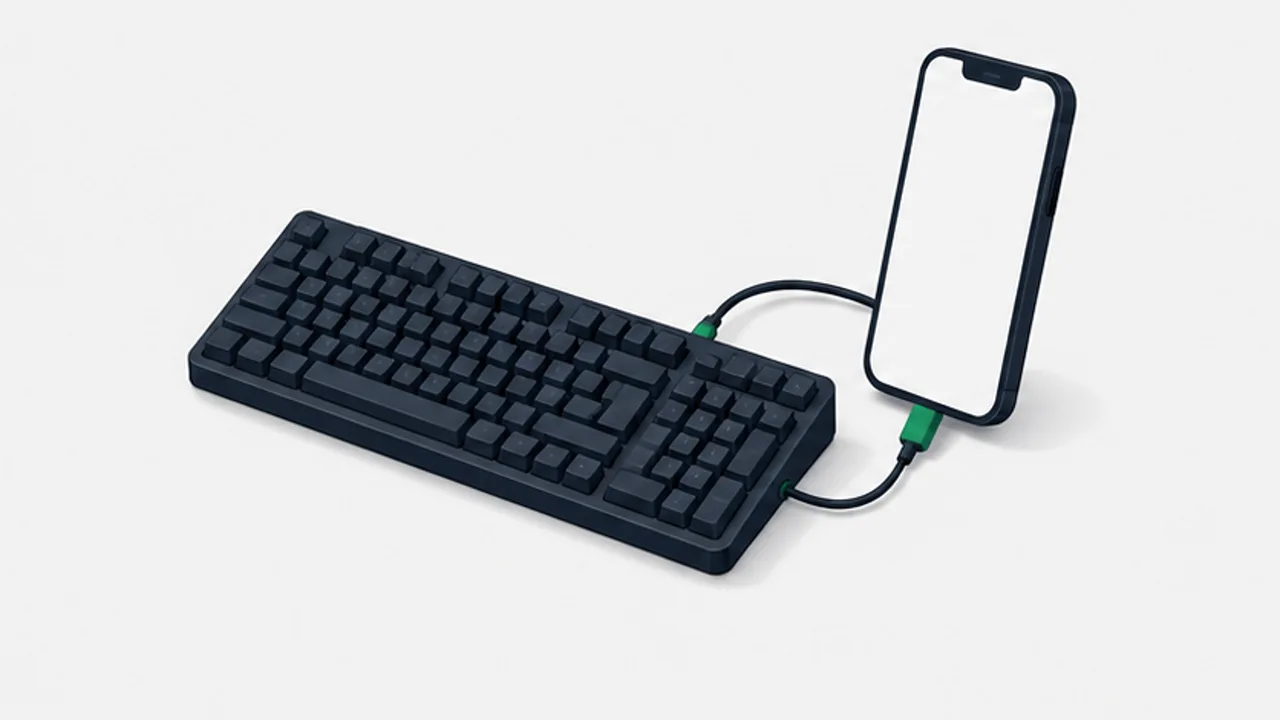
Check connection support, hardware layout, Japanese input, and shortcuts before relying on an external keyboard.
On this page
An external keyboard can make longer text and terminal shortcuts easier to enter. The connection is only the first step: Android's layout setting and the active input method also influence what appears on screen.
Choose a connection
Bluetooth requires pairing and power for the keyboard. A wired keyboard avoids Bluetooth pairing, but depends on USB host support, a suitable cable or adapter, and the power requirements of the devices. USB host support is not guaranteed on every Android device.
Test your actual combination before buying accessories based only on a connector shape.
Match the hardware layout
Open Android's physical-keyboard settings and choose the layout matching the keyboard. Menu names vary by device. Test letters, punctuation, brackets, and the keys used to switch input sources.
If letters work but symbols are misplaced, investigate the layout before concluding that the keyboard is defective.
Test Japanese input separately
The hardware layout and Japanese conversion are different layers. Confirm that you can start composition, select a candidate, confirm it, and return to direct Latin input. Then test the same actions in the application you intend to use.
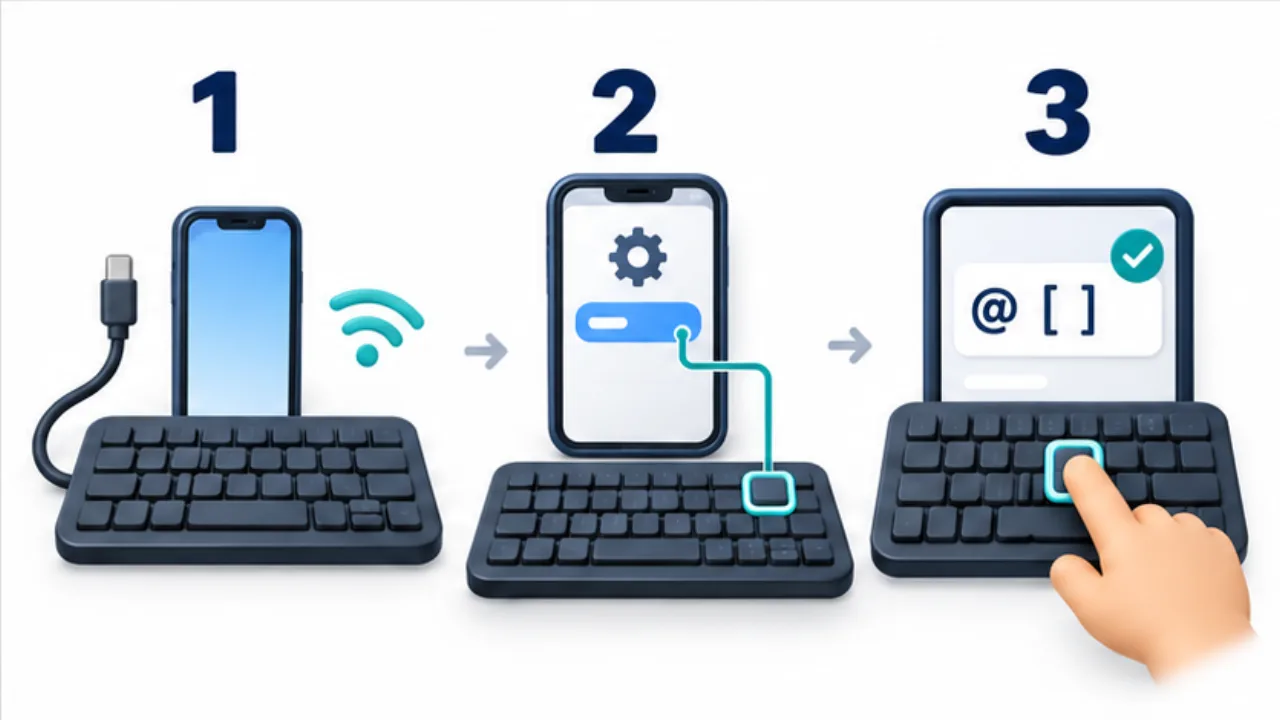
Select the image to enlarge.
- Connect using a supported method such as USB or Bluetooth.
- Check the layout setting for the attached keyboard.
- Test symbols, Japanese input switching, and required shortcuts.
Check shortcuts in context
Try Control, Alt, Escape, Tab, arrows, and any required combinations in a harmless session. Android, the terminal client, and a remote application can each intercept shortcuts. Keep the on-screen keyboard available if you need a fallback.
For portable use, also consider stand stability, viewing angle, and whether the keyboard suits the surface you actually have. A desk setup and a handheld setup have different constraints.
Test leaving the desk and returning
Successful typing immediately after connection does not verify the everyday workflow. Lock the screen, return after a pause, use another paired computer, and switch back to Android. Knowing where the first character will arrive matters in routine use.
If one keyboard serves both a PC and a phone, switch and enter a short sample in a practice field. Confirm that it reaches the intended device. Keep both screens in an observable, harmless state rather than leaving an important form active on the other computer.
| Situation | What to verify |
|---|---|
| Initial connection | Letters and symbols appear as expected |
| Return from screen lock | The route back to usable input |
| Change connected device | Which computer receives typing |
| Disconnect the keyboard | On-screen input can continue the task |
For a portable setup, include packing up and reconnecting. Establish whether your combination requires pairing again or merely selecting an existing connection. This is part of its practical convenience.
Check the basics before clearing all settings
When input fails, first inspect power, the selected connection, and focus in the receiving app. If text is reaching another computer or no input field is active, deleting pairing information does not address the original cause.
Then separate ordinary characters, punctuation, Japanese conversion, and shortcuts. Correct letters with misplaced punctuation point toward a layout check. Correct characters with failed language switching point toward the language and input-method controls. A problem limited to one app deserves an examination of that app's behavior.
Record the previous layout and connection before changing them so you can restore a known state. When comparing cables or keyboards, replace one component at a time. Being able to explain which change affected which symptom is more useful than resetting everything and hoping the result improves.