Keyboards and terminals
What to check in an Android SSH client
Evaluate authentication, host-key checks, essential keys, paste behavior, and reconnection using a harmless test session.
On this page
An SSH client can establish a connection and still be awkward for real work. Evaluate the complete path from authentication to editing, especially if you plan to use a terminal editor or coding assistant.
Verify the connection
Confirm the host name, account, and authentication method. When a host key is new or changes, check it through a trusted route rather than accepting it automatically. Keep private keys protected and understand the client's import and storage behavior.
Test the keys your work needs
| Input | A useful test | Possible problem |
|---|---|---|
| Ctrl+C | Stop a harmless foreground command | The keyboard does not send Control |
| Tab | Complete a test file name | Focus changes instead |
| Escape | Leave a mode in your editor | Android handles Back instead |
| Arrows | Move through a line | A local gesture captures the action |
Test Japanese text if it is part of your work, including composing, confirming, and correcting it.
Inspect paste behavior
Use a harmless multi-line sample and observe how the client handles it. A pasted newline can affect command execution. Review pasted commands before submitting them, and avoid putting secrets into screenshots or shared terminal histories.
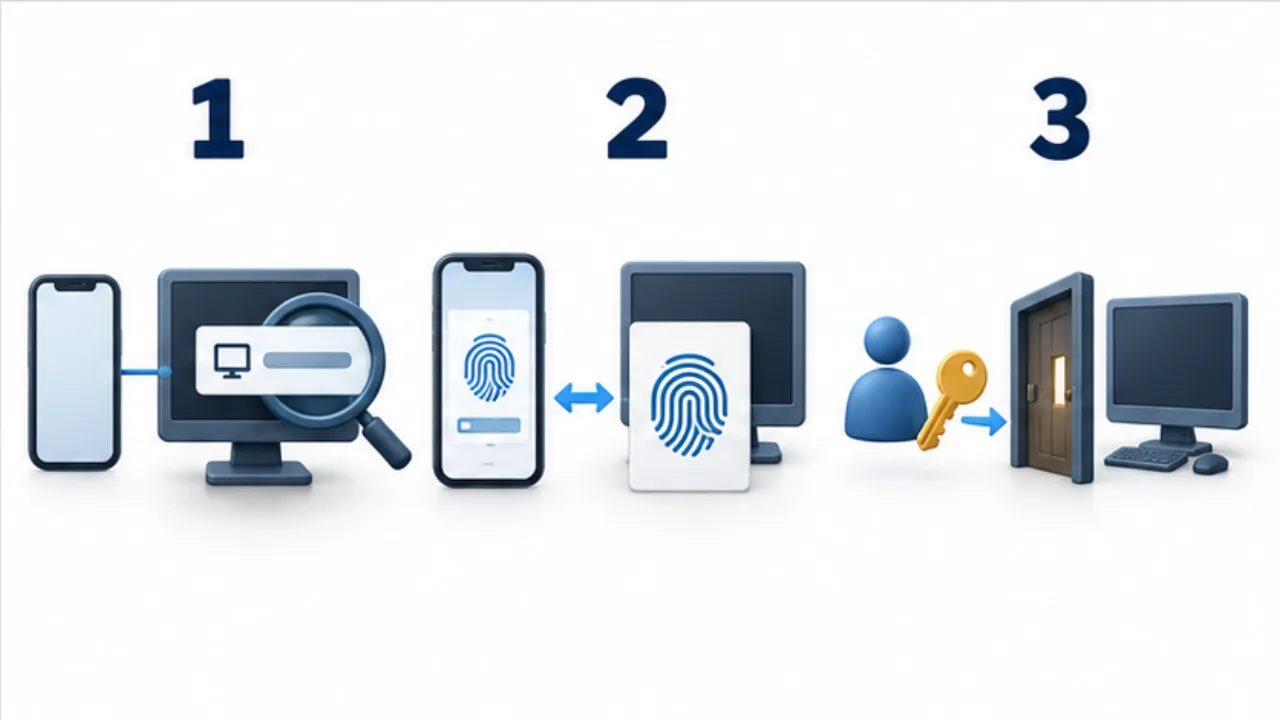
Select the image to enlarge.
- First check the destination and route to its SSH service.
- Use host-key information to verify the intended host.
- Manage the login key as the credential used to authenticate yourself.
Reconnect to existing work
If you use tmux, test detaching and returning to the same named session. A connection shortcut can save steps, but should not hide which machine and session you are opening.
Choose the client that supports your required operations and maintenance expectations. A feature list alone does not show whether the keyboard and client work well together on your device.
Separate keyboard behavior from client and remote-app behavior
A visible input problem does not identify its cause by itself. The keyboard creates text and key events, the SSH client sends input, and the remote shell or editor interprets it. Each layer can affect the result.
If one shortcut fails, first check whether ordinary text also fails and whether the same shortcut behaves differently in another remote application. Changing the keyboard, client, and host together may improve the result without revealing why.
| Symptom | Useful comparison |
|---|---|
| Japanese text changes around composition or confirmation | Another input method on the same connection |
| Only one shortcut fails | How the key is sent and the remote app's binding |
| Pasting alone causes trouble | A short practice sample and the paste method |
| Reconnection opens an unexpected screen | The host and the identity of the resumed session |
Use a disposable practice file. Entering test strings directly into a shell can turn an input exercise into an actual operation, so perform text-entry checks in an editor where the sample is treated as content.
Give essential operations more weight than feature counts
A comparison does not need to award equal points to every feature. Reading logs emphasizes legibility and scrolling. Editing prose emphasizes composition and selection. Interactive tools may depend more on modifier keys and returning to an interrupted session.
Choose a few operations that would stop your work if they failed. Test those under the same conditions before comparing preferences such as colors or host organization. A long feature list may be less useful than an interface where the keys you need remain easy to reach.
Include an interrupted connection in the evaluation. Select the host again, return to the intended session, and establish what work remains unfinished. The test is complete when you can resume a real task, rather than when the app merely reports a successful connection. Keep the same task for each candidate so that the comparison reflects your workflow.