Files, images, and PDFs
Redact a PDF rather than covering the text
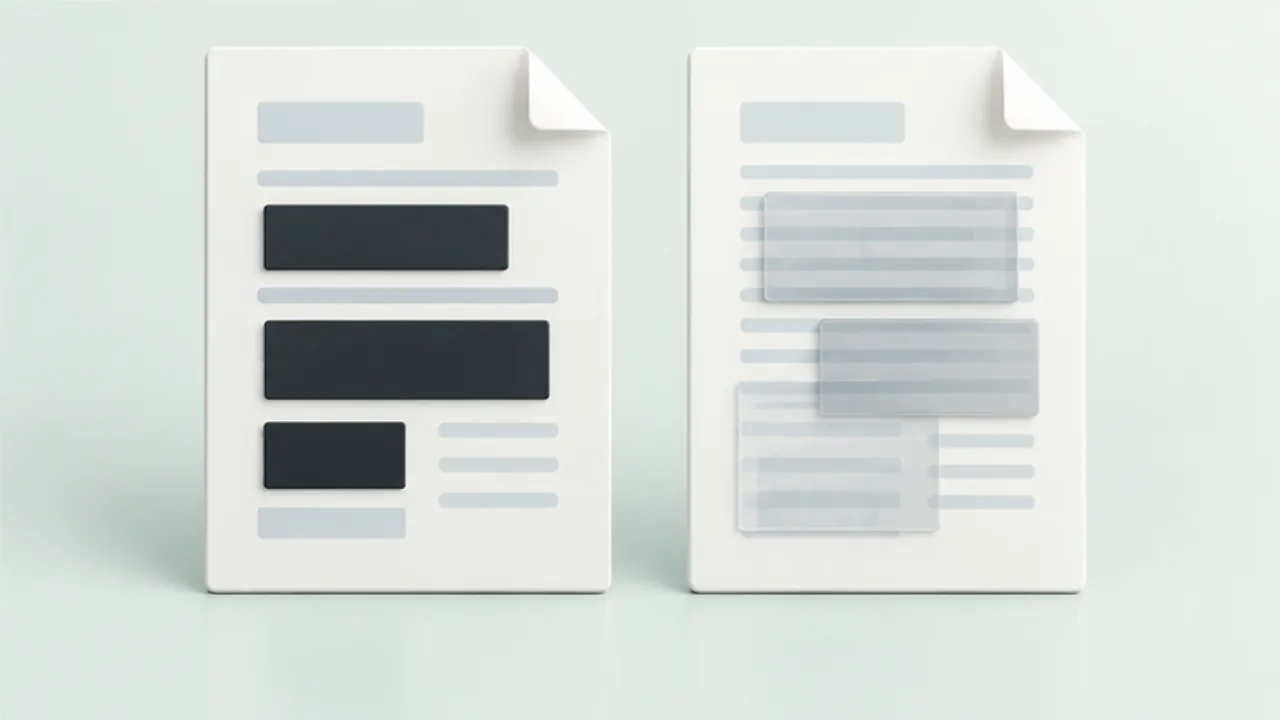
A black rectangle can cover text visually while leaving underlying content in the PDF. For a document you will distribute, distinguish annotation from actual redaction.
On this page
Define the scope
List the information recipients should not receive and find repeated occurrences in tables and other pages. Keep the original in a restricted location and work on a delivery copy.
Apply the operation
Use a PDF application's dedicated redaction feature. Acrobat Pro separates marking content from applying and saving the removal. A marked preview is not the finished redacted document.
Inspect hidden information
Comments, attachments, and metadata need separate consideration. Adobe distinguishes visible-content redaction from sanitization of hidden information. Select the appropriate scope without assuming one tool automatically covers every part of the document.
Reopen the saved copy
Search for the removed terms and inspect text copying and annotations. These checks help find mistakes; they are not a universal proof that all sensitive information is gone. Follow any organizational handling requirements and verify the exact file being distributed.
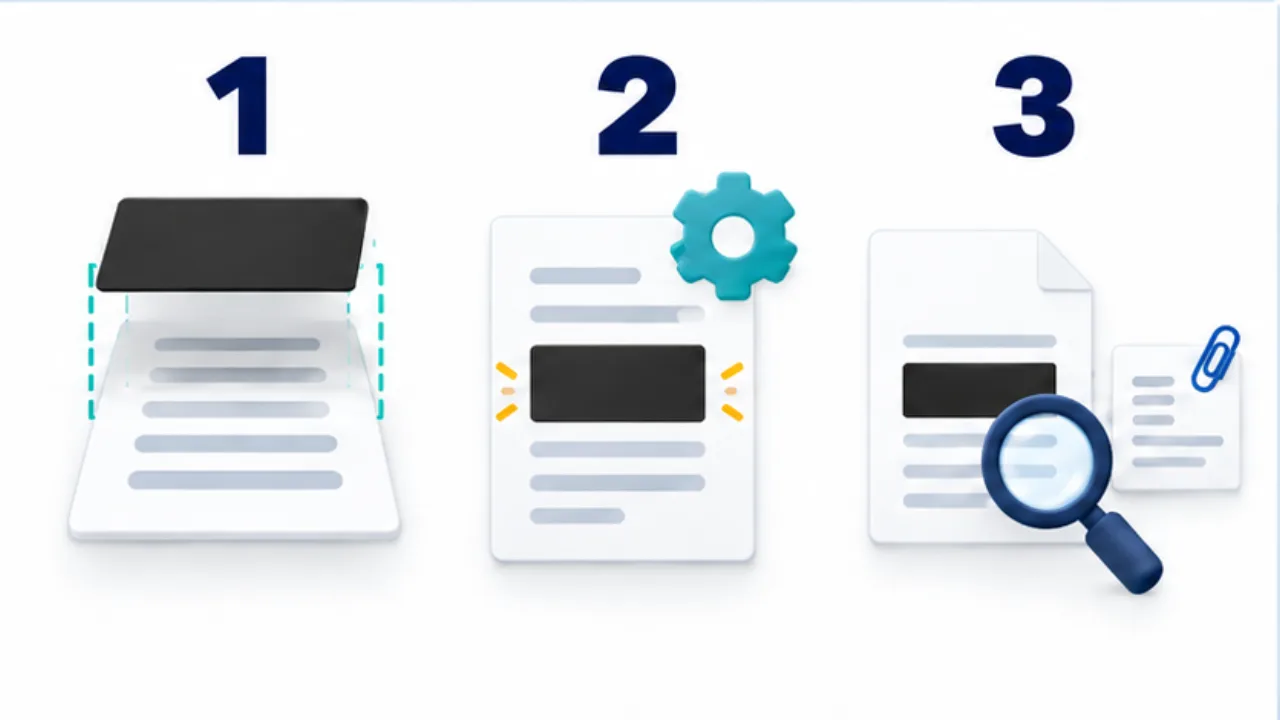
Select the image to enlarge.
- An overlaid rectangle can leave the text underneath.
- Apply the supported redaction function and save a distribution copy.
- Inspect the output, including text search, copying, and hidden information.
Understand what a covering rectangle does
Imagine placing a sticky note over a name on paper. The name is hidden from view, but it still exists underneath. A shape or annotation placed over PDF content can have a similar limitation. Decide whether your operation changes what a reader sees or removes information from the document.
Marking an area for redaction is also a preparation stage. Treat applying the marks, saving the result, and checking the saved file as part of the same job. A dark area in the editing window alone is an unreliable completion signal because it may represent work that has not yet been applied.
Example: prepare an application form as a sample
Suppose you want to share an old completed form to explain how its fields work. Start by separating useful instructions and field labels from information about the previous applicant. Names are only one possible location: examine contact fields, free-text answers, and attachments using the same rule.
Decide whether each part needs selective redaction or whether an entire page is unnecessary. Removing every label might protect information but leave an unusable sample. Save the processed delivery copy separately from the restricted original, then reopen it.
Conduct two reviews. First, look for information that should have been removed. Second, follow the form as a recipient would and check that the remaining instructions still make sense. Before attaching or uploading anything, compare the selected file with the reviewed copy. This final selection is a separate opportunity for error.
Separate the places information can remain
| Place | Review question |
|---|---|
| Body text and tables | Does the same information appear elsewhere? |
| Comments and attachments | Are editing discussions or source documents included? |
| Document information | Are there details unnecessary for this audience? |
| Delivery folder | Could an unprocessed original be selected as well? |
The table organizes a review; it does not certify that a file contains no sensitive information. Visible redaction, hidden-information handling, and delivery selection solve different parts of the problem. If the goal is simply to demonstrate how a form works, creating a fresh example with clearly fictional entries may be easier to manage than adapting a real application.