Files, images, and PDFs
Check photo location information before sharing

A photograph may contain location metadata in addition to the visible scene. Inspect both before sharing a picture whose location should remain private.
On this page
Open the information view
Preview on Mac can show the location of a photo that contains GPS information. The available fields depend on the file and application. No displayed location does not mean every kind of metadata has been removed.
Check the sharing options
A photo app may let you omit location for a particular share. Distinguish that from editing the location stored with the original. Know which operation you are performing.
Inspect the visible scene
Street signs, windows, documents, and uniforms can reveal location or identity. Removing GPS coordinates does not make the image anonymous. Cropping, recapturing, or limiting the audience may be more suitable.
Verify the delivery copy
Inspect the exported file, not only the source settings. Do not assume a format conversion or screenshot removes every relevant detail. Name the checked copy clearly and make sure that is the one selected for sending.
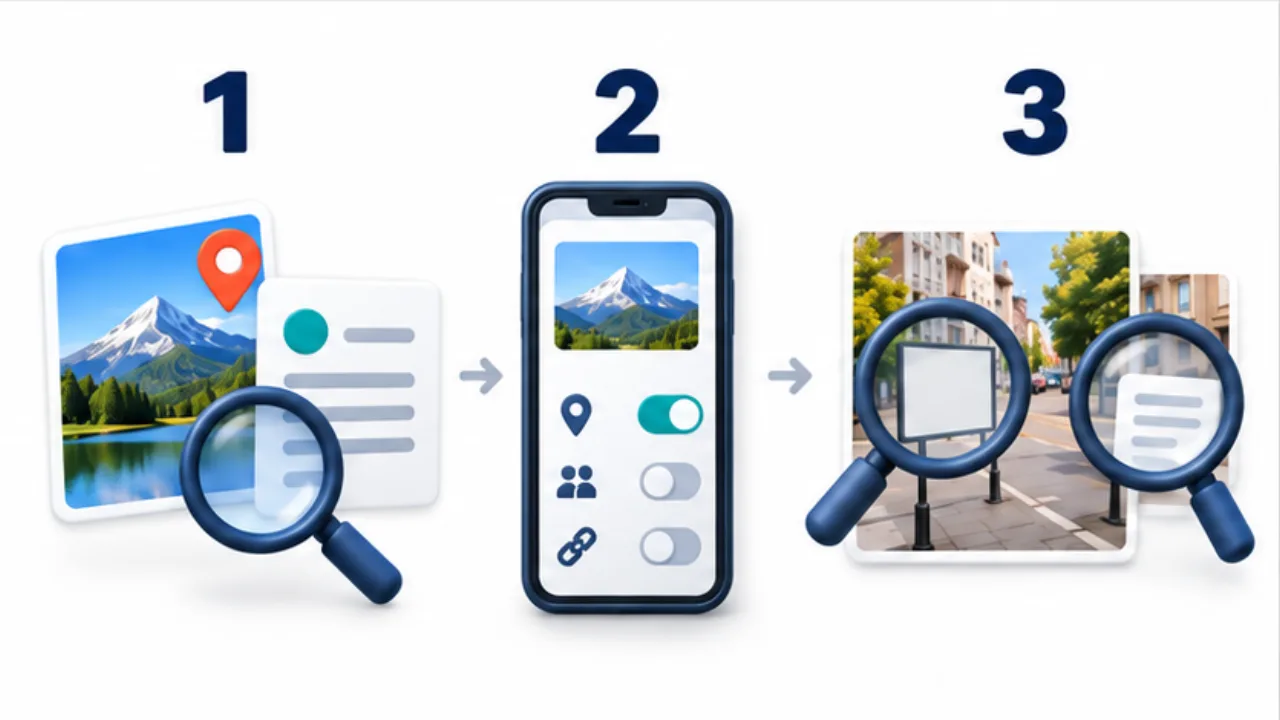
Select the image to enlarge.
- Inspect available location and other metadata in the information view.
- Check what the selected sharing method will include.
- Look for visible clues such as signs and documents in the photograph.
Read the picture and its attached information separately
Metadata is information associated with an image rather than the visible scene itself. Dividing your review into those two parts makes the task clearer. A photograph showing only a small object can still contain location data. Another photograph can reveal an address in the background even when no GPS information is displayed.
Work backward from the purpose of sharing. A picture intended to help a friend find a meeting place has different information needs from a product photograph for a public listing. State what the recipient needs to learn before deciding what to retain.
Example: publish a photograph taken at home
Suppose you photograph a small item for a public listing. Preserve the original and prepare a separate publication copy. Identify the area needed to explain the item's shape and condition, then inspect nearby mail, reflections, and the view through any window.
If an address is visible, changing a location-sharing setting will not remove the photographed address. Consider cropping. If the crop would also remove useful product detail, rearrange the background and take another photograph.
Next, check how the application handles location information and export the file you intend to publish. Review both its information view and its visible content. Put only the reviewed version in a delivery folder. Meaningful names or distinct folders help prevent an original with the same filename from being selected accidentally.
Be precise about what a check establishes
| Result | What it tells you |
|---|---|
| GPS appears in the information view | The application can display location information in this file |
| GPS does not appear | This view did not show a location |
| An address is visible in the picture | The image content needs a separate decision |
| The delivery copy was inspected | That particular copy has been reviewed |
Do not extend a narrow observation into a broader conclusion. Failing to see GPS in one application is different from examining every kind of attached information. Keep track of the exact copy being shared, especially when exporting or uploading produces another version. The review should follow the file to the point where it is selected for delivery.