Keyboards and terminals
Terminal shortcuts and the context they depend on

Practice line editing and history search, and distinguish interrupting, ending input, and suspending a job.
On this page
A shortcut's meaning depends on the program receiving it. These examples describe common Bash Readline behavior with default Emacs-style bindings. An editor, tmux configuration, or alternate shell mode may behave differently.
Edit the current input line
| Key | Typical Readline action |
|---|---|
| Ctrl+A / Ctrl+E | Move to the beginning / end of the line |
| Ctrl+W | Remove the preceding word |
| Ctrl+U | Remove text back to the beginning of the line |
| Ctrl+Y | Insert previously removed text from the kill ring |
These operate on the command being entered; they are not file deletion commands. Nevertheless, review the entire line before pressing Enter.
Search history carefully
Ctrl+R searches backward through command history. Find a harmless command such as pwd while practicing. Before executing a result, check paths, host names, and arguments. A command that was correct yesterday can be wrong in today's directory.
Distinguish C, D, and Z
Ctrl+C normally interrupts the foreground job. Ctrl+D can signal end-of-input; at an empty shell prompt it may exit the shell. Ctrl+Z typically suspends the foreground job instead of ending it. In a shell with job control, jobs lists jobs and fg resumes one in the foreground.
Applications can handle these inputs differently. Do not experiment with exit sequences while unsaved work is at stake.
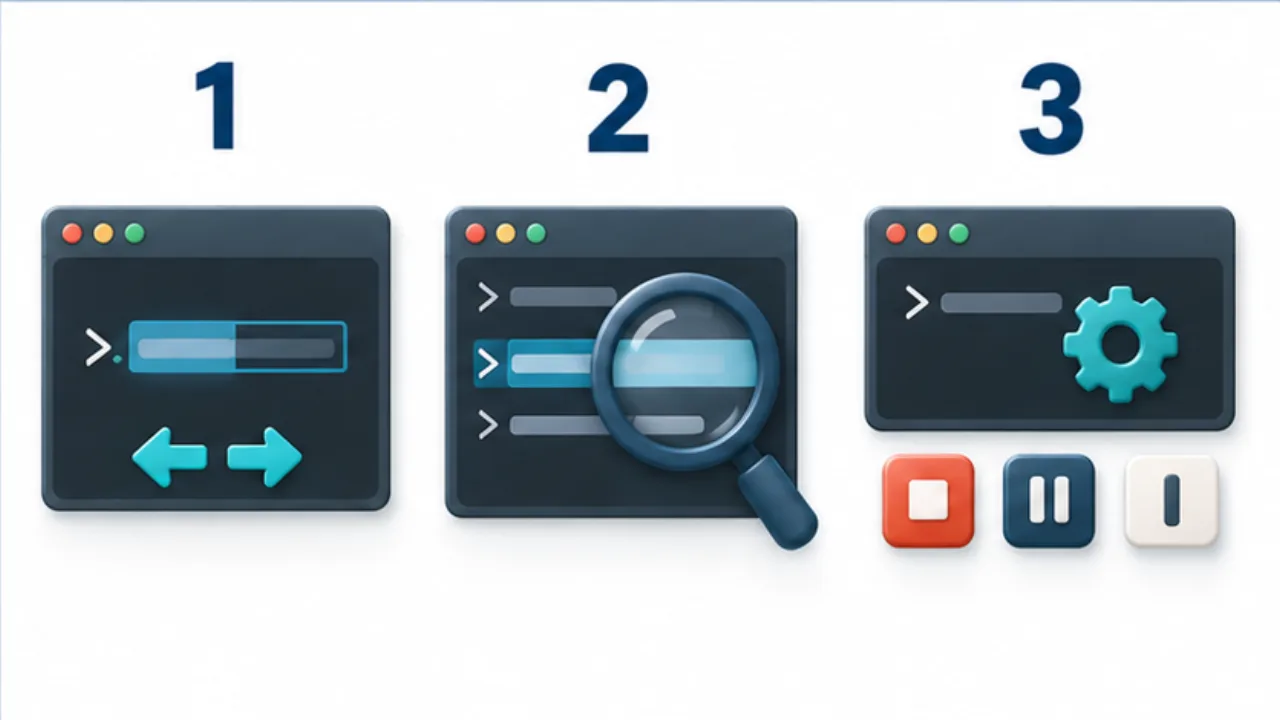
Select the image to enlarge.
- Use cursor movement and partial deletion while editing a line.
- Check recalled commands, destinations, and filenames before execution.
- Interrupt, end-of-input, and suspend have different roles.
Trace a shortcut that does not arrive
Check the keyboard, terminal client, multiplexer, and application in that order. tmux uses Ctrl+B as its default prefix, so it may consume that combination before another program sees it. Change one layer at a time while diagnosing the problem.
Practice editing separately from stopping a process
Begin shortcut practice at an idle input line. You can directly observe cursor movement, removed text, and restored text. Keep this exercise separate from experimenting with interruption keys inside a running operation.
When correcting an argument, first locate the cursor. After moving and removing text, read what changed and restore it if necessary. Before pressing Enter, inspect the command name and all its arguments together. Producing the intended line matters more than recalling the key combination quickly.
| Stage | What to inspect |
|---|---|
| Move | The cursor reached the intended position |
| Remove or restore | The expected characters changed |
| Execute | The whole line describes the intended operation |
| Inspect the result | Errors and the required output |
Familiarity can make it tempting to execute without reading. A line recalled from history may still contain a path from an earlier task. Fast editing and correct application to the present target are separate skills.
Turn a failed shortcut into a reproducible observation
“Ctrl does not work” gives little direction. Record the combination, the active screen, the expected behavior, and what happened instead.
For example: “After SSH connection, Ctrl+A at a shell prompt inside tmux did not move to the start of the line.” This identifies the receiving context and the path through which the input travels. Compare behavior outside tmux or with another input method, changing one condition at a time. If you alter a setting, record both the change and how to restore it.
Do not assume that a screen which appears unresponsive represents a completed process. When the display is ambiguous, consult the active application's controls. Repeatedly trying an exit key learned in another program may make the situation harder to interpret. Establishing which program currently receives input is a more useful starting point for returning to a known state.