Keyboards and terminals
Find a keyboard layout for a foldable phone
Compare full-width, split, floating, and physical keyboards across folded, unfolded, and desk-based use.
On this page
A foldable phone changes the space available for typing, but a larger screen does not automatically make every key easier to reach. The right arrangement depends on whether you hold the device, place it on a table, or use an external keyboard.
Test the posture first
In handheld use, note where your thumbs can reach without shifting the device. A split keyboard may bring keys closer to the edges. A floating keyboard may preserve screen space or provide a smaller target area, depending on its size and position.
Availability differs between apps and devices. Do not assume that a feature shown for one tablet exists on every foldable phone.
Check folded and unfolded behavior
Switch between the screens while composing a harmless note. Observe whether the keyboard changes size, resets its position, or hides important controls. Test the applications you actually use rather than only the home-screen configuration.
Consider the desk arrangement
An external keyboard can help with longer input, but it introduces a stand, pairing or cable requirements, and another item to carry. Make sure the screen remains readable at the distance created by the keyboard.
Match the layout to the task
For a short reply, the folded screen may be sufficient. For reading a diff while typing, the unfolded display may be useful. Compare the complete workflow, including corrections and application switching, before declaring one posture your default.
See physical keyboards on Android for layout and shortcut checks after connection.
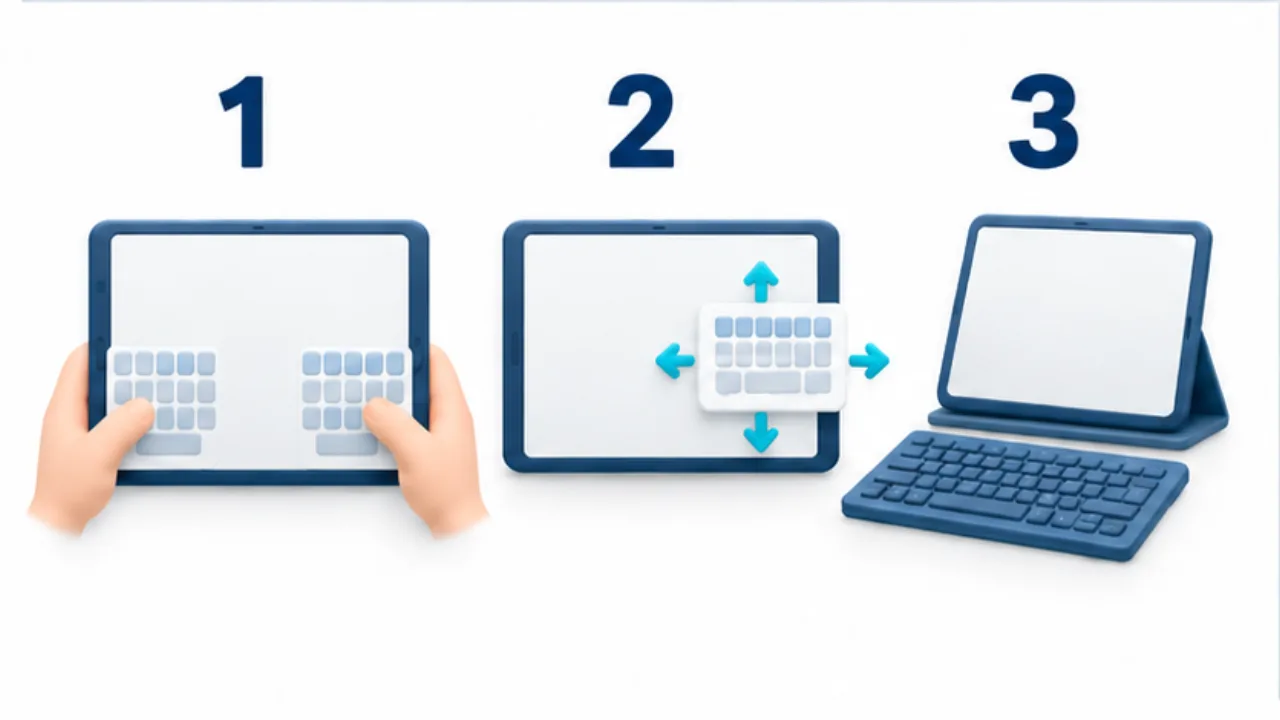
Select the image to enlarge.
- Try a split layout when holding the device with both hands.
- Compare a small movable layout for one-handed use.
- At a desk, evaluate full-width or external input options.
Observe the transition while text is unfinished
A foldable setup needs more than a comfortable unfolded keyboard. It should also support moving from the screen where you started to the screen where you want to continue. Try drafting a short reply on the outer screen, then opening the device to expand it.
Check whether the text remains, whether the cursor stays where expected, and whether the keyboard covers the input field. Compare folding or unfolding during Japanese composition with doing so after confirmation. The receiving app and input method both matter; the settings screen alone cannot establish the result.
| State before transition | What to inspect afterward |
|---|---|
| Confirmed text | Content and cursor position |
| Active Japanese composition | Unconfirmed text and candidates |
| Floating keyboard | Overlap with fields or buttons |
| Split-screen work | Focus in the pane being edited |
If one combination does not preserve the workflow well, consider confirming and saving before changing posture. Identify the troublesome transition rather than treating every use of the device as equally problematic.
Budget space for reading as well as typing
When writing alongside reference material, divide space between the keyboard, reference, and input field. Two apps can be visible yet still require repeated switching if the keyboard covers the numbers you need to read.
Imagine replying while consulting a schedule. Read a date, move to the draft, enter it, and compare it with the source. Try more than simply shrinking the keyboard: adjust pane sizes, change orientation, or transfer one short section at a time.
Also check the final review and send step. Material visible while typing may become obscured when you look for a confirmation button. A layout that permits entry is not necessarily a layout that permits careful review. Choose the arrangement that supports the entire sequence, including checking the finished text.