Keyboards and terminals
Use slash commands in a coding assistant
Distinguish an assistant's built-in commands from shell commands and ordinary prompts, and check the current tool's command list.
On this page
In an interactive coding assistant, an input beginning with a slash may invoke a built-in action. It is not automatically a shell command, and a command name supported by one assistant may mean something different in another.
Check which interface has focus
Determine whether you are typing into the assistant prompt, a terminal shell, or an editor. The same text can be interpreted differently in each location. If the interface shows command suggestions after a slash, read the description before selecting one.
Use the current command list
Available commands can change with the tool, version, account, or enabled features. Consult the assistant's own help and official documentation. Do not assume that an old screenshot describes your current installation.
Some commands affect the conversation or configuration rather than files. Others can start a workflow with side effects. Understand the scope before confirming an action.
Separate commands from instructions
A normal prompt describes the work you want done. A slash command selects a built-in operation or reusable capability. When asking the assistant to change code, include the target, expected behavior, and constraints rather than relying on a command name to communicate all of that.
Check mobile input
On a phone, make sure the first character is the intended slash and that composition has been confirmed. Autocorrection, a full-width character, or an accidental newline can change the input. Review the displayed command before sending it.
For the keys needed to control the surrounding terminal session, see modifier keys.
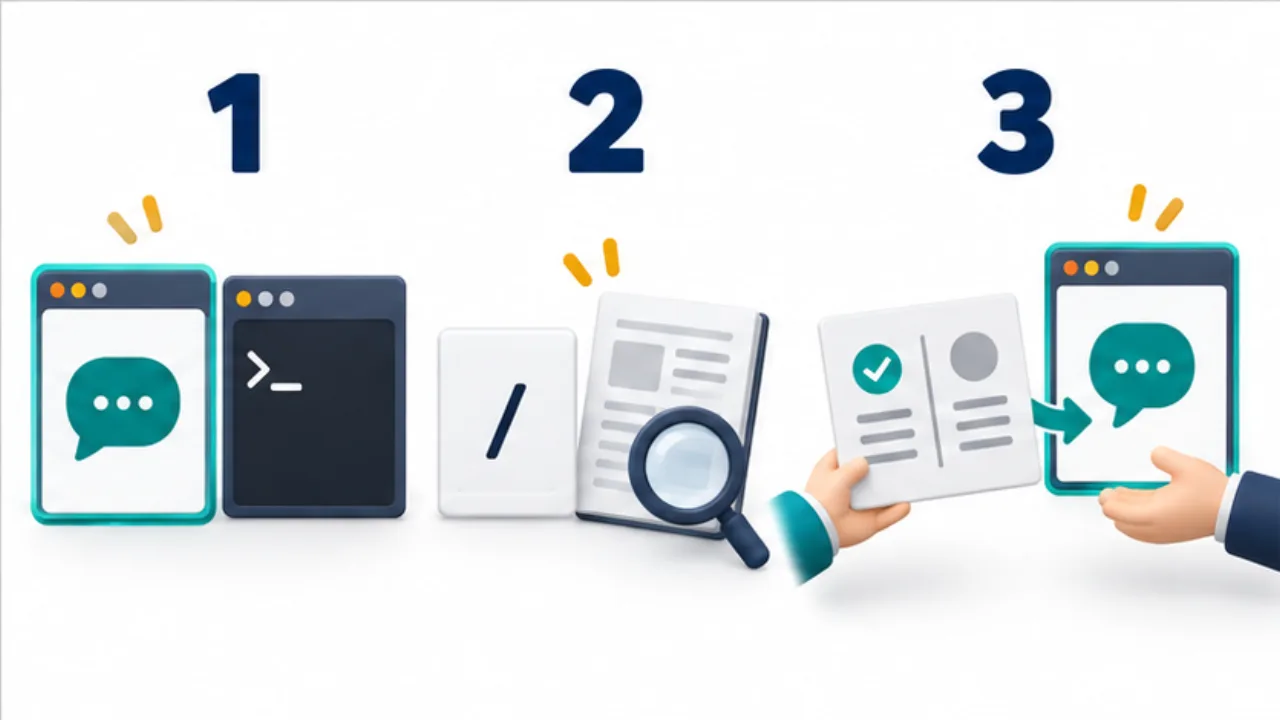
Select the image to enlarge.
- Distinguish the agent conversation from the ordinary shell.
- Check the current product’s help for the operation you need.
- Record completed work and unresolved checks before switching context.
Choose by the state you need to change
Before selecting a command, distinguish conversation history, working files, and running processes. “Continue yesterday's change” could mean reopening a conversation, inspecting saved edits, or checking the outcome of a process that was already started. Those are different first steps.
| State | What to establish before continuing |
|---|---|
| Conversation | This is the session about the intended task |
| Files | Earlier changes exist in the expected workspace |
| Process | It completed, failed, or is still waiting or running |
| Next instruction | It does not silently contradict the earlier request |
Resuming a conversation does not establish that current files match their earlier state. Another person or device may have changed them. Inspect the present workspace as well as the transcript. Conversely, a new conversation may be able to continue from saved files. Conversation length alone is not a reliable description of task state.
Give reusable instructions a target and an ending
When creating a reusable instruction, a short name is not enough to define its scope. “Check” could mean reviewing spelling, running tests, or verifying a published result. Each requires different actions.
For article review, an instruction might say: “Inspect the specified draft for repetition and missing explanations, then propose corrections. Support newly added factual claims with primary sources.” For code review, identify the relevant changes, expected behavior, and how findings should be reported. These are examples of instruction design, not claims that a product includes commands with those names.
Read the result after invoking the instruction. Selecting a menu item, starting a workflow, and receiving a result that meets the objective are separate events. If the target changes, explain the difference in ordinary language before repeating the workflow. A reusable instruction remains useful when its assumptions still match the task; its short name does not resolve changed requirements by itself.