Keyboards and terminals
Try remapping Caps Lock to Control

Evaluate a reversible key remap, understand where it applies, and check remote sessions and applications before making it your default.
On this page
If you use Control shortcuts frequently, moving Control closer to your home position may be worth trying. Whether it helps depends on your hands, keyboard, applications, and existing habits. There is no fixed adaptation period that works for everyone.
Decide whether to replace or swap
Replacing Caps Lock with Control leaves the original Control key available. Swapping the two preserves a Caps Lock location but changes both keys. Some advanced tools support a tap-and-hold arrangement; that adds timing behavior you should test carefully.
Record the original settings so you can restore them.
Use the operating system's supported method
macOS provides modifier-key settings. Windows users can use tools such as PowerToys Keyboard Manager, whose remaps depend on the tool running and have documented limitations. Linux configuration differs between desktop environments and display systems.
Follow instructions for your environment instead of copying a registry or configuration fragment from an unrelated setup.
Check the scope
Test ordinary applications, elevated windows, login screens if relevant, and remote sessions. A local remap and a remote remap can combine in unexpected ways. Determine which machine should perform the change.
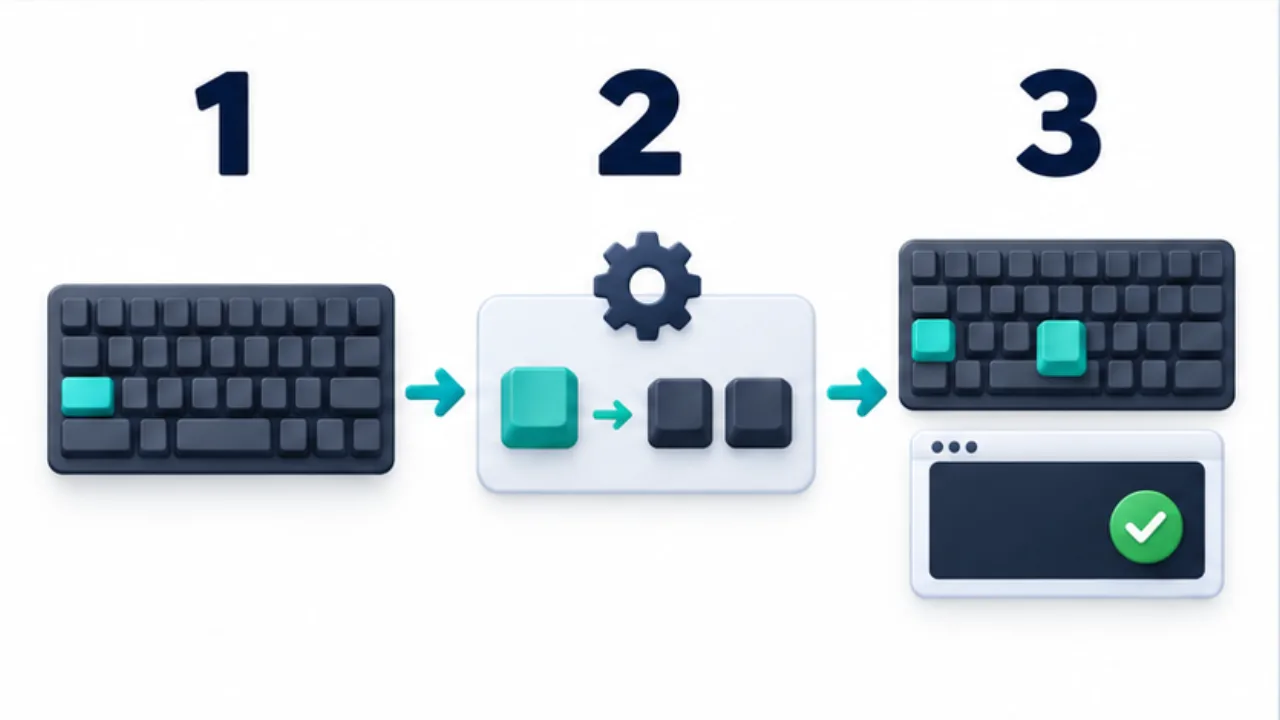
Select the image to enlarge.
- Identify the key to change and the operations you use.
- Assign the Control role through the supported system settings or remapping method.
- Test the necessary combinations in a practice window and check their behavior.
Evaluate actual comfort and errors
Use a harmless editing task with your normal shortcuts. Notice missed keys, discomfort, and conflicts with games or shared computers. Revert or adjust the setting if it causes problems; continuing for a prescribed number of days is not proof it will become useful.
For the meaning of Control and other modifiers, see modifier keys.
Identify what the original key already does
You may use the Caps Lock position for language switching or an application-specific action even if you rarely capitalize text with it. Before remapping, check the key by itself and in combinations. Other people's habits also matter on shared equipment.
Start with one keyboard and record the original configuration. Replacing and swapping produce different results, so describe both positions explicitly: “The Caps Lock position sends Control; the original Control remains Control,” for example.
| Key or context | What to compare |
|---|---|
| Caps Lock position | Standalone and combined behavior |
| Original Control position | Whether it remains unchanged |
| Japanese-input switching | Access to your usual input mode |
| Remapping tool stopped | Which behavior returns to its original state |
Once the mapping works, try a few combinations from your daily work. Familiar tasks provide a better comparison of comfort and errors than shortcuts you rarely use.
Test dual-role mappings at your normal pace
A tap-for-Escape and hold-for-Control arrangement adds decisions beyond a simple replacement. The tool may consider timing and the order of other key presses. A mapping that works during a slow demonstration can behave differently at your usual pace.
Test a standalone tap, a held combination, and a quick transition to the next character separately. Record the action that produces an unintended result, then adjust one relevant option at a time if the tool supports it. Changing a timing threshold may not solve every conflict, so retain a route back to a simple Control mapping.
The goal is not to master a complicated configuration for its own sake. Judge whether it reduces mistakes and supports the actions you need. Include the inconvenience of returning to computers without the mapping. Adopt it within the range where it improves your actual workflow.