Keyboards and terminals
Control a desktop pointer from a phone
Compare direct touch, trackpad-style controls, and a physical mouse, then test clicks, dragging, scrolling, and keyboard combinations.
On this page
A desktop interface often expects a pointer, hover, right-click, and keyboard combinations. A phone screen can represent these in several ways. The remote-desktop client's input mode determines which gestures you need.
Try direct touch
Direct-touch mode maps a touch to a location in the remote view. It can suit large controls, but small targets may be covered by your finger or difficult to select. Zoom and scaling can change the practical result.
Try a trackpad-style mode
In a pointer mode, moving your finger moves a cursor rather than necessarily clicking the point under it. The client may assign separate gestures for right-click, dragging, or scrolling. Read its gesture guide; the same gesture can mean something different in another client.
Test a physical mouse when supported
A mouse can provide familiar movement and buttons, but Android and the remote client must pass the relevant events through. Check right-click, wheel scrolling, dragging, and modifiers. Do not assume that a visible local pointer proves all remote operations are supported.
At the API level, pointer coordinates and relative-motion axes are distinct concepts. The practical question is whether the client correctly converts your device's input for the remote system.
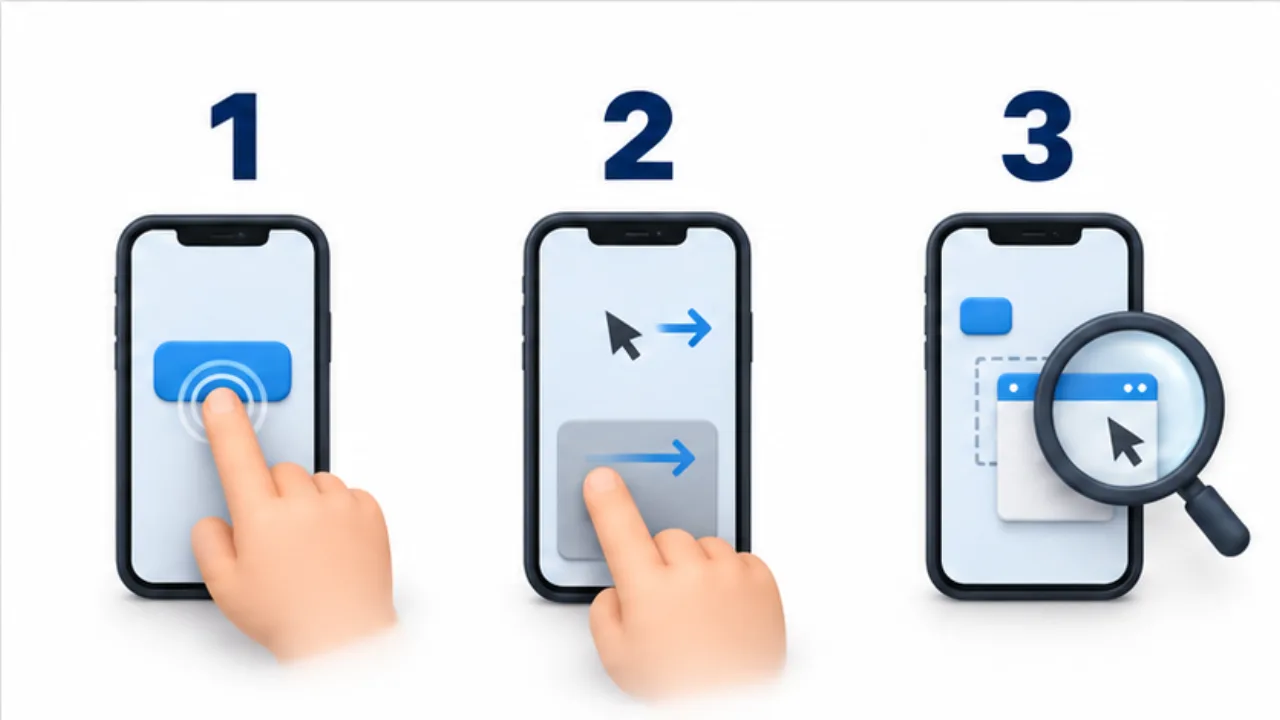
Select the image to enlarge.
- Direct touch acts on the location you touch.
- Trackpad mode uses finger movement to move the pointer.
- Compare them on real tasks such as small targets and dragging.
Evaluate a real task
Use a harmless window to select text, resize a panel, open a context menu, and scroll. If the interface remains too small to inspect reliably, a different mode cannot solve the display limitation. Reserve work requiring detailed visual review for a suitable screen.
Separate pointer movement from successful actions
A visible cursor does not prove that every operation reaches the remote computer. Test movement, left-click, right-click, dragging, and scrolling separately. A local and remote pointer can appear close together, so observe which one actually moved.
Use a harmless screen for the trial. Select part of a paragraph, open and close a context menu, and scroll a short list. These actions make interpretation easier to observe without changing an important setting. If you must press a button, make its resulting state readable too.
| Action | What to establish |
|---|---|
| Movement | The remote target can be reached |
| Click | One intended action arrives once |
| Drag | Pressed and released states are both handled |
| Scroll | The intended window moves in the intended direction |
A failed drag does not necessarily mean the entire mouse is unsupported. Check the client's gesture or button handling and the remote application's behavior separately.
Wait for feedback when the connection is slow
Delayed feedback can make it tempting to click repeatedly. Input may already have arrived while the updated display is still in transit, causing several actions to appear afterward. For confirmation controls in particular, inspect the result before acting again.
Keep the same host, screen, and operation when comparing connection conditions. Change the network or image-quality setting one at a time. Reducing quality too far may improve responsiveness while making labels difficult to read. Evaluate responsiveness and legibility together.
For work requiring repeated precision, enlarge the remote window, focus on one target, or continue on another screen. A pointer-mode change is only one part of the solution. Choose a setup in which you can reliably inspect the result of the action, rather than merely move a cursor quickly.